A chat window that renders math, code and diagrams like they’re meant to be read
The Chat Interface is what every user actually sits in front of: streamed replies with live LaTeX and syntax-highlighted code, stop-and-resume generation that never repeats itself, per-conversation model overrides, and a full history of every conversation, searchable and organized by tag.
It’s the same interface for every agent on the instance — no separate chat product to integrate.
Start by picking an agent
Every conversation starts on the same picker: agents grouped by category, each a click away from a live chat. There’s no separate “start a chat” flow to configure — landing here and opening an agent is the whole workflow.

Built for real conversations, not demos
1. Ask anything
Type, paste, drag in a file, or talk — the same box handles all four.
2. It streams a real answer
Math typesets, code highlights, diagrams render — while the tokens are still arriving.
3. Stop, edit, or rewind
Interrupt generation, edit a past turn, or branch a regenerate — nothing is ever locked in.
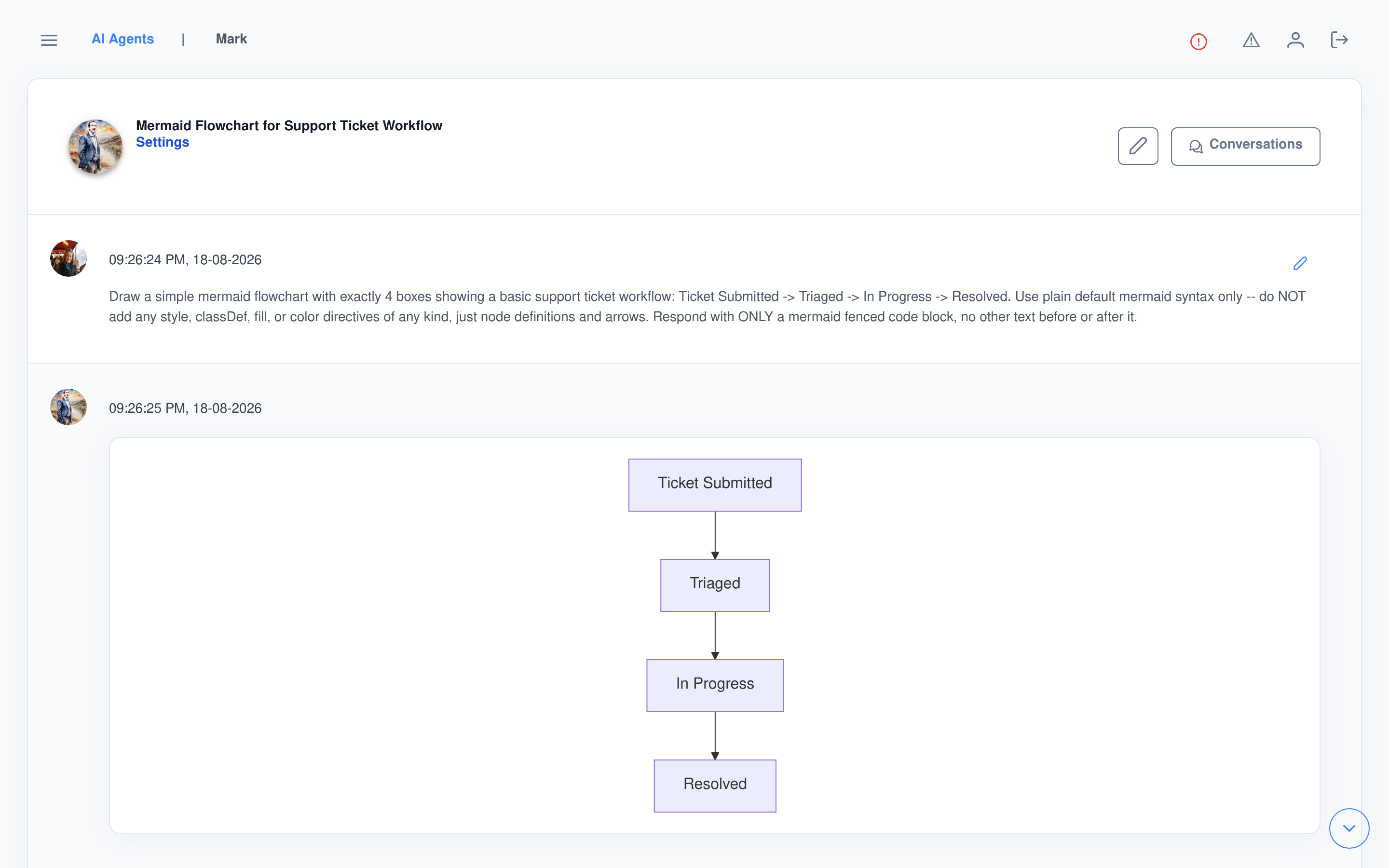
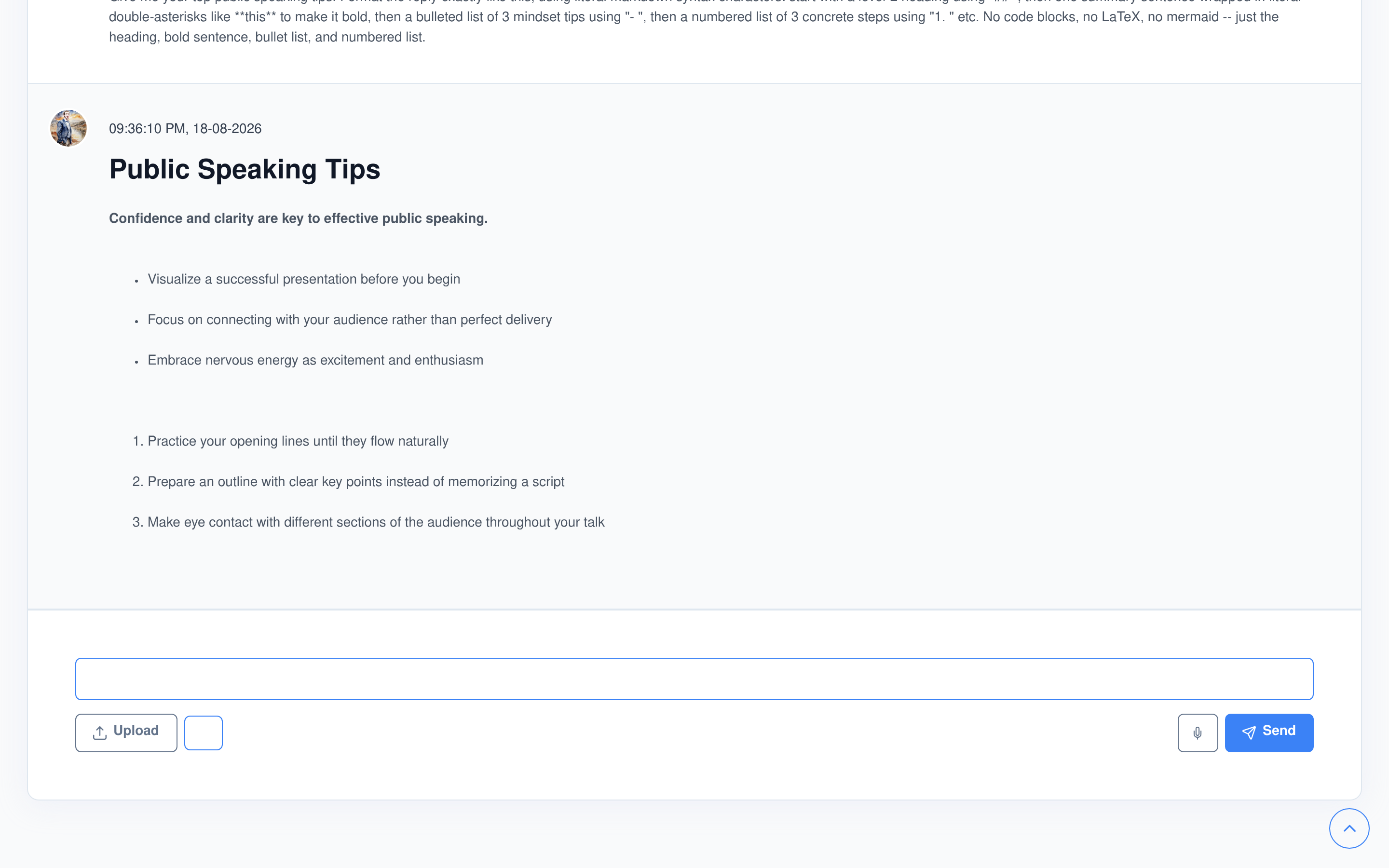
Every reply renders like it was written for a document, not a text box
Most chat widgets show you the model’s raw markdown. This one parses it as the response streams in.
Math and diagrams
- LaTeX is detected automatically and typeset live with MathJax — no toggle to find.
- A fenced
mermaidblock renders as an actual diagram in place of raw code.
Code
- Syntax-highlighted per block, with its language labeled and a one-click copy button.
- Generated and uploaded files — images, audio, video, even 3D models — render inline, not as a bare link.
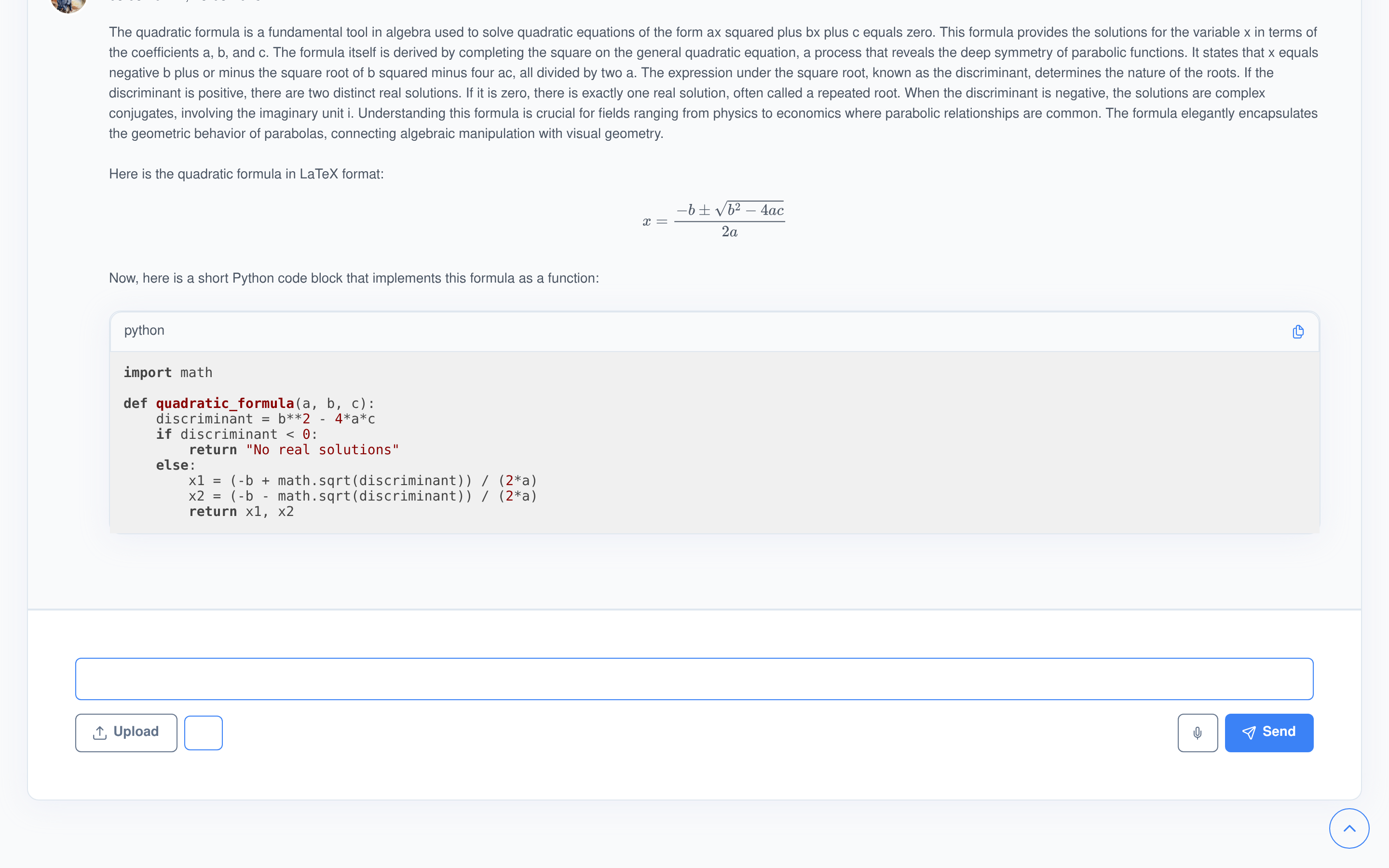
Not a screenshot of markdown — an actual typeset equation
Asked live: write the quadratic formula in LaTeX, then implement it as a short Python function. The reply below is unedited — a real equation rendered by MathJax, sitting next to a real syntax-highlighted code block with its own copy button.
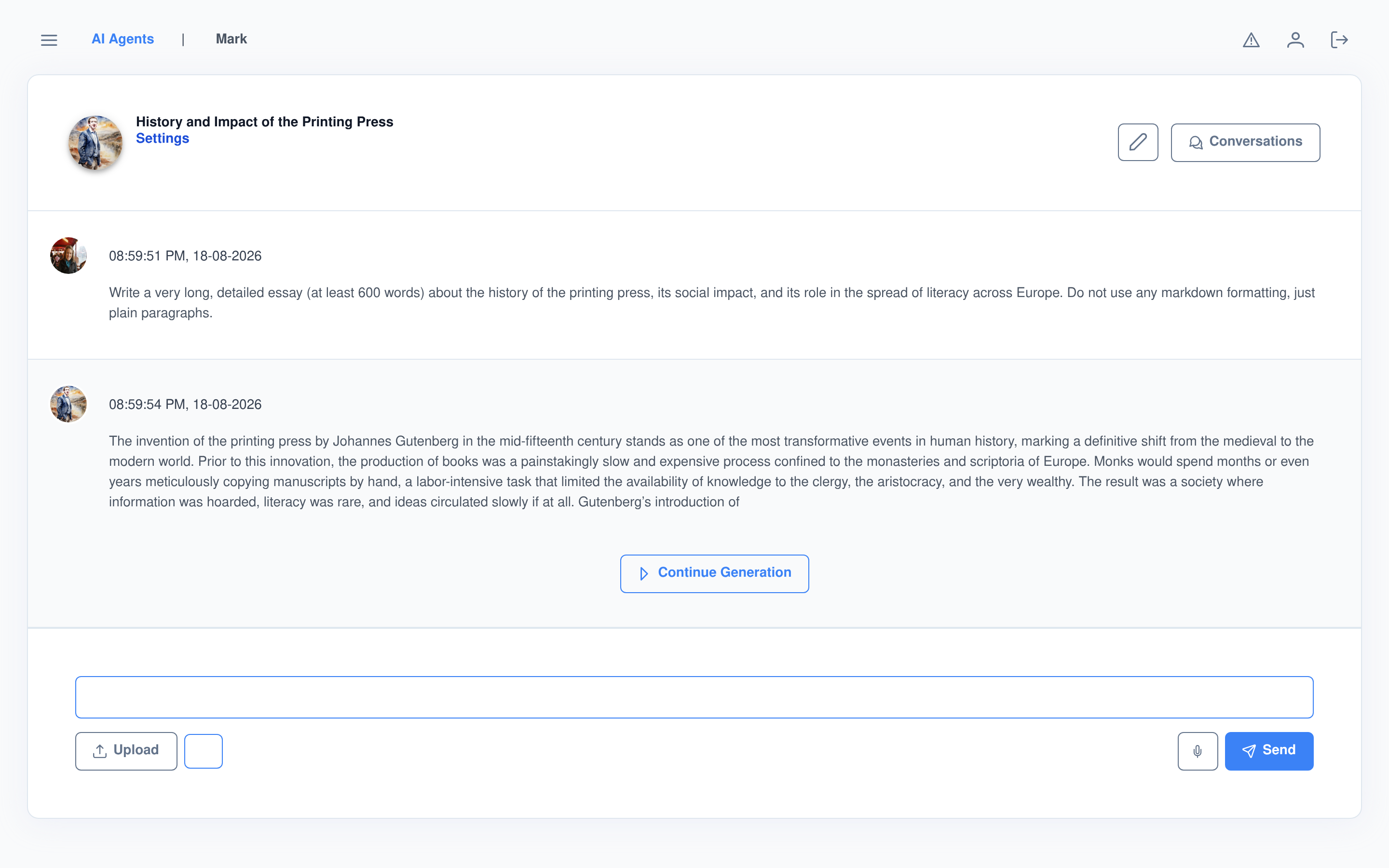
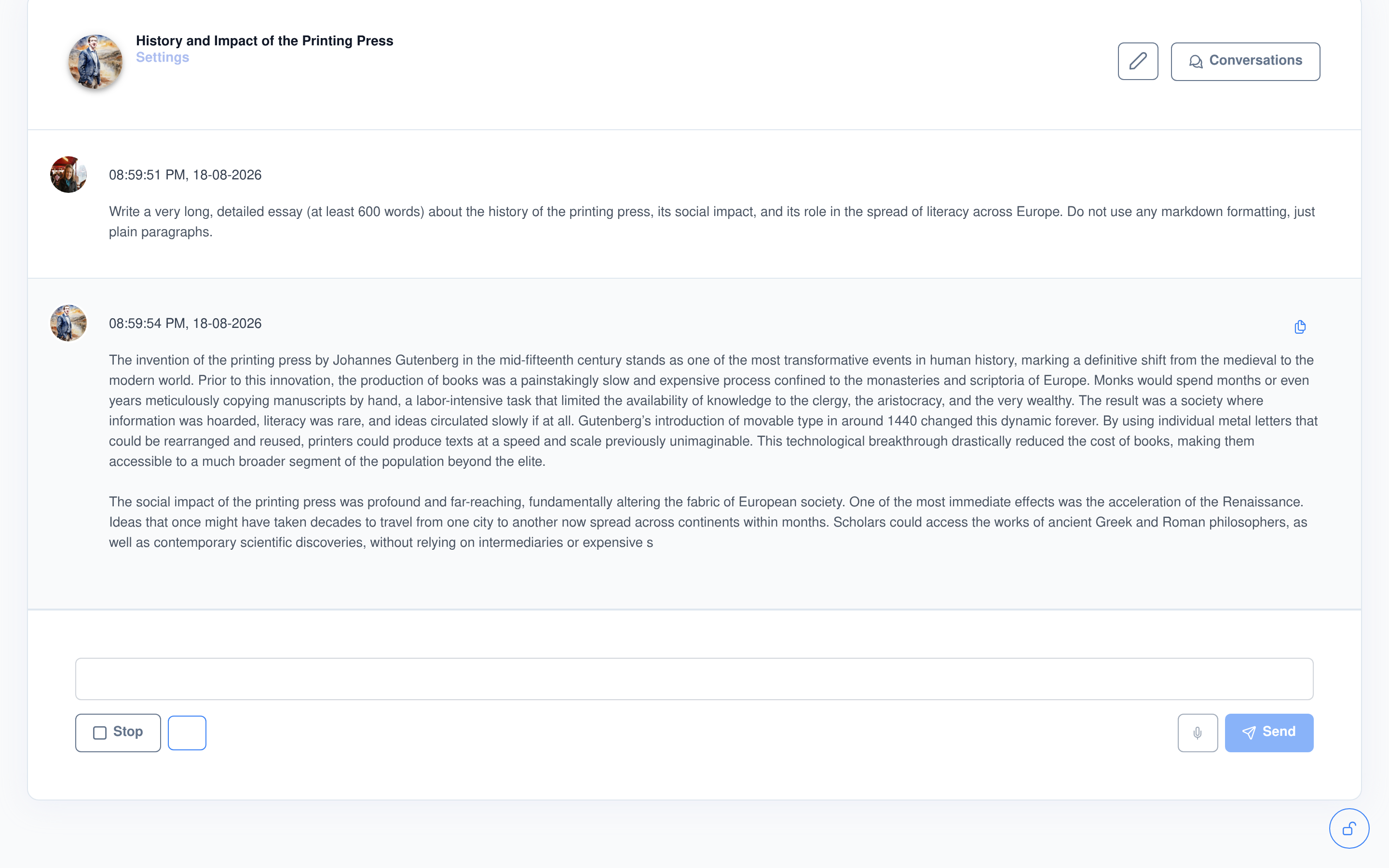
Stop it mid-sentence. Pick it back up mid-sentence.
Asked live for a 600-word essay, then interrupted it partway through with Stop. What came back wasn’t a restart — Continue Generation picked up from the exact word it left off on and finished the thought naturally, with nothing repeated or dropped.
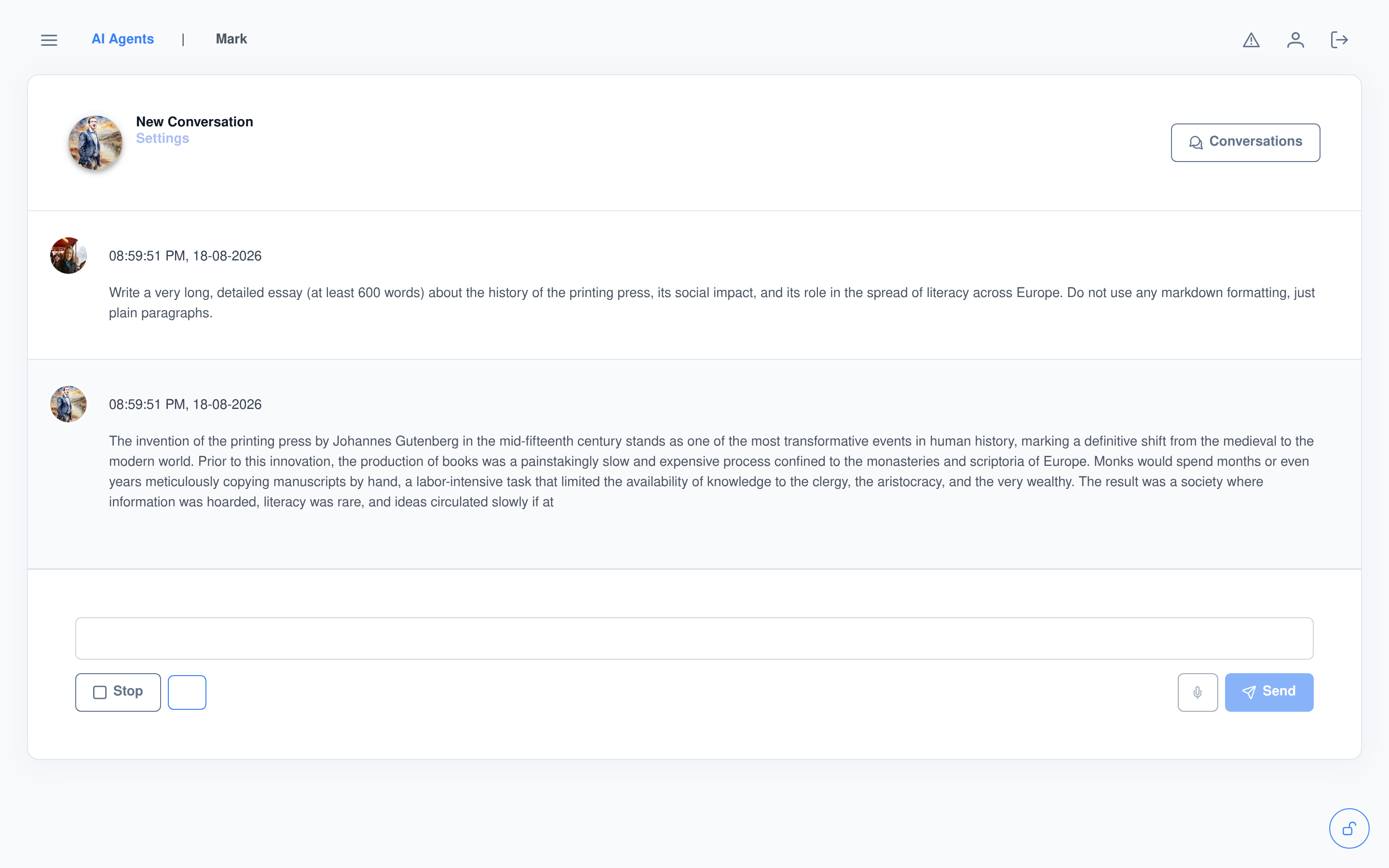
One click later: finished, not restarted
See exactly what it did, and what it was thinking
Executed AI Abilities
- Every tool call the agent makes appears in a collapsible panel on that message — the tool’s icon, its parameters, and its response, which streams in live with a progress indicator while it’s still running.
- Certain calls stop first and ask: an inline “Execute AI Ability” prompt lets you run it or have the model answer without it, before anything executes.
Thought, and citations
- With a thinking model, its reasoning renders in its own collapsible “Thought” panel — separate from the final answer, not mixed into it.
- A grounded answer carries a toggleable Citations section naming the source document and the exact excerpt it drew from.
Every conversation, kept and searchable
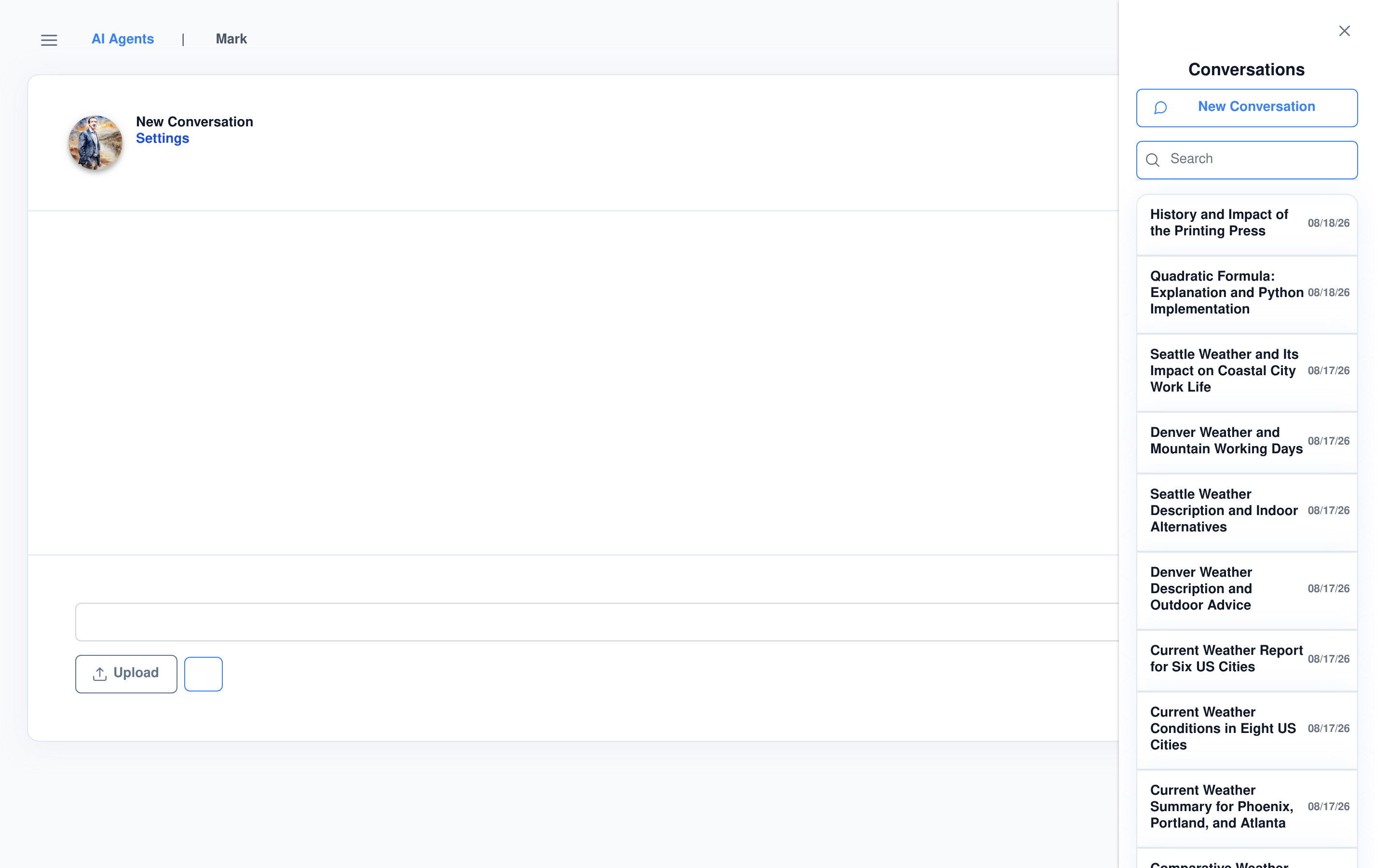
The sidebar lists every conversation with a live search, grouped by tag with a collapsible header for each group, plus an untagged bucket for everything else. Favorites are marked with a star and float to the top of what you’re scanning.
- What’s pictured is a real account’s history — weather lookups, code questions, and the demo conversations from this page — nothing staged.
Archive, tag, star, or export — one dial, five actions
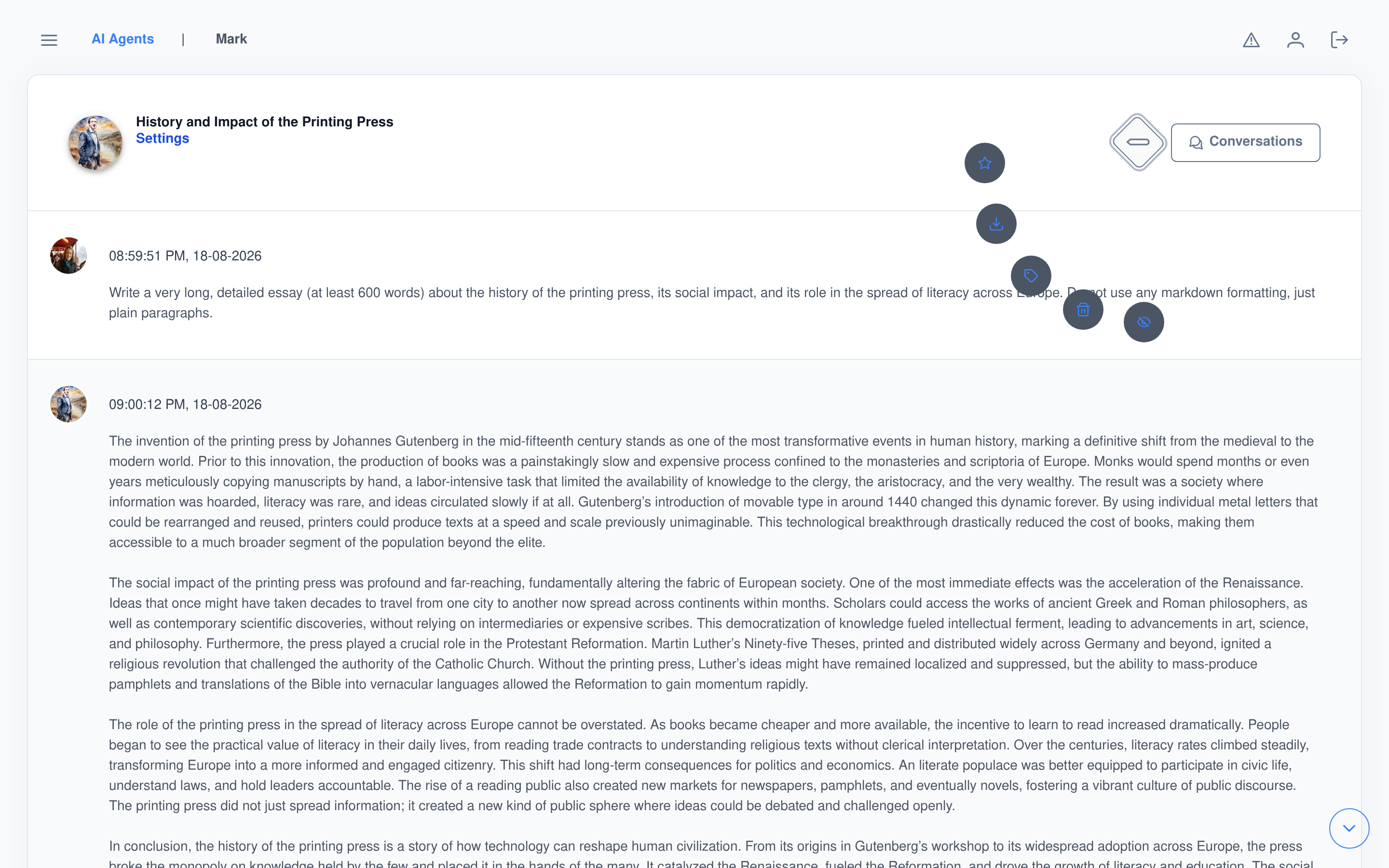
A radial menu off the conversation header covers the actions that don’t belong in the main flow: archive or unarchive, delete, tag with free-form chips, favorite, and download.
- Download exports the full conversation as JSON — system message included — role/content pairs, ready to feed anywhere else.
- Archive and delete both confirm first, so a stray click doesn’t cost you a conversation.
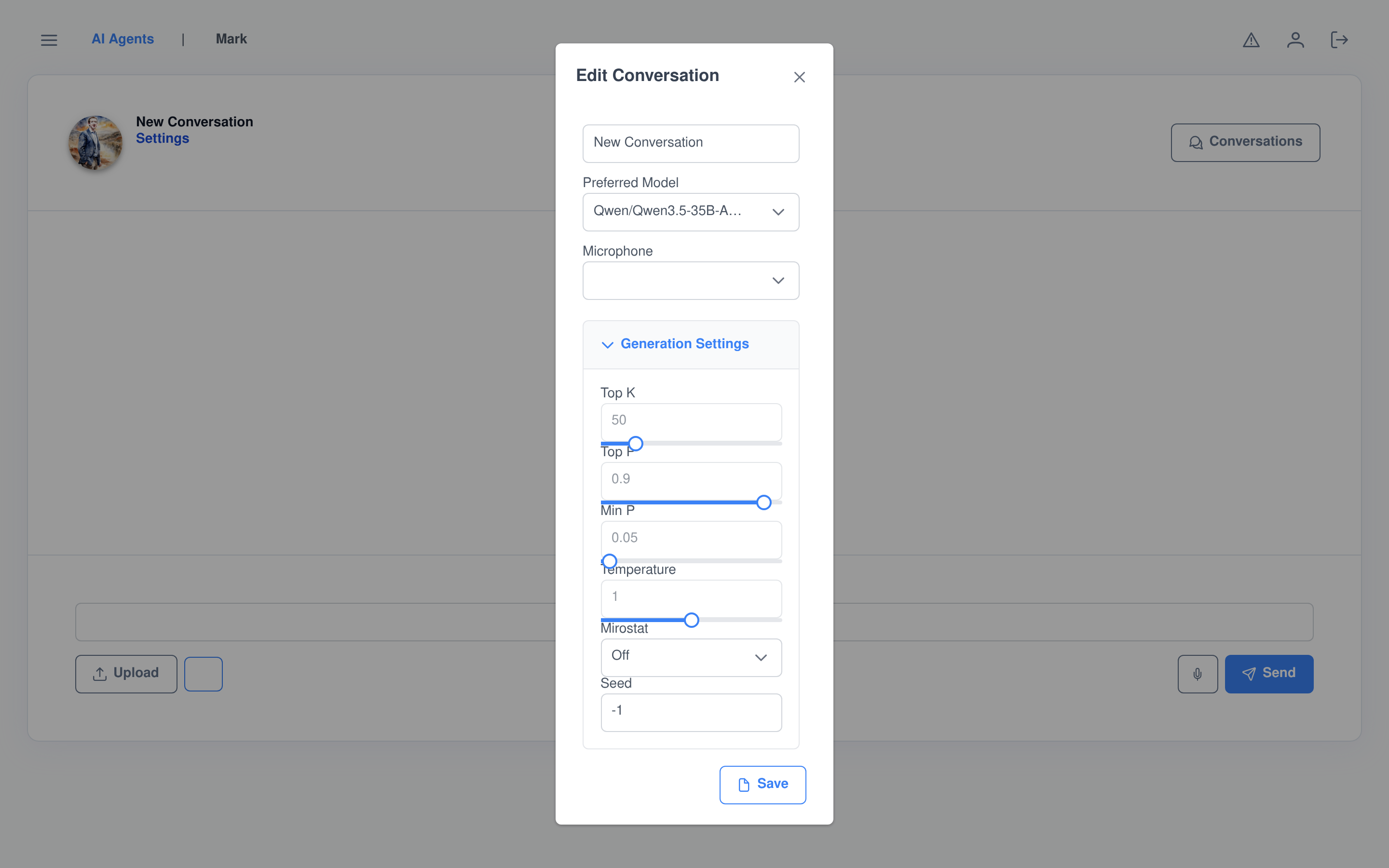
Override the model per conversation, not just per agent
The Settings link on any conversation opens a dialog that overrides the agent’s own defaults for that conversation only: topic, preferred model, microphone, a full sampling accordion (Top K, Top P, Min P, Temperature, Mirostat with its own Tau/Eta, Seed), and the system message.
- Nothing here touches the agent’s actual configuration — it’s a per-conversation layer on top of it.
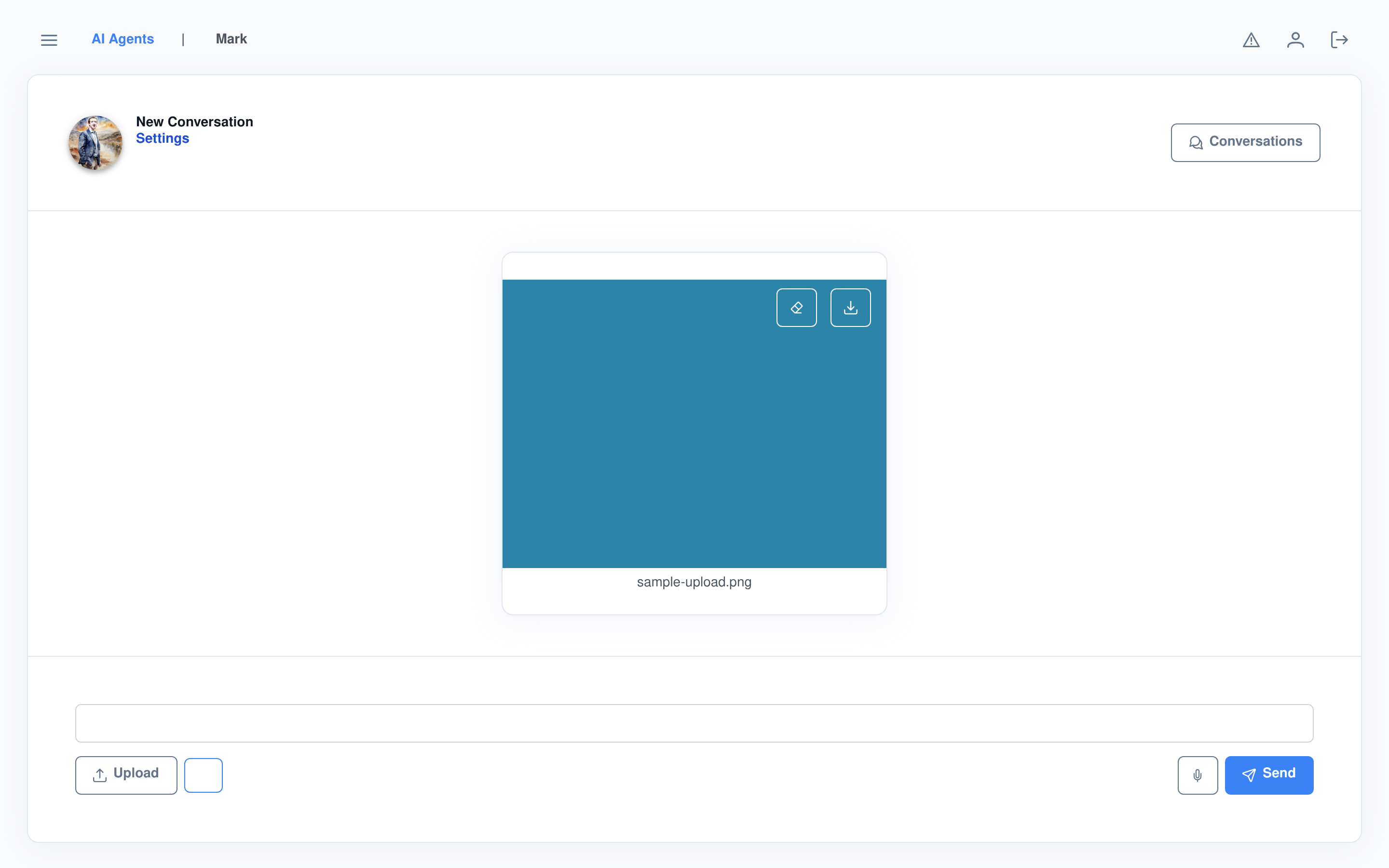
Images, audio, video, even 3D models — dropped in and rendered
Drag a file onto the input, or click Upload. Each file type gets a purpose-built preview, not a generic attachment chip:
- Images preview full-size with remove and download controls.
- Video gets a native player; audio a custom play/stop card.
- 3D models load into an AR-capable viewer you can rotate and inspect right in the conversation.
Voice in, voice out
Recording
- A live waveform while you talk, sent to the agent’s speech-recognition model on release.
- Thinking Mode has its own 🧠 / 🐇 toggle, shown only when the active model actually supports switching it.
Playback
- Streamed text-to-speech audio is scheduled chunk-to-chunk on the raw audio clock, so consecutive pieces play with no audible gap between them.
- Stopping playback also cancels the rest of the generation server-side, not just the local audio.
Edit and branch, without losing what you had
Your messages
- Edit a past message and regenerate from it — the previous answer isn’t discarded, it becomes a sibling you can flip back to with a
< 2 of 3 >counter. - Delete is offered only on your most recent turn, so you can’t accidentally erase deeper history.
Its replies
- When an agent allows it, you can open an AI reply in a raw text editor and overwrite it directly — useful for correcting a fact without re-running the whole exchange.
- Rate a reply with a star rating when the agent has response rating turned on, or copy any reply to the clipboard in one click.
A pause before an ability actually runs
Some ability calls don’t just fire — they stop and ask first, right in the conversation: “Execute AI Ability: <name>”, with a choice to run it or let the model answer without it. A human-in-the-loop check before something happens, not a log of what already did.
Who this runs for
Anyone talking to an agent
- Get answers with math and code rendered correctly the first time, no copy-pasting into a separate renderer.
- Interrupt a long generation without losing it, or come back and finish it later.
- Keep every conversation organized by tag, and export any of them as JSON.
Teams standardizing on one interface
- Every agent on the instance — coding assistant, support bot, research agent — shares this same chat surface.
- Per-conversation model and sampling overrides mean one difficult conversation doesn’t require reconfiguring the whole agent.
Frequently asked questions
Does it actually render LaTeX, or just display the raw text?
It renders it. LaTeX is detected automatically in a reply and typeset live with MathJax — equations show up as equations, not as escaped backslash commands.
If I stop a response, do I lose it?
No. Whatever generated before you clicked Stop stays on screen, and Continue Generation resumes from exactly that point — it doesn’t restart or repeat what’s already there.
Can I change the model without editing the agent?
Yes. A conversation’s Settings dialog can override the preferred model and every sampling parameter just for that conversation, leaving the agent’s own configuration untouched.
What happens if I edit an earlier message?
Editing and regenerating from a past message creates a new branch rather than overwriting the old one — a sibling counter lets you switch back and forth between every version of that turn.
Can I get my conversation data out?
Yes. The conversation’s Download action exports it as JSON, including the system message, as role/content pairs — no scraping the page required.
Start a conversation
The Chat Interface ships with every Assistant Cortex instance — no separate chat widget to integrate.