Build the agent, give it a skill, put it on a schedule
Agent Features is the built-in admin surface for everything an AI agent needs beyond a chat window: a full editor for personality, model and generation settings; a library of model-invoked skills any agent can call on; and cron-scheduled tasks that run an agent unattended.
All three ship with the platform, and all three share the same revision history and diff view.
Three ways to extend what an agent can do
Build the agent
Name it, give it a voice, a model, a system prompt and a personality — the Agent Editor covers every setting an agent has.
Attach skills
Write a Skill once as a Markdown instructions document and any agent can call on it — the model decides when it’s relevant.
Put it on a schedule
A Scheduled Task runs a chosen agent on a cron expression, unattended, with its own ability and concurrency limits.
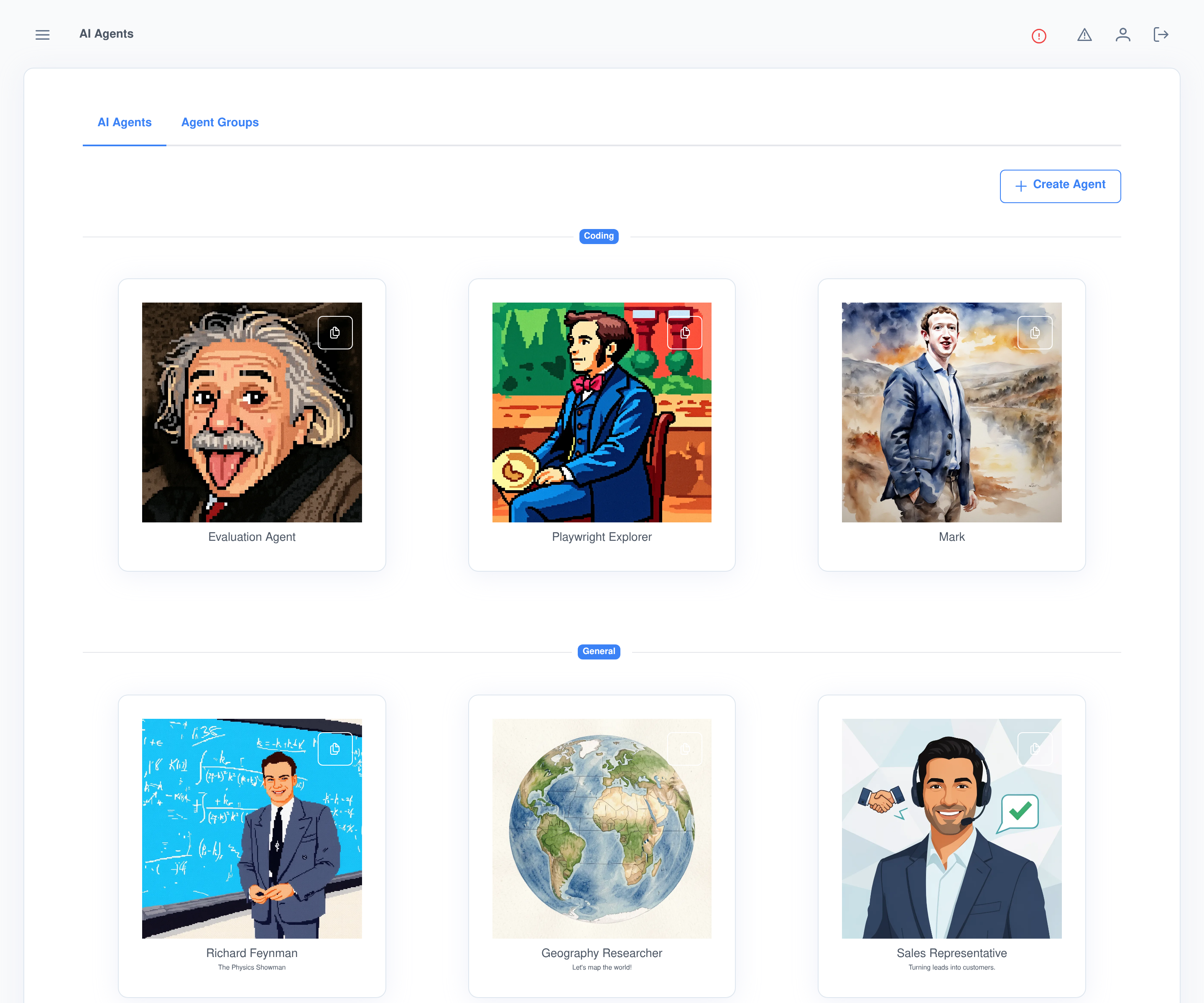
Every agent, organized by group
The agent list shows every agent as a card, grouped into display categories, with a synthetic “Personal Agents” bucket for anything ungrouped. Click a card to chat with it, or — for an agent you own — open its full editor.
Copy, don’t rebuild
- Any agent — including one shipped by an installed module — can be duplicated into a fully-editable personal copy with one click.
- Every save is snapshotted, browsable as a diff, and restorable, so experimenting on a copy is never a one-way trip.
Imported agents stay locked
- An agent a module ships (via its own import file) is read-only in the editor — a scheduled task may depend on its exact configuration.
- Only its display group, user-group visibility and sort order can be changed, from the list itself, so it can still be organized without risking what makes it work.
One card, every existing agent, grouped
Historical figures, coding assistants, phone agents, translators — an instance can run dozens of agents side by side, each with its own model, voice and personality, organized into whatever display groups make sense for the team using them.
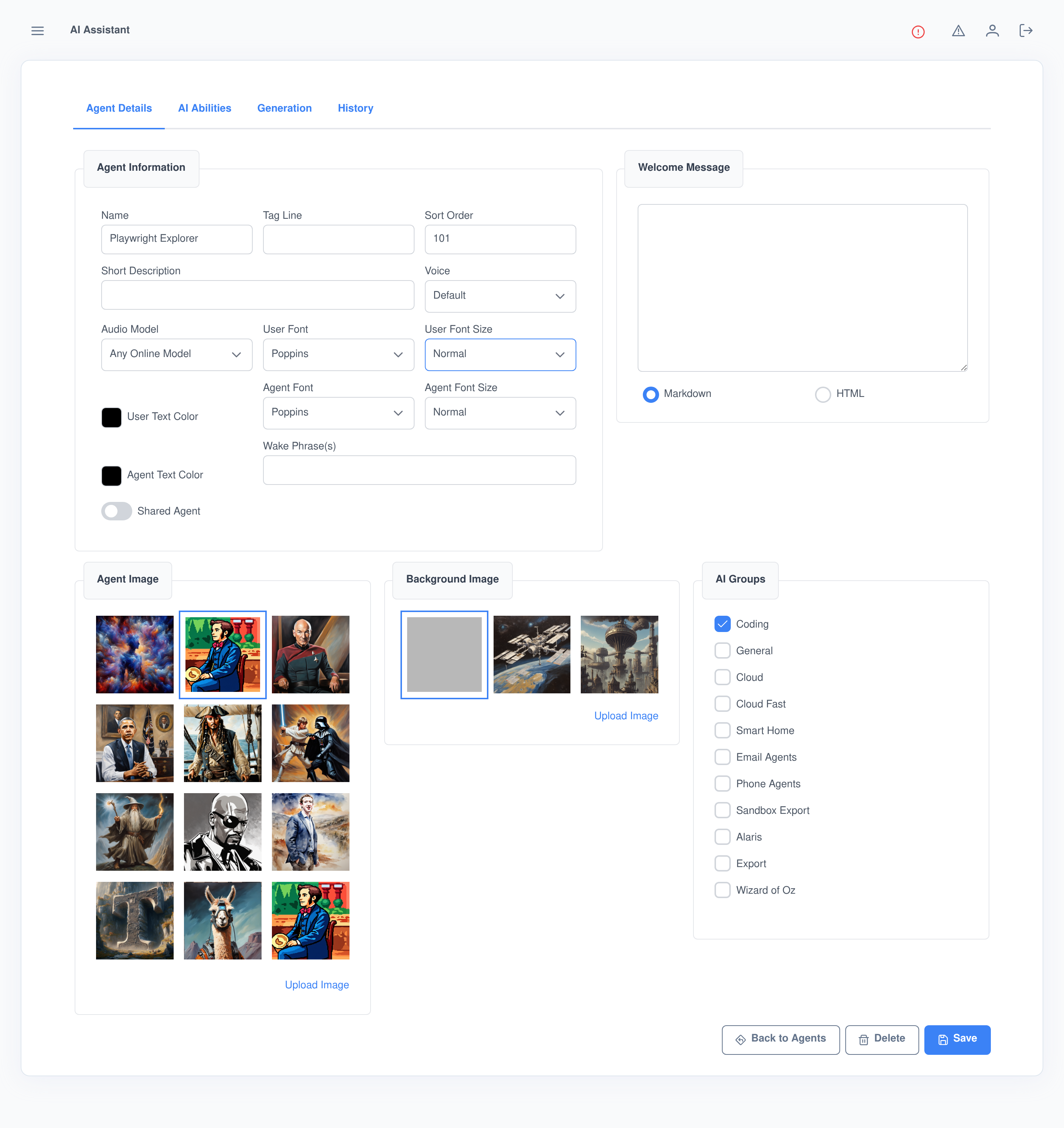
Details: identity, voice and presentation
Name, tag line, sort order and wake phrases; a Voice and Audio Model for spoken replies; a Markdown or HTML welcome message; independent font family, size and color for the user’s messages versus the agent’s; and separate Agent Image and Background Image galleries with direct upload.
- A Shared Agent toggle opens up a per-user-group visibility checklist, so an agent can be scoped to exactly the teams that should see it.
- AI Groups is a separate checklist from user-group visibility — it controls which display category the agent’s card appears under on the agent list.
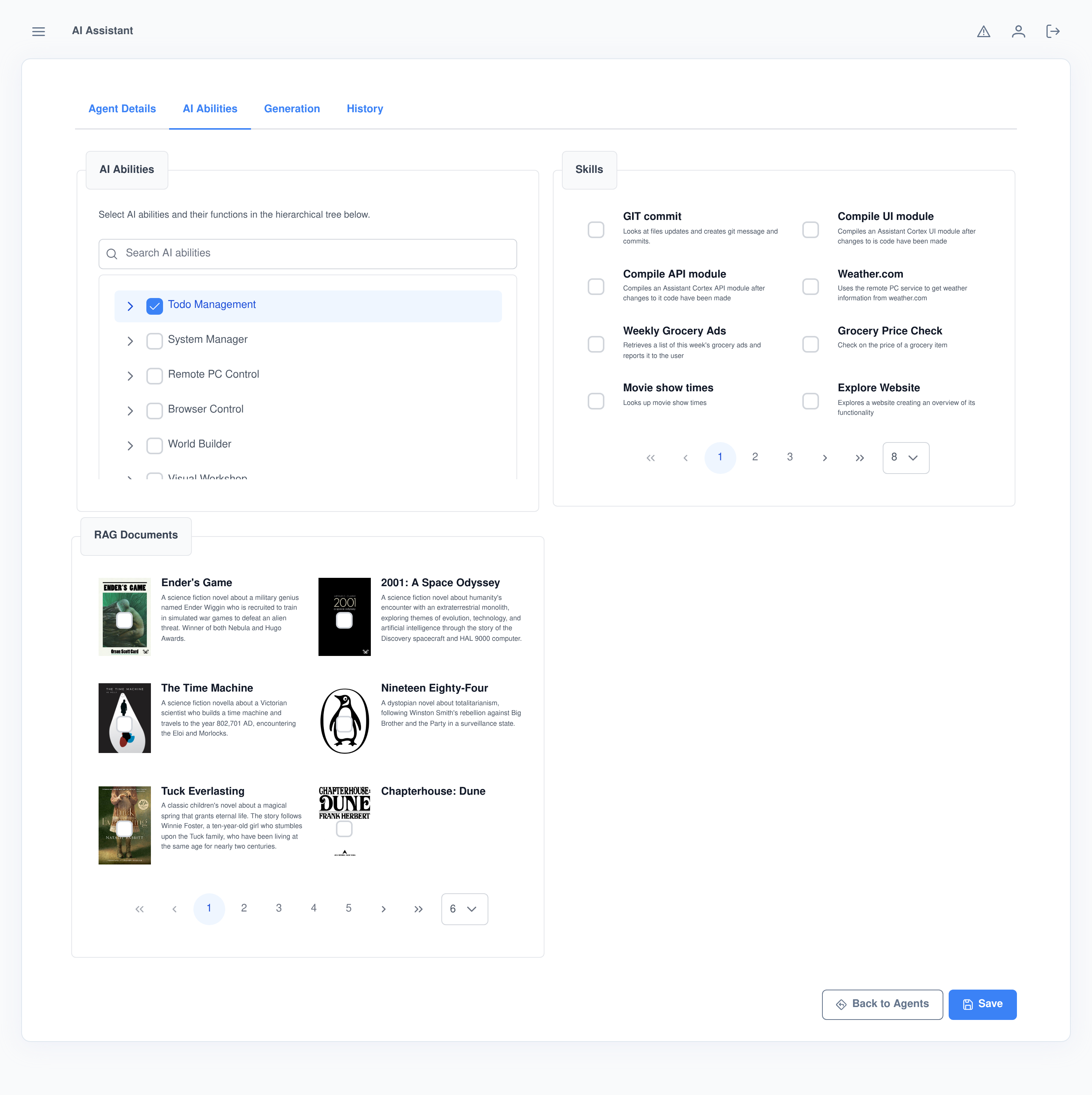
AI Abilities: what it’s allowed to call, and what it already knows
A searchable checkbox tree scopes exactly which installed AI abilities and functions this agent can call — Todo Management, System Manager, Remote PC Control, Browser Control and the rest, down to individual functions. A separate paginated grid lists every Agent Skill on the instance, so any of them can be attached to this specific agent.
- Because the editor exposes injection points, an installed application can add its own panel here directly — with Knowledge Base installed, for example, a RAG Documents grid appears letting you pick exactly which documents this one agent can search.
- Abilities, skills and knowledge-base documents are all scoped per agent, so two agents on the same instance can have entirely different capabilities.
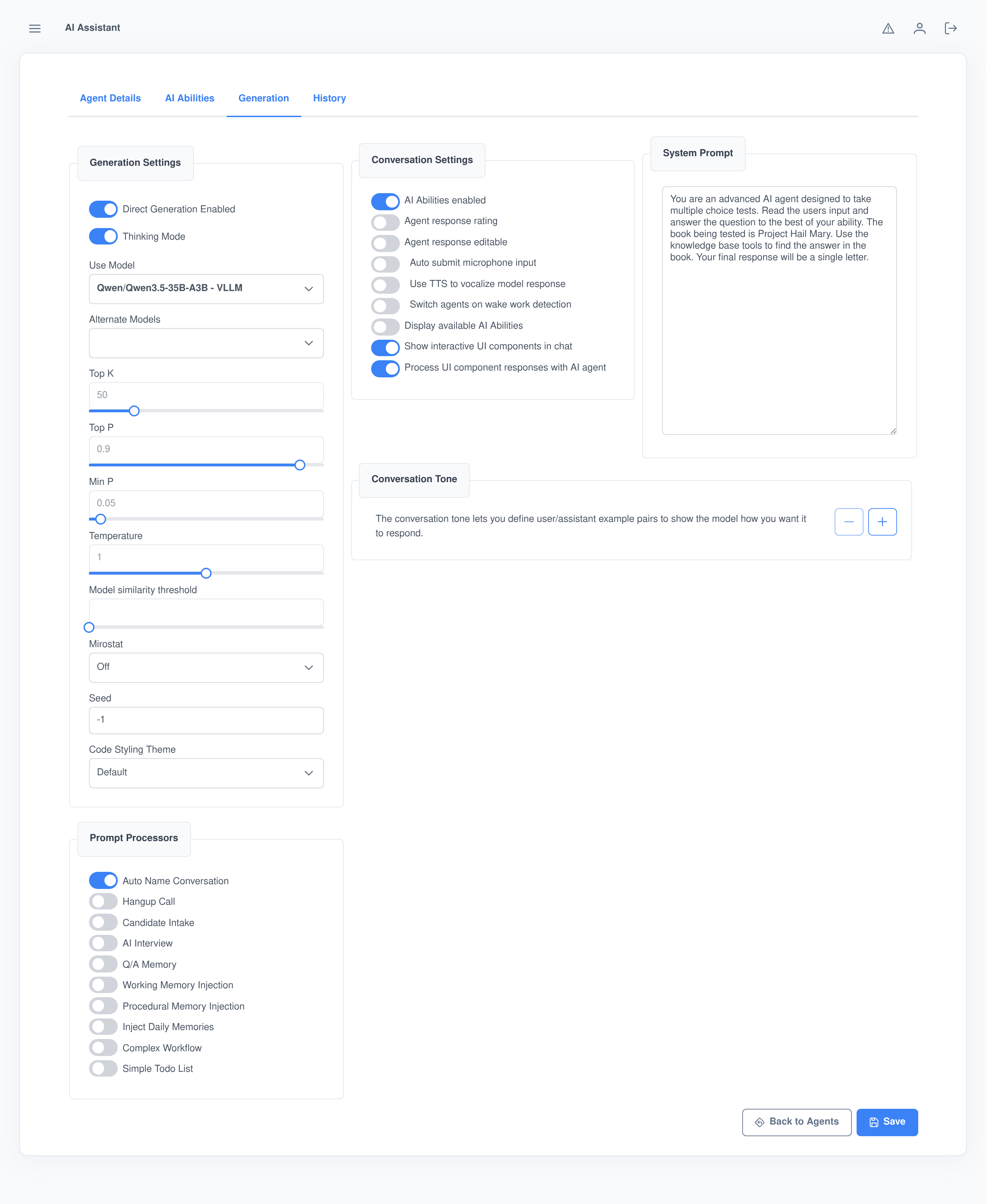
Generation: the model, its sampling, and how it behaves in chat
Pick the model and a list of alternates to fall back to, toggle Thinking Mode, and set full sampling control — Top K, Top P, Min P, Temperature, Mirostat with its own Tau/Eta, a knowledge-domain similarity threshold, and a Seed — alongside the System Prompt and up to four Conversation Tone example pairs.
Two banks of toggles sit next to it. Prompt Processors are pre/post-processing hooks — conversation auto-naming, call hangup handling, candidate intake, AI interview flow, working/procedural memory injection — each one contributed by whatever modules happen to be installed. Conversation Settings control the chat experience itself: whether this agent’s abilities are enabled at all, whether replies can be rated or edited, microphone auto-submit, text-to-speech playback, wake-word agent switching, and whether interactive UI components render in chat and get their responses processed back through the agent.
Every save gets a diff, and a way back
Agents, scheduled tasks and agent skills all share the same revision history: a unified diff between the current and previous saved version, step-back / step-forward through the full history, and a one-click restore that replays an old revision through the normal save path — restoring never creates a duplicate entry.
Cron jobs that run a real agent, not a bare script
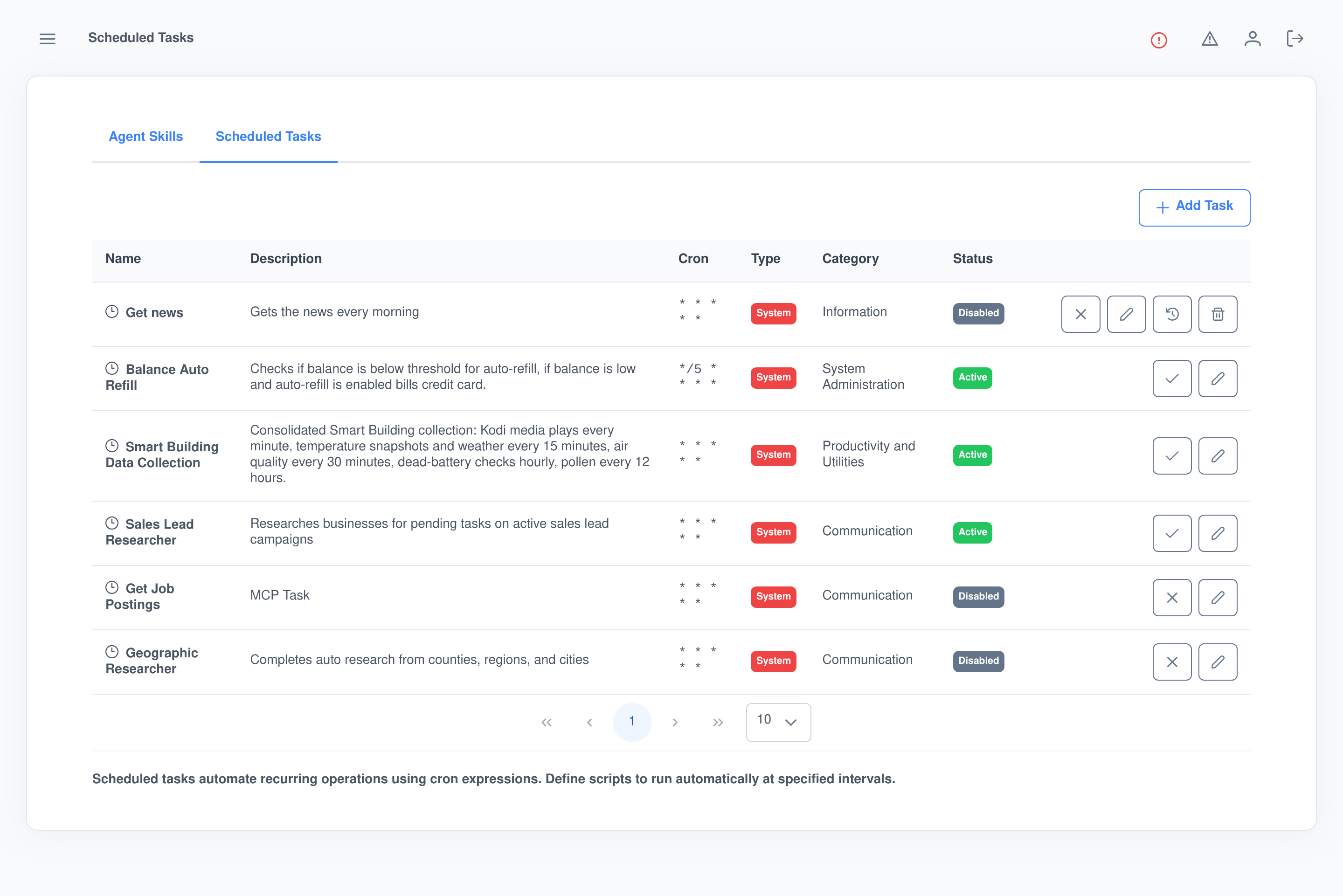
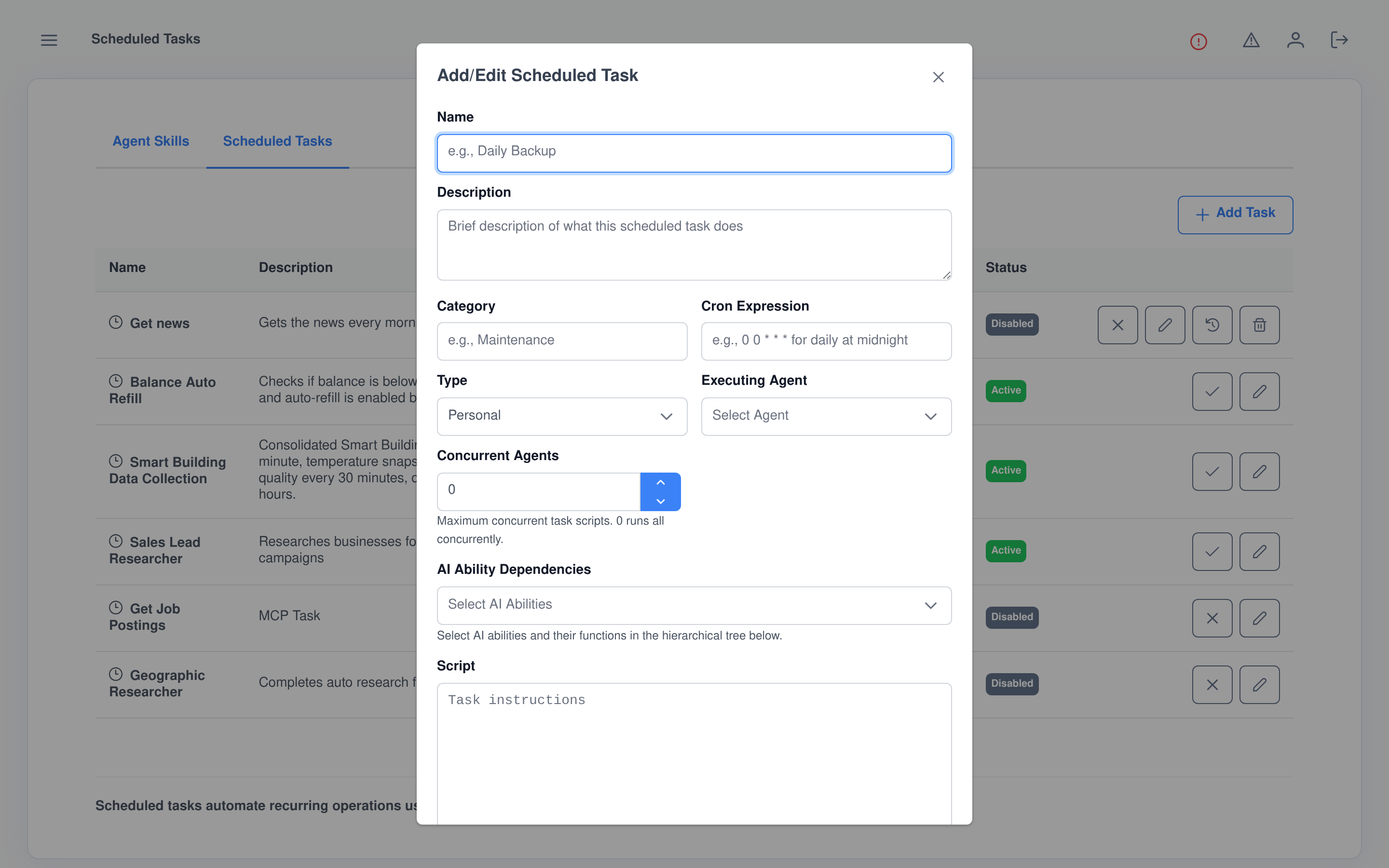
A Scheduled Task pairs a cron expression with an Executing Agent — the task runs under that agent’s model and settings, instructed by a plain-language script rather than code. A Concurrent Agents cap controls how many copies of the script can run at once, and an AI Ability Dependencies tree scopes exactly what the task can call while it runs.
- Personal tasks are created and owned by one user; System tasks ship code-defined from a module and can only be tuned (cron, agent, concurrency, enabled, visibility) through a separate Customize dialog, never edited outright.
- System tasks can be scoped to specific user groups, or left open to everyone.
Set the cron expression, pick the agent, write the script
The Add/Edit dialog is the same form for a one-off personal automation or a full system task: name, description, category, cron expression, which agent executes it, a concurrency cap, the abilities it’s allowed to call, and the script itself as plain instructions rather than code.
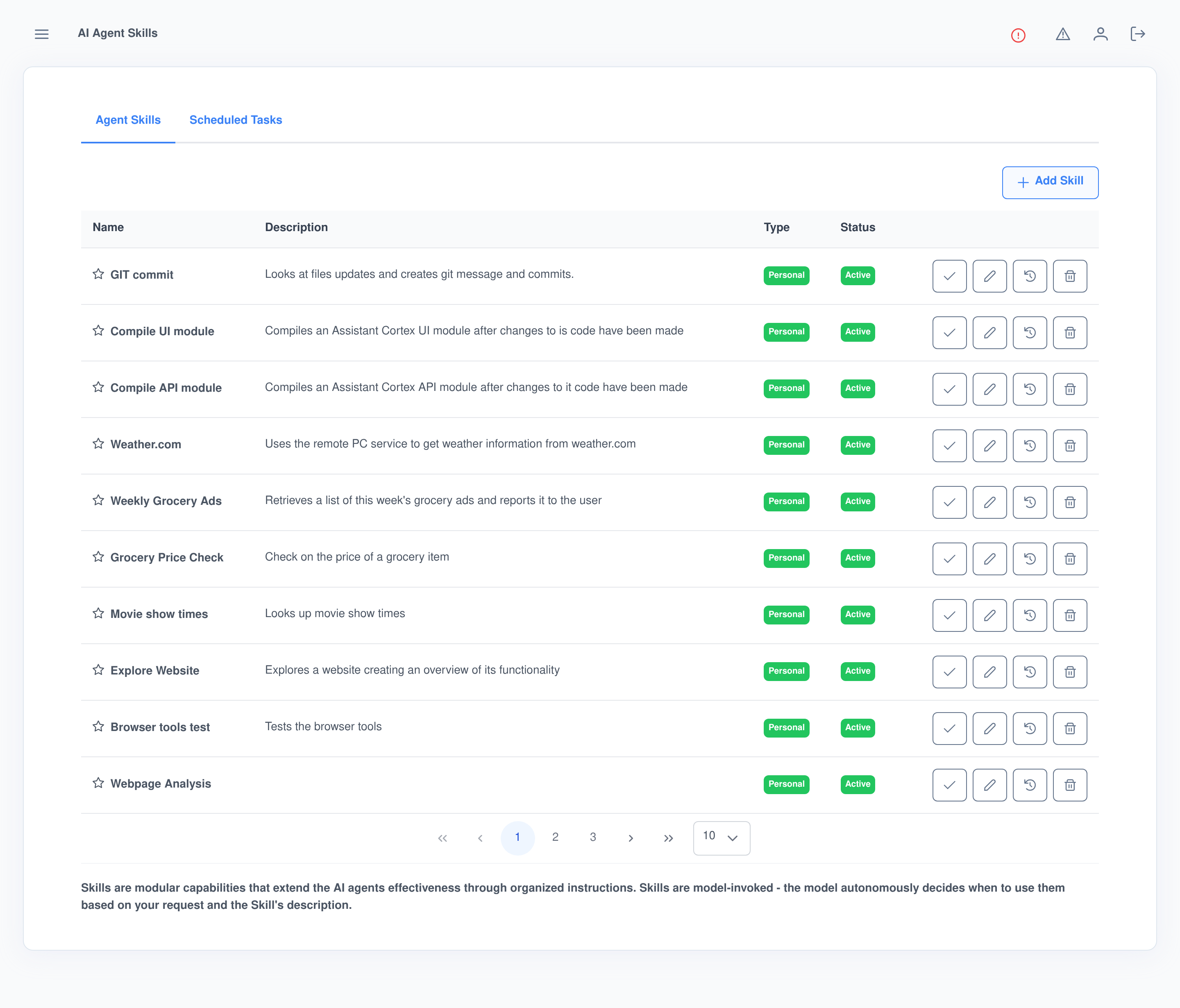
Skills the model reaches for on its own
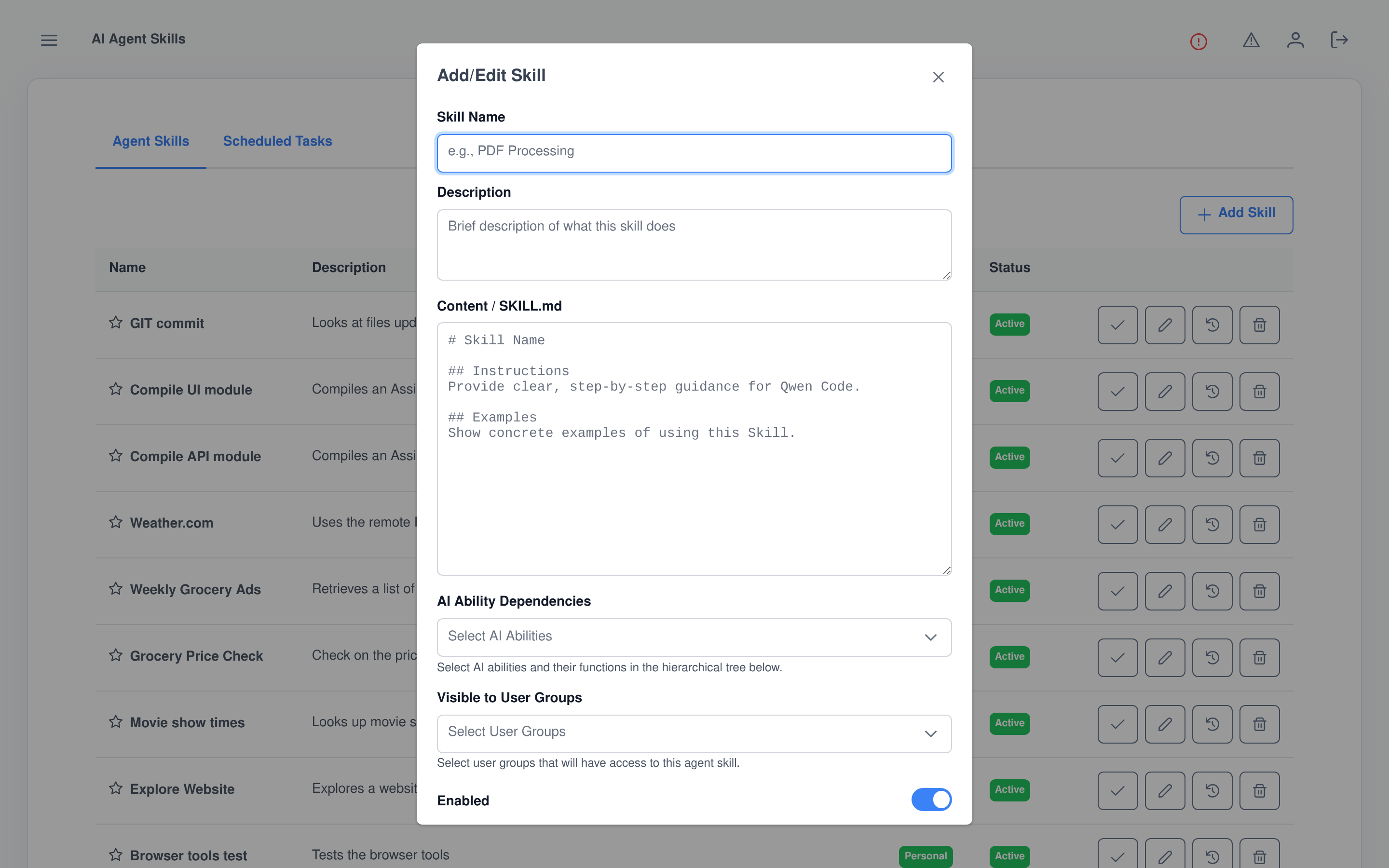
A Skill is a Markdown instructions document — name, description, and a SKILL.md body with an Instructions and an Examples section — plus the AI abilities it’s allowed to lean on. It’s model-invoked: the agent decides on its own whether a given request calls for it, based on the skill’s description, rather than a person selecting it turn by turn.
- Write a skill once and attach it to as many agents as need it, from that agent’s own Abilities tab.
- Personal skills are owned by the person who created them; System skills ship from a module and can only be enabled/disabled or scoped to user groups, not rewritten.
SKILL.md, not a form full of dropdowns
A skill’s content is a plain Markdown document, so the same instructions style that already works for coding-agent skill files works here — the editor even scaffolds the Instructions/Examples structure for a new one.
Who this runs for
Anyone building a custom agent
- Give an agent its own voice, personality and model without writing any code.
- Iterate freely — every change is a diffable, restorable revision.
- Share an agent with specific user groups instead of the whole instance.
Module and integration authors
- Ship an agent, a skill, or a system-tier scheduled task with your module, and it appears here alongside everything the admin created by hand.
- Code-defined entities stay protected from accidental edits while still exposing the settings an admin actually needs to tune (schedule, visibility, concurrency).
Frequently asked questions
What’s the difference between an AI ability and an agent skill?
An ability is a function the model calls directly, like sending an SMS or querying a database. A skill is a Markdown instructions document the model decides to pull in on its own, based on your request and the skill’s description — a bundle of guidance, not a single callable function.
Can I edit an agent that came from an installed module?
Not directly — its configuration is locked because an automated task may depend on it staying exactly as shipped. You can change its display group, user-group visibility and sort order from the agent list, or copy it into a fully-editable personal agent.
What agent actually runs a scheduled task?
Whichever one you pick as its Executing Agent — the task inherits that agent’s model and settings, and is limited to whatever AI abilities the task itself is scoped to.
Can I undo a bad change to an agent, task or skill?
Yes. Every save is a browsable revision with a diff against the one before it, and any past revision can be restored — restoring replays the old snapshot through the normal save path, so it doesn’t create yet another duplicate entry.
What’s the difference between a Personal and a System task or skill?
Personal ones are created and owned by a single user through the normal Add/Edit form. System ones ship code-defined from a module and can only be tuned through a narrower Customize dialog — schedule, executing agent, concurrency and visibility for tasks; enabled state and visibility for skills — never rewritten outright.
Build your first agent in minutes
Agent Features ships with every Assistant Cortex instance — no separate agent framework to stand up.