An AI knowledge base your agents can search and cite
Upload a PDF, an EPUB or a text file and Assistant Cortex reads it, splits it into passages, embeds every passage and indexes it three different ways. Your AI agents then search that library mid-conversation, quote the passage they used, and stay inside the documents you gave them.
Nothing to wire up: the Knowledge Base ships with the platform, uses the embedding models you already run, and starts working the moment the first file finishes uploading.
From a file on your desk to a searchable knowledge base in three steps
1. Upload the document
Drop in a PDF, EPUB or text file and pick the embedding model. The title, the author and — for an EPUB — the cover image are read out of the file itself, so you are not typing metadata that the document already carries.
2. It is split and embedded
The document is cut into passages sized to the embedding model you chose, each passage is turned into a vector, and every passage lands in three indexes at once: the database, a vector index and a full-text index.
3. Your agents search it
Give an agent a shelf of documents and it searches them mid-conversation, then answers with the passages it found attached to the reply, so you can see what it read before you trust what it said.
Uploading is the whole of the setup
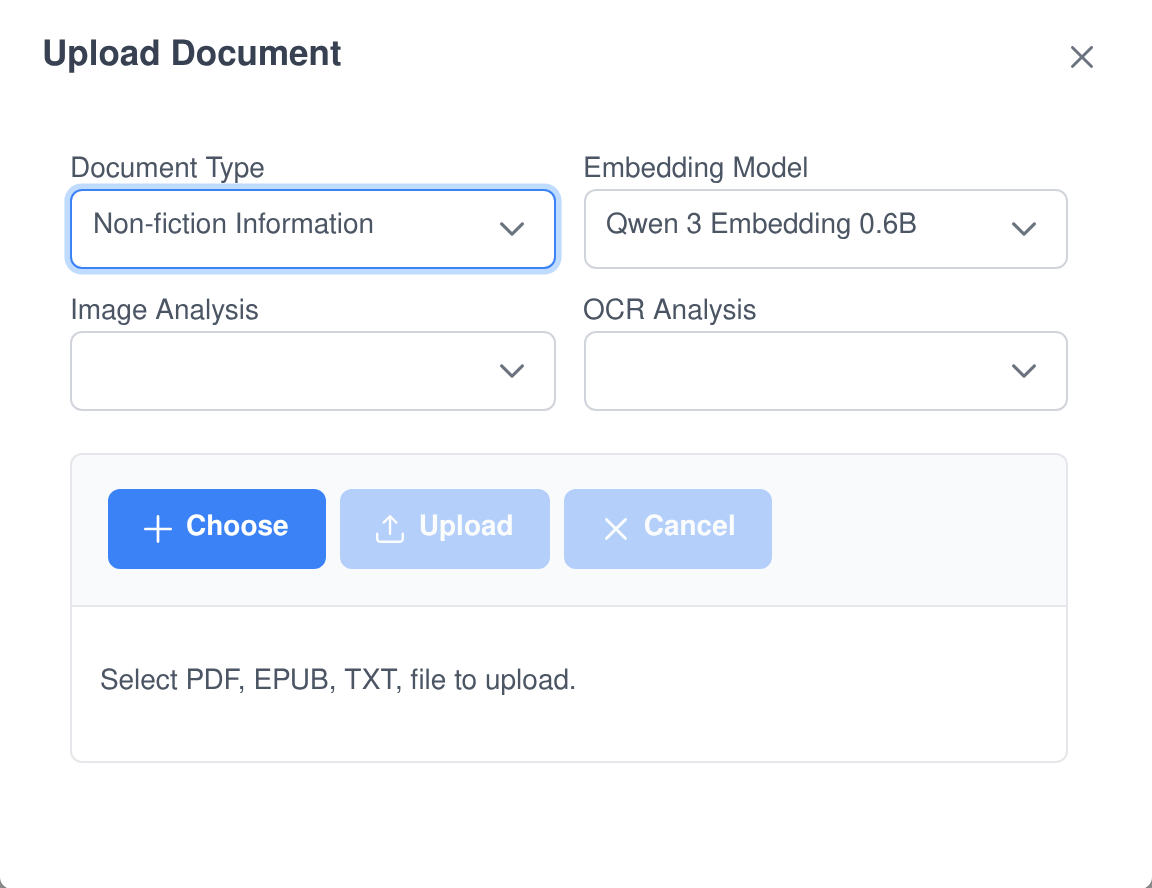
Choose the document type and the embedding model, drop the file in, and watch the progress bar. Everything after that — extraction, splitting, embedding, indexing — happens on its own.
- PDF, EPUB and plain text. The document type you pick declares which file extensions it accepts, and the file picker only offers those.
- Metadata comes out of the file. EPUB title, author and cover art; PDF title and author, falling back to the filename when the PDF carries none.
- Uploading the same file twice does not duplicate it. Files are stored under a content hash, so a re-upload replaces the copy already on disk.
- Large PDFs stream page by page. The text of each page is extracted and sent up as it is read, with a real percentage rather than a spinner.
- The embedding model is yours to choose. Any embedding model you have online can be used, and the passage length follows that model’s context window instead of a fixed number.
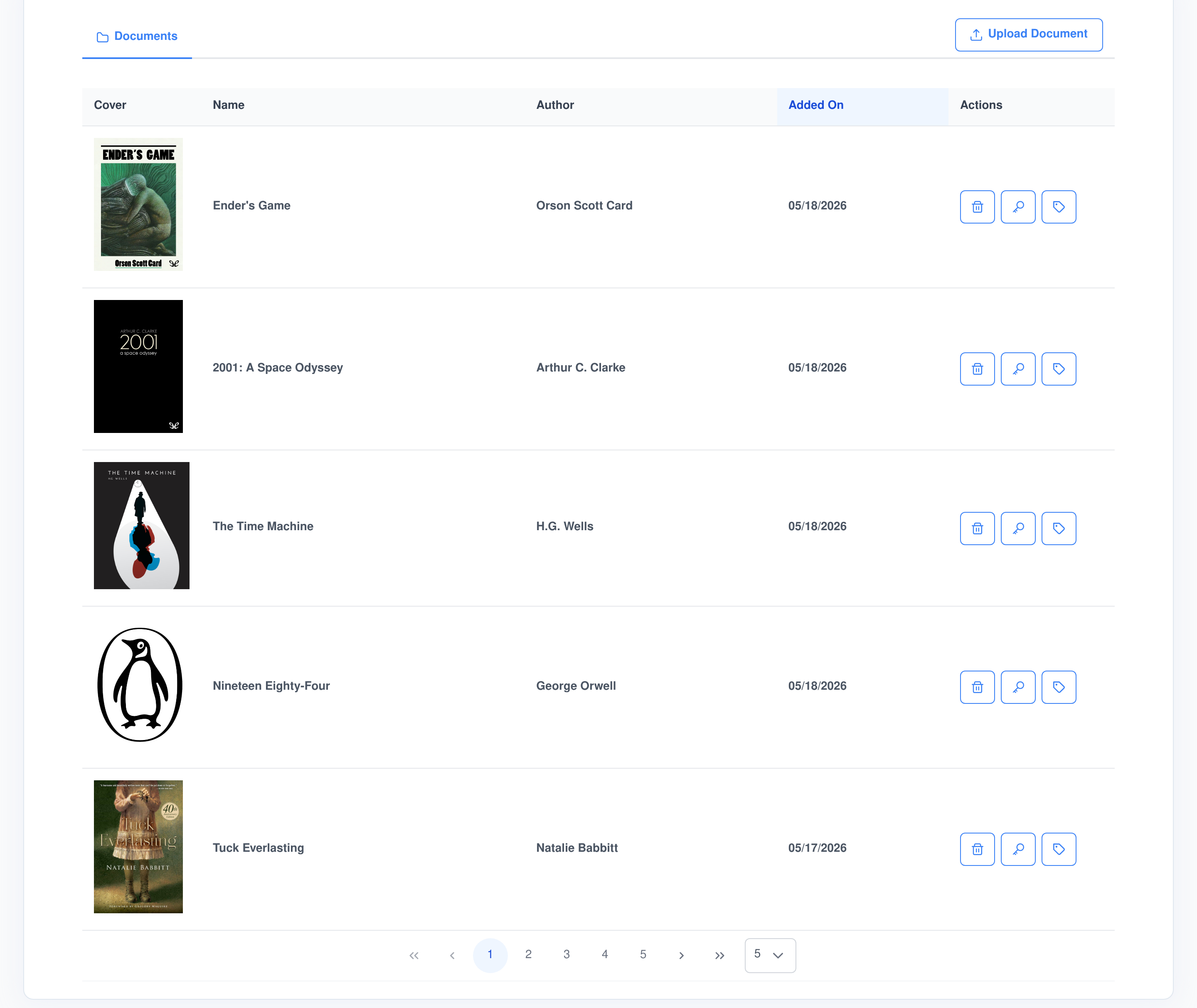
One library, and it keeps the structure of what you put in it
Documents are not flattened into an undifferentiated pile of text. A passage remembers which chapter of the EPUB it came from and where in the document it sits, which is what lets an answer point back at a place rather than at a file.
What a passage carries
- Chapter titles from the EPUB. The table of contents is mapped onto the passages, so each one knows the chapter it belongs to.
- Its place in the document. Position and page number are stored alongside the text, together with its length and word count.
- Whole words only. Passages are cut on word boundaries, and a short leftover is folded back into the previous passage rather than becoming a fragment of its own.
Fix the details in the table
- Edit in place. Click a title or an author in the list and correct it, without opening a form.
- Change the document type. The type controls which AI analyses can be run against the document, so switching it changes what the document can be asked to produce.
- Read it in the browser. EPUBs, PDFs and text files open in a viewer with page controls and adjustable text size — no download, no separate reader.
Three ways to find the right passage, not one
Semantic search alone misses the exact phrase; keyword search alone misses the paraphrase. The Knowledge Base runs both and, when a document has been through Q&A extraction, matches against the questions the document itself answers.
Retrieval that combines its indexes
- Vector search. The query is embedded with the same model the document was indexed with and matched by cosine similarity against a 1024-dimension index.
- Full-text search. A standard analysed text index over the passage text, so an exact term, a name or a part number still finds its passage.
- Both at once. A content search runs the vector and full-text indexes together and gives priority to the passages that both of them found.
- Question matching. Questions extracted from a document are embedded in their own index, so a user’s question can be matched against a question the document already answers.
Search an agent can construct for itself
- The schema is a tool call. An agent can ask for the full database and index schema of the document tables before it searches, so it knows what it is allowed to filter on.
- Structured filters. Searches also accept a list of conditions — column, operator, value — with equals, not-equals, greater and less than, pattern match, and in / not-in against a list.
- Only the columns it needs. A search can name the fields it wants back and cap the number of rows, which keeps a tool result small enough to reason over.
- Scoped before it runs. A search never ranges over the whole library — it is bounded by the documents that agent has been given.
AI analysis you run per passage, and pay for once
Analysis is not a single button that reprocesses a whole book every time you press it. You choose which passages to analyse and which extraction to run on each, pick the language model, and watch a real progress count as the work goes through.
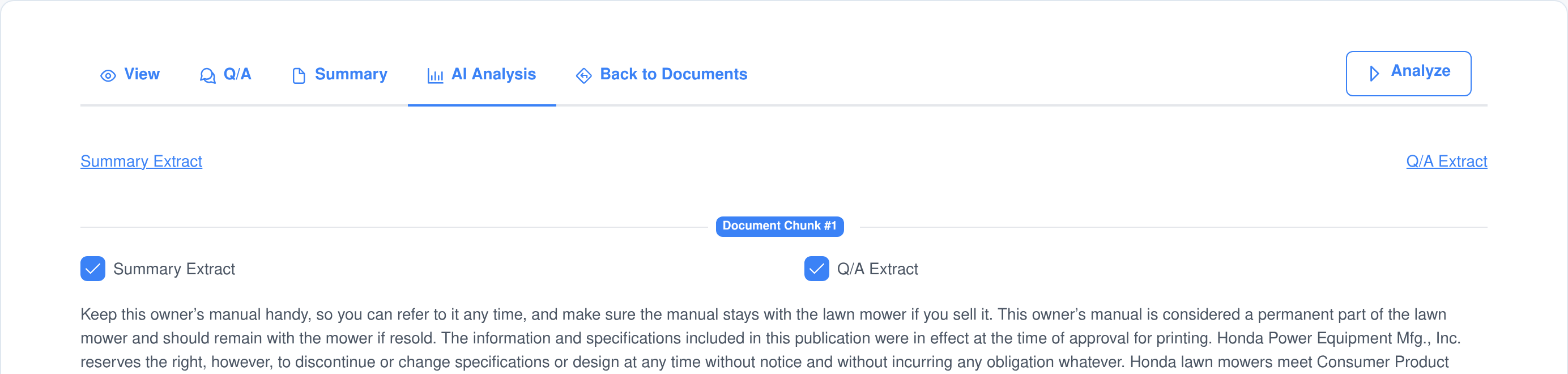
It will not run twice
Once an extraction has completed on a passage, its checkbox is disabled. You cannot pay for the same summary of the same paragraph a second time by ticking the wrong box.
Stop actually stops
Stop Analysis cancels the run’s queued requests on the model queue, so work that had not started yet is discarded rather than generated and thrown away.
Every result is costed
Each stored extraction records the model that produced it and both its prompt and completion token counts, so the cost of a run is attributable down to the individual passage.
Questions and summaries you can read, correct and keep
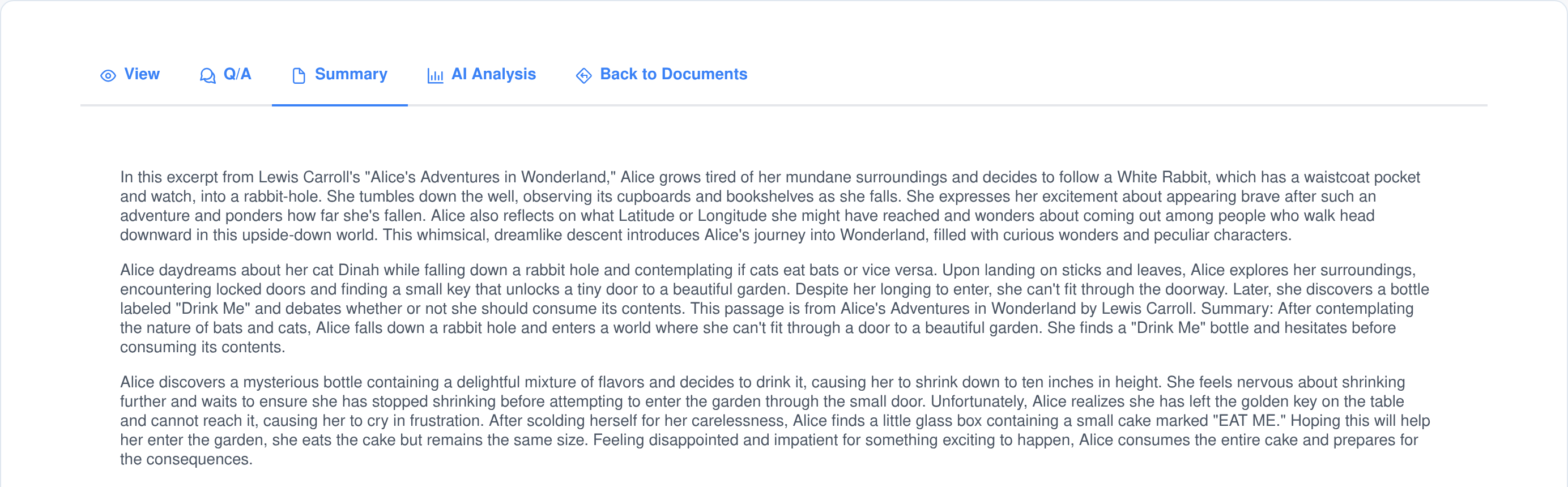
The two extractions that ship with the Knowledge Base turn a document into things a person can check. Q&A extraction pulls out the questions a passage answers; summary extraction condenses it. Both land on their own screen, and the Q&A pairs are editable.
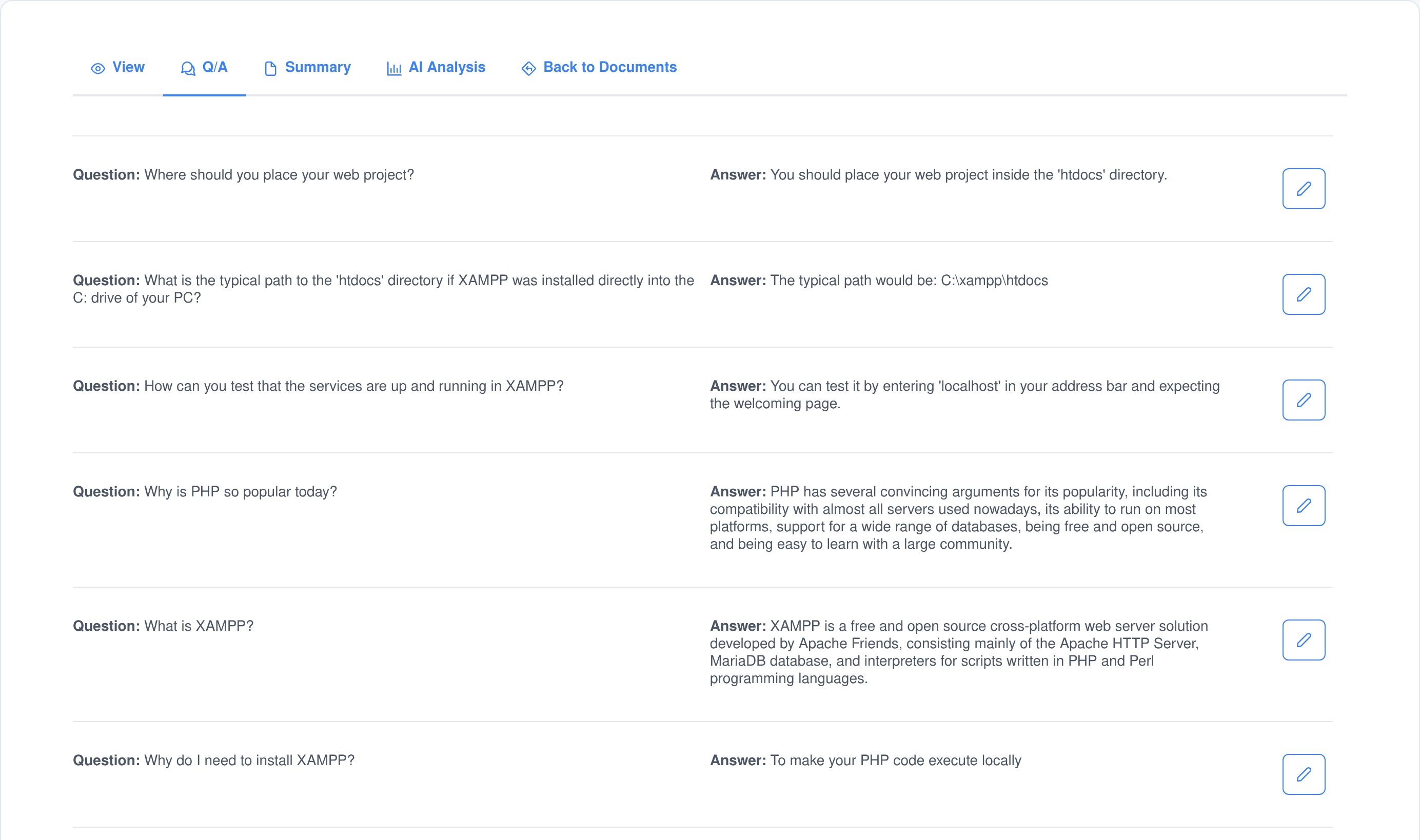
Q&A extraction
- Edited by hand. Anyone with the Edit Q/A permission can rewrite a question or an answer, or remove a pair entirely.
- Indexed as questions. Each extracted question is embedded and stored in its own index, which is what makes question-to-question matching possible later.
- Answers stay attached to their passage. A pair keeps a link to the text it came from, so a correction is always checkable against the source.
Summary extraction
- Passage by passage. Each summary covers one passage, so a long document reads back as a sequence you can skim in order rather than one lossy paragraph.
- On its own screen. The Summary tab reads as continuous prose, which is usually the fastest way to find out whether a document is worth opening at all.
- Both are optional. A document is fully searchable the moment it finishes uploading; extraction is something you run when you want it.
Every agent gets its own shelf
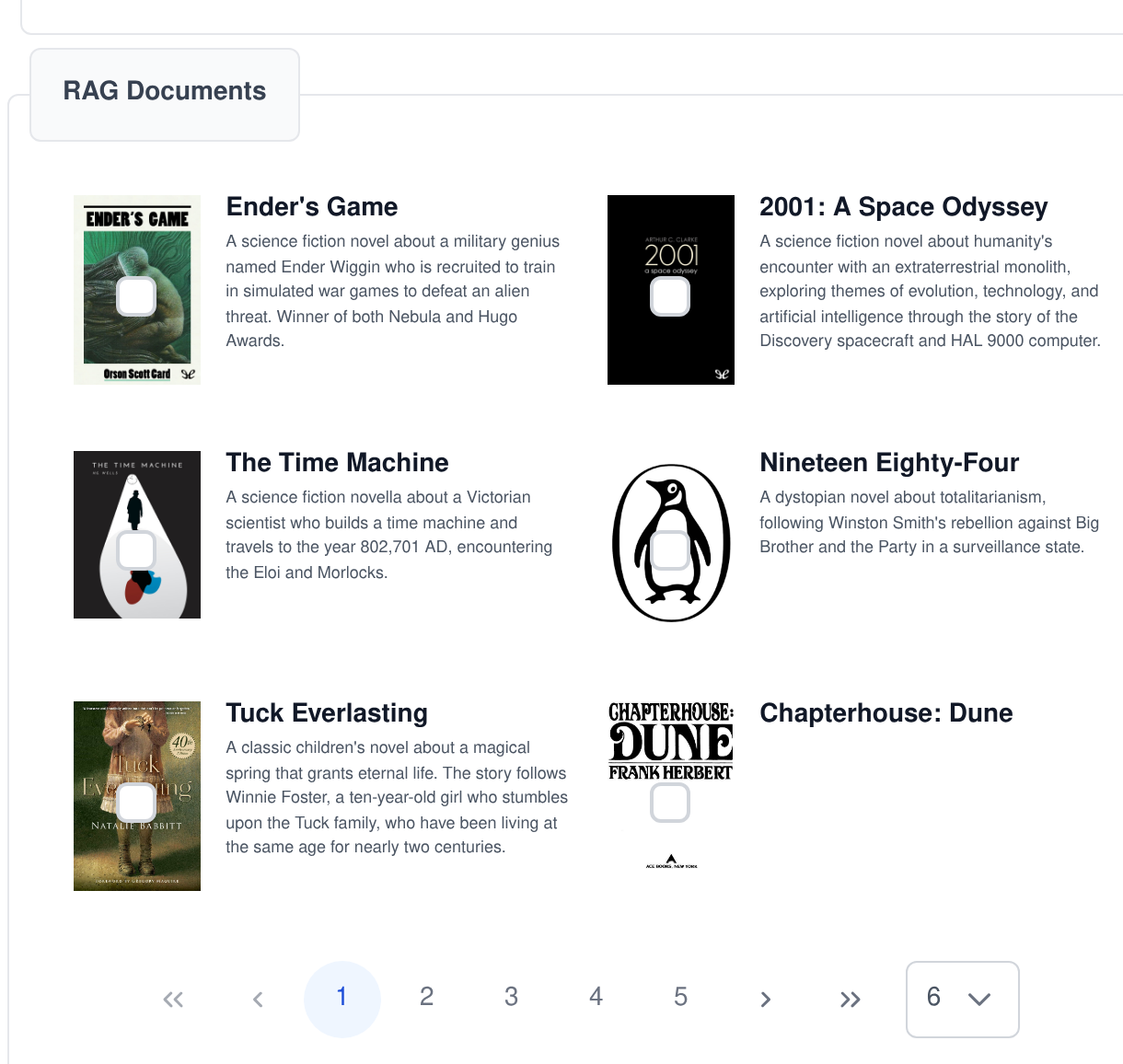
An agent does not get the run of the whole library. On the agent’s own editing screen you tick the documents it may reach, and that list is applied as a filter on every search the agent runs.
- An allow-list, not a hint. The selection is turned into the document filter on the search itself, so an agent cannot reach a document you did not tick even if it knows the document exists.
- An empty shelf means no results. An agent with nothing selected is told it has no documents configured, rather than quietly falling back to searching everything.
- A support agent and a research agent can share one library. Same documents, same indexes, different shelves — you are not maintaining a separate knowledge base per assistant.
- Changed in seconds. Tick a box, save, and the agent’s next answer is drawn from the new set.
A document is private until you share it
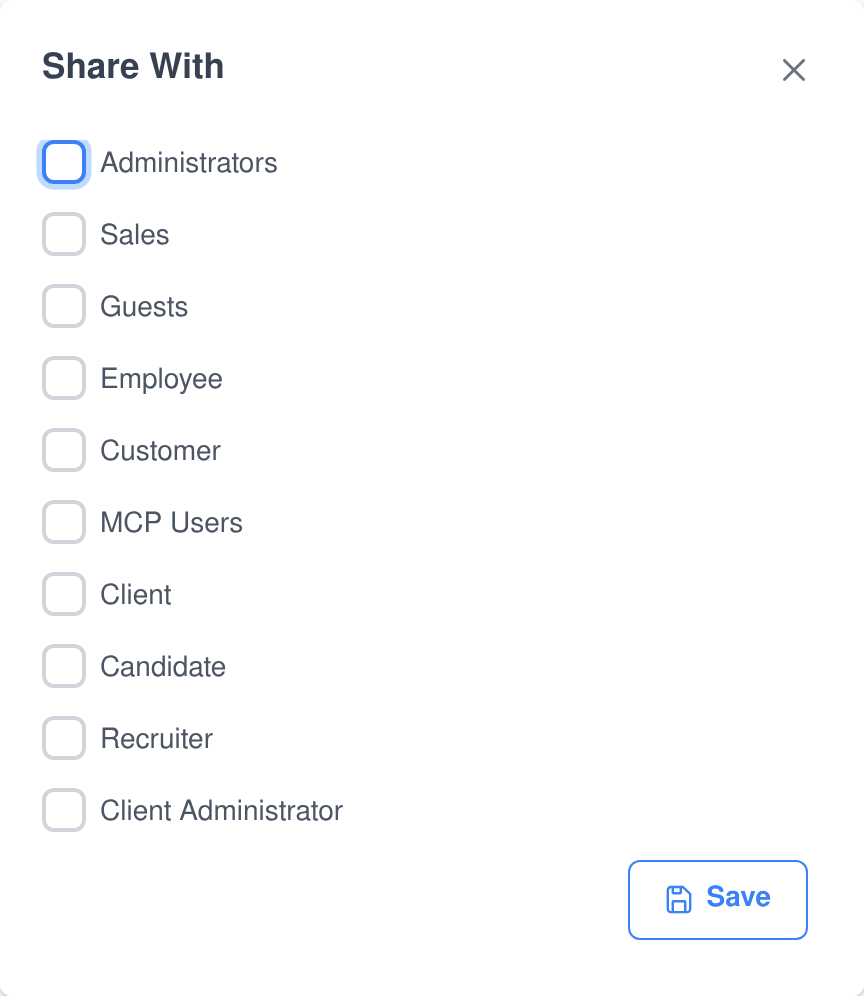
The rule is one sentence long: a document belongs to the person who uploaded it, and is readable by anyone else only if it has been assigned to a user group they belong to. There is no third case.
- Share to a group, not to a person. Tick the groups that should see a document — Sales, Employee, Client, whatever your groups are — and everyone in them can read it.
- The same rule everywhere. The Documents screen, an agent’s search results and an interactive card in the chat all resolve visibility through the one check, so no route around it exists.
- Group membership is resolved server side. It comes from the signed-in account, never from anything the browser or a model sent, so a request cannot widen its own access.
- Six separate permissions. Upload, view, share, run AI analysis, edit Q/A and manage documents are granted independently — a reader can be given search without being given deletion.
Answers arrive with the documents attached
When an agent searches the library in a chat that can render them, the results come back as cards rather than as a wall of quoted text: a set of matching documents, a set of matching passages, or one document in detail. The cards page, expand a passage to show what surrounds it, and open the document itself — and every one of those actions is re-checked against the same sharing rule before it returns anything. On a channel that cannot render cards, such as a phone call or an SMS thread, the same ability answers in plain text instead.
Every knowledge base action is an AI ability — and an MCP tool
The Knowledge Base ability is what your agents call in the middle of a conversation to look something up, add a document or start an analysis. The same functions are published by the Assistant Cortex MCP server, so Claude, an IDE or any other MCP client can drive your library with exactly the capabilities — and exactly the permissions — your agents have.
knowledge_base_ability_search_documents
Search Documents
Finds documents by searching their metadata and their contents at once, or by a list of structured conditions on the metadata. It only ever returns documents the calling agent has been given access to.
knowledge_base_ability_search_document_content
Search Document Content
Searches inside the passages themselves. A full-text search here queries both the vector index and the text index and prioritises the passages that both of them matched; a structured search filters the passages by condition instead.
knowledge_base_ability_get_document_schema
Get Document Schema
Returns the complete database and search-index schema of the document and passage tables, so a model can work out for itself which fields it can filter and sort on before it writes a query.
knowledge_base_ability_add_document
Add Document
Uploads a new document into the knowledge base from a file path, with its title, document type and — optionally — an author and a description, and puts it through the same splitting and indexing as a browser upload.
knowledge_base_ability_run_document_analysis
Run Document Analysis
Runs one or more extractions — summary, question-and-answer — across the passages of the documents you name, on the language model you name. Leave the documents out and it analyses everything the caller owns.
Built to be lived with
Data you can get out again
- Personal-data export. A user’s documents, passages and analysis results are included in the platform’s export of everything held about that person.
- Deletion reaches the indexes. Removing a user or ageing out old records deletes the search-index entries as well as the database rows, so nothing keeps answering questions after it should have gone.
- Retention by age. Records older than a cutoff can be swept without touching current ones, model by model, so a failure in one place does not stop the rest.
- Deleting a document takes its passages with it. Passages are tied to their document in the database and go when it does.
Extensible by design
- Document types are a registry. Another application can register its own document type, declare which file extensions it takes and which extractions it offers, and the upload dialog picks it up.
- So are extractions. A new analysis is a prompt plus an optional handler; the Story Analyzer adds its own this way, on top of the summary and Q&A extractions that ship here.
- Forty-three places to add UI. Every screen and dialog exposes named injection points, so another module can add a button, a column or a whole panel without forking this one.
- Always available. The Knowledge Base is part of the platform rather than an optional extra, so anything else you install can rely on it being there.
What people put in it
- Product and equipment manuals. A support agent that answers from the manual, and can show the passage it answered from.
- Policies and handbooks. Shipping terms, returns, HR policy — shared to the groups that need them and nobody else.
- Technical documentation. Q&A extraction turns a reference book into the questions it actually answers, which is what most people arrive with.
- Contracts and reports. Summary extraction to triage a long document before anyone reads it end to end.
- Research libraries. One collection, many agents, each with its own shelf drawn from it.
- Long-form fiction. The same machinery backs the Story Analyzer, which registers its own document type and its own extractions on top of this one.
Frequently asked questions
What file types can I upload?
PDF, EPUB and plain text. The list is declared by the document type you choose, so an application that adds its own document type can narrow or extend it.
Which embedding model does it use?
Whichever one you pick when you upload the document, out of the embedding models you have online. The passage length is derived from that model’s context window, and the model used is recorded with the document so later searches embed the query the same way.
Can everyone in my organisation see what I upload?
No. A document is readable by the person who uploaded it and by members of the user groups it has been explicitly shared with. Nothing else grants access, and the same check is applied on every screen, every agent search and every chat card.
Do my agents read every document automatically?
No. Retrieval happens because an agent decides to search, using the Knowledge Base ability, and that search is filtered to the documents you selected for that agent. An agent with no documents selected is told so rather than being given the whole library.
Can I stop an AI analysis half way through?
Yes. Stop Analysis cancels that run’s outstanding requests on the model queue, so passages that had not been started are dropped instead of being generated and discarded.
Will it re-run an extraction I have already paid for?
No. Each passage records the extractions that have completed on it and the corresponding checkbox is disabled, so the same summary or Q&A pass cannot be run over the same passage twice.
Can I use it from outside the chat interface?
Yes. All five ability functions are published by the Assistant Cortex MCP server, so any MCP client can search the library, add a document or start an analysis under the same permissions a user has.
What happens to the search indexes when something is deleted?
They are cleaned up with it. Deleting a user, or sweeping records past a retention cutoff, removes the matching entries from the vector, full-text and question indexes as well as from the database.
Give your agents something to read
Upload one document and ask an agent a question about it. That is the whole evaluation.