Build a labelled LoRA training dataset from a handful of photos
Diffusion Lora takes the images you already have of a person, a product or an art style and turns them into a training set. Forty prompts mutate the subject across outfits, backdrops, poses and camera angles while holding its identity fixed, you keep the best result for each prompt, an optional pass restyles your picks into new artistic mediums, and the finished set downloads as a ZIP of images with a prompt-and-filename CSV.
No prompt engineering, no scripts, no folder of hand-written captions. Upload your images, choose which image models render them, and the built-in prompt library does the rest.
From one photo to a labelled training set
1. Upload and mutate
Pick a subject type, upload one or more source images and choose the image models to render with. Every enabled prompt runs against every source image on every model, and each finished image appears in the review grid as it is produced.
2. Curate and restyle
Keep the best image for each prompt — once you pick one, the other results from that prompt are locked out, so the set never doubles up on the same idea. Your picks then go through a restyle pass that re-renders each one in a different artistic medium.
3. Caption and export
A vision model writes a from-scratch prompt for every image in the final set, your dataset keyword is applied to each caption, and the whole set downloads as a ZIP of PNGs plus a prompt,image-name CSV.
Three kinds of subject, three prompt libraries
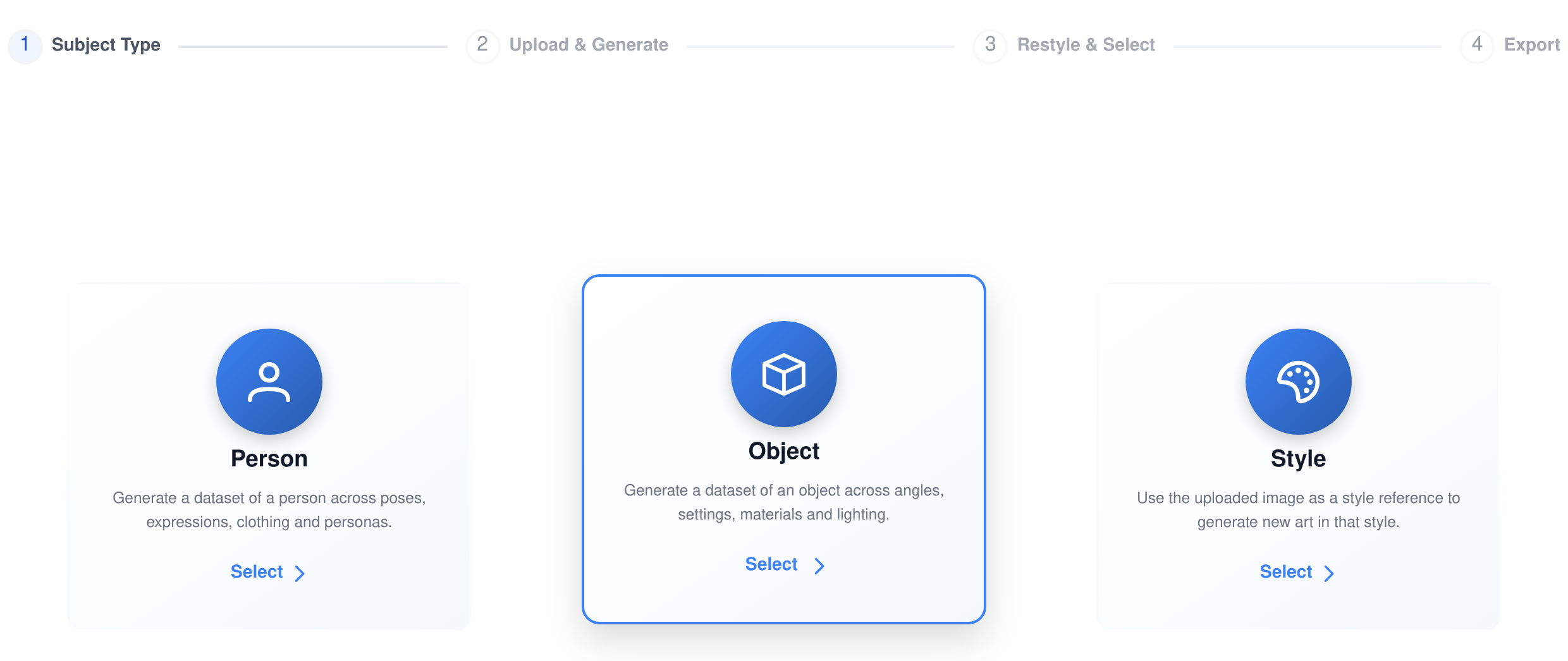
- Person. Forty prompts across poses, expressions and activities, each one ending with the same instruction: keep the exact same person identity, face and likeness, and change only the outfit, framing, pose and setting.
- Object. Forty prompts that move the object through forty different surfaces and settings, sixteen camera angles and twelve lighting setups while its shape, colour, material and defining details stay put.
- Style. The upload is treated purely as a style reference and forty brand-new subjects — a mountain lake, a rainy street, a portrait, a bowl of ramen — are rendered in its palette and technique. Identity is deliberately not preserved, so this type skips the restyle step and runs in three.
Forty prompts that change everything except your subject
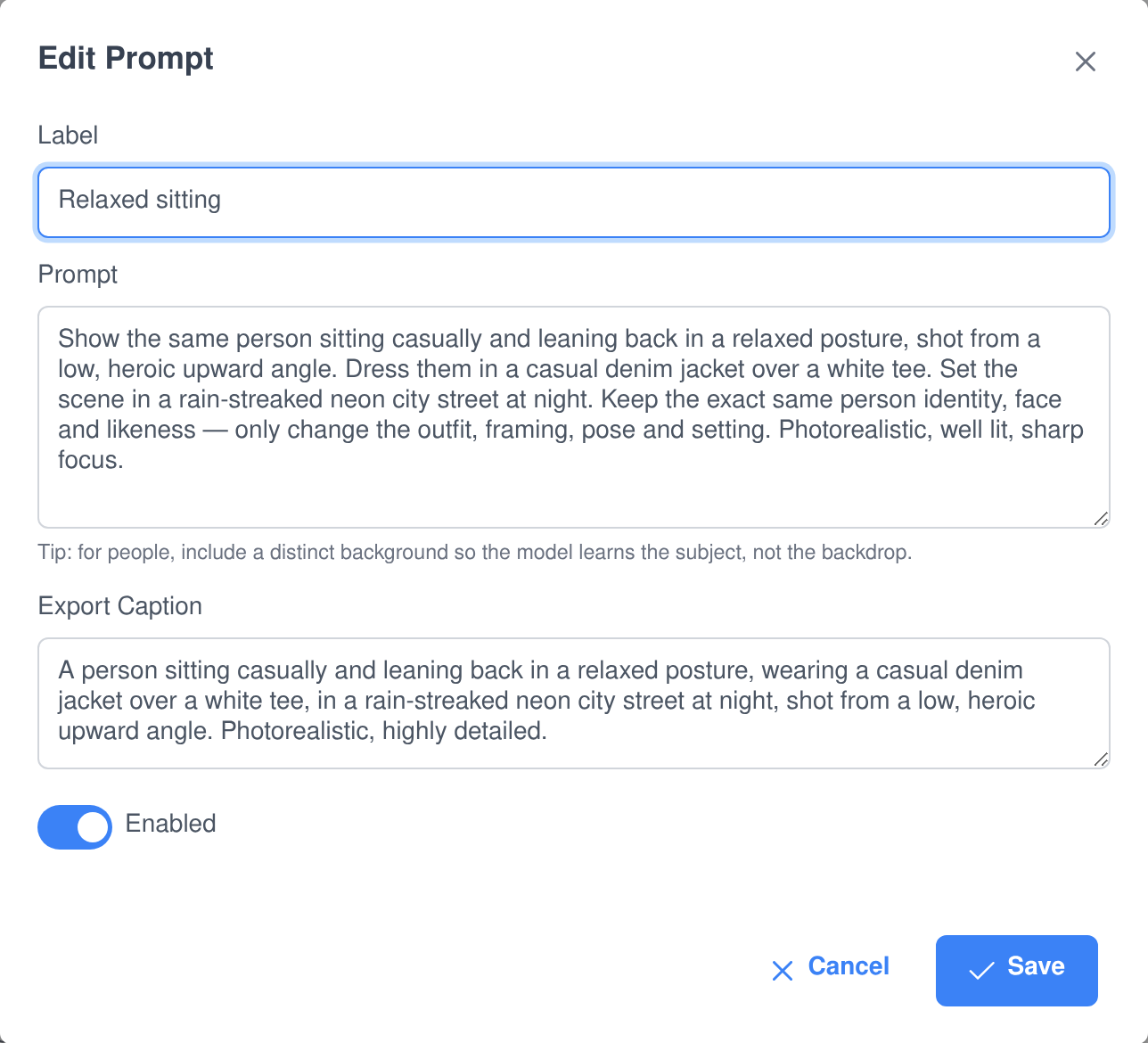
A dataset that reuses one jacket and one backdrop teaches the model the jacket and the backdrop. Each person prompt is assembled from four independent pools — a pose or expression, its own outfit, its own backdrop, and a camera angle cycled from sixteen — so no two prompts in the set share clothing or a location and the only thing that stays constant across forty images is the subject.
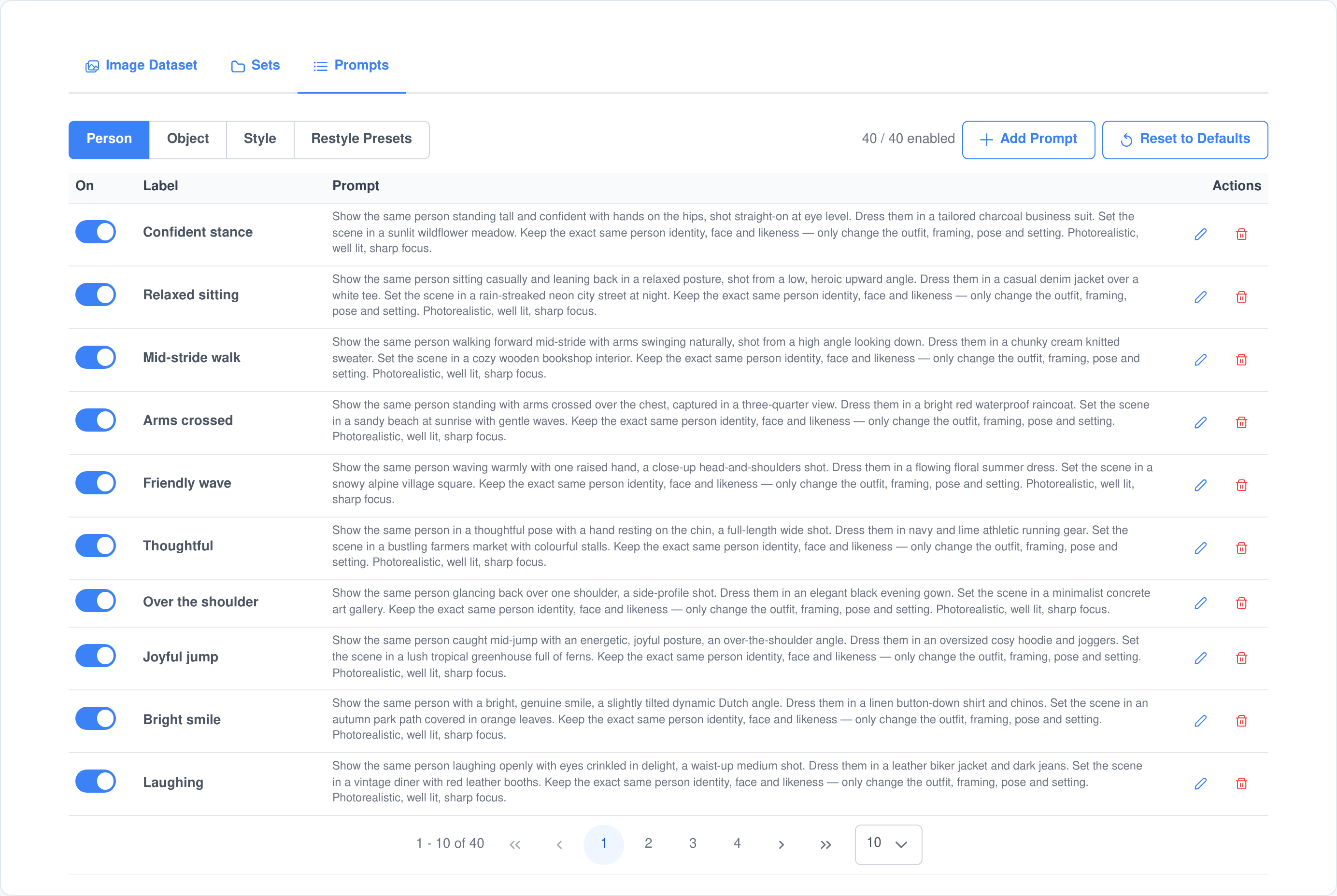
- Switch any prompt off. Only the prompts you leave enabled are rendered, and the header keeps a running count of how many of the forty are live.
- Edit the wording. Every prompt’s label and text is editable, and so is the export caption — the from-scratch description of the result that ends up in your CSV.
- Add your own. Write new prompts alongside the defaults, and reset a library back to the shipped set whenever an experiment goes sideways.
- Yours alone. The library is seeded per user the first time you open it, so your edits never change anyone else’s prompts.
Your models, your settings, your instruction
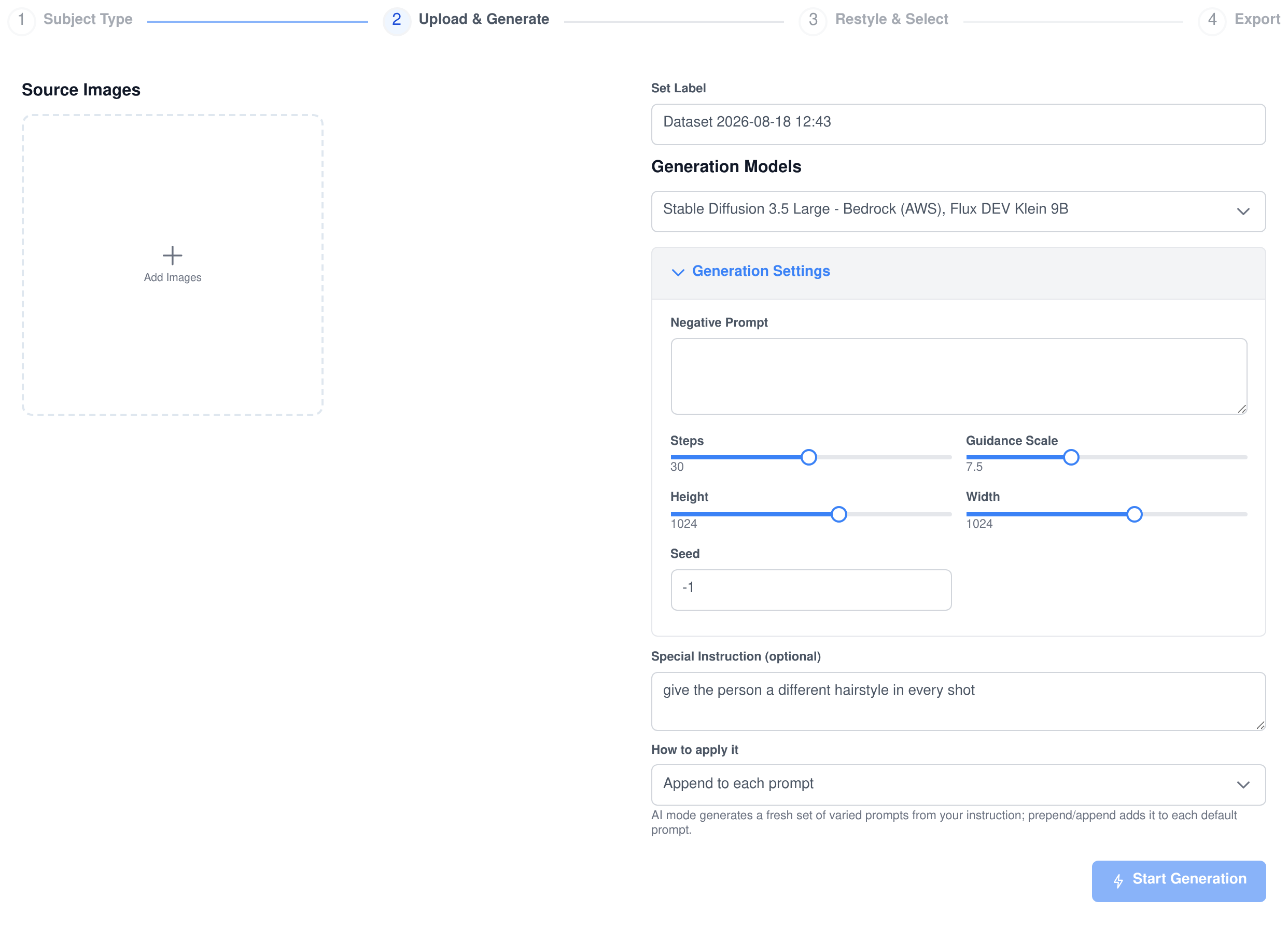
Every render is image-to-image against your upload, on the models you choose, with the controls those models actually support. Nothing is hard-wired to one provider.
- More than one model at a time. Select several online image models and every prompt is rendered on each of them, so you can compare a local diffusion model against a hosted one on the same forty prompts before you commit.
- Settings that follow the model. Negative prompt, steps, guidance scale, height, width and seed appear only when the models you picked support them.
- A special instruction, three ways. Append or prepend a line to every default prompt, or hand the instruction to a language model and let it rewrite the whole prompt set around it.
- Edit the generated prompts first. An AI-written prompt set streams in as it is produced and then becomes an editable list — change the wording, delete the weak ones, add your own — before a single image is rendered.
- Stop when you have enough. A running generation can be cancelled mid-set, and everything already produced stays in the set.
Curate while it generates
A training set is only as good as what you throw away. The review grid fills in live and the selection rules are built to stop the two mistakes that ruin a dataset: near-duplicates, and a bad render nobody noticed.
See it as it lands
Images appear in the grid the moment each render completes, with a progress bar counting toward the total. Scale the tiles from one to eight times, and switch on details to see the model that produced each image, which of your uploads it came from and the full prompt behind it.
One pick per prompt
Selecting an image locks every other result from the same prompt, so two renders of the same idea can never both land in the training set. A counter tracks progress toward the twenty picks needed to move on, and your selections are saved as you make them.
Reroll the misses
Any tile can be regenerated on the spot. The same prompt and the same source image are sent back to the model with a fresh seed, and the new image replaces the old one in place rather than adding another near-duplicate to the grid.
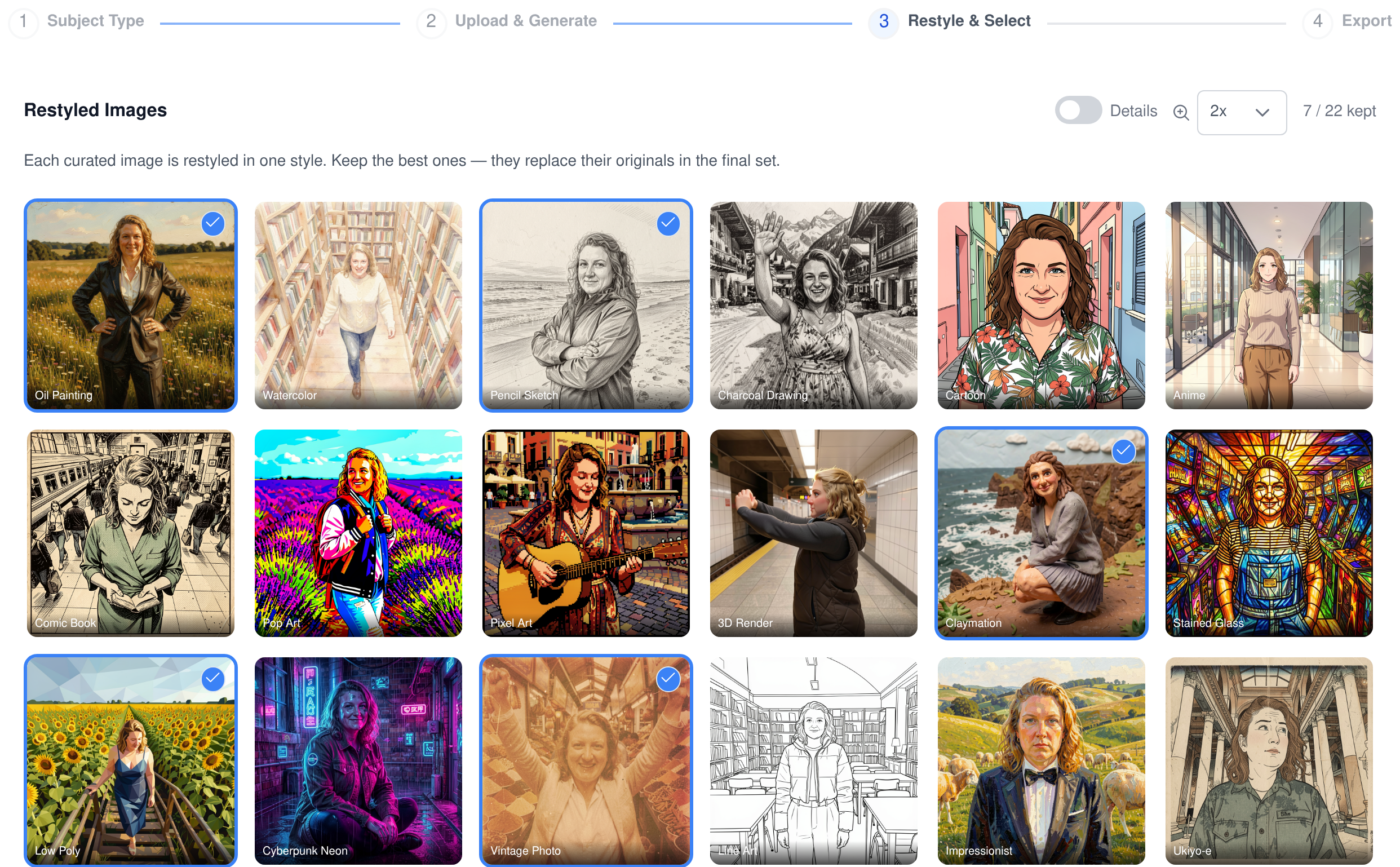
Twenty artistic styles, one per image
Oil painting, watercolour, pencil sketch, charcoal, cartoon, anime, comic book, pop art, pixel art, 3D render, claymation, stained glass, low poly, cyberpunk neon, vintage photo, line art, impressionist, ukiyo-e, street graffiti and papercraft. Each styled image keeps the subject and composition of the picture it came from, and each curated image is restyled in exactly one style, assigned in rotation across the styles you selected — so a set restyled in ten mediums stays the same size instead of growing tenfold.
Keep the styled versions you like and they replace their originals in the final set. Keep none and the photoreal set goes through untouched. Either way the styled image inherits its original’s caption with the medium appended, so the labels stay honest.
Captioned by a vision model, exported as a ZIP and a CSV
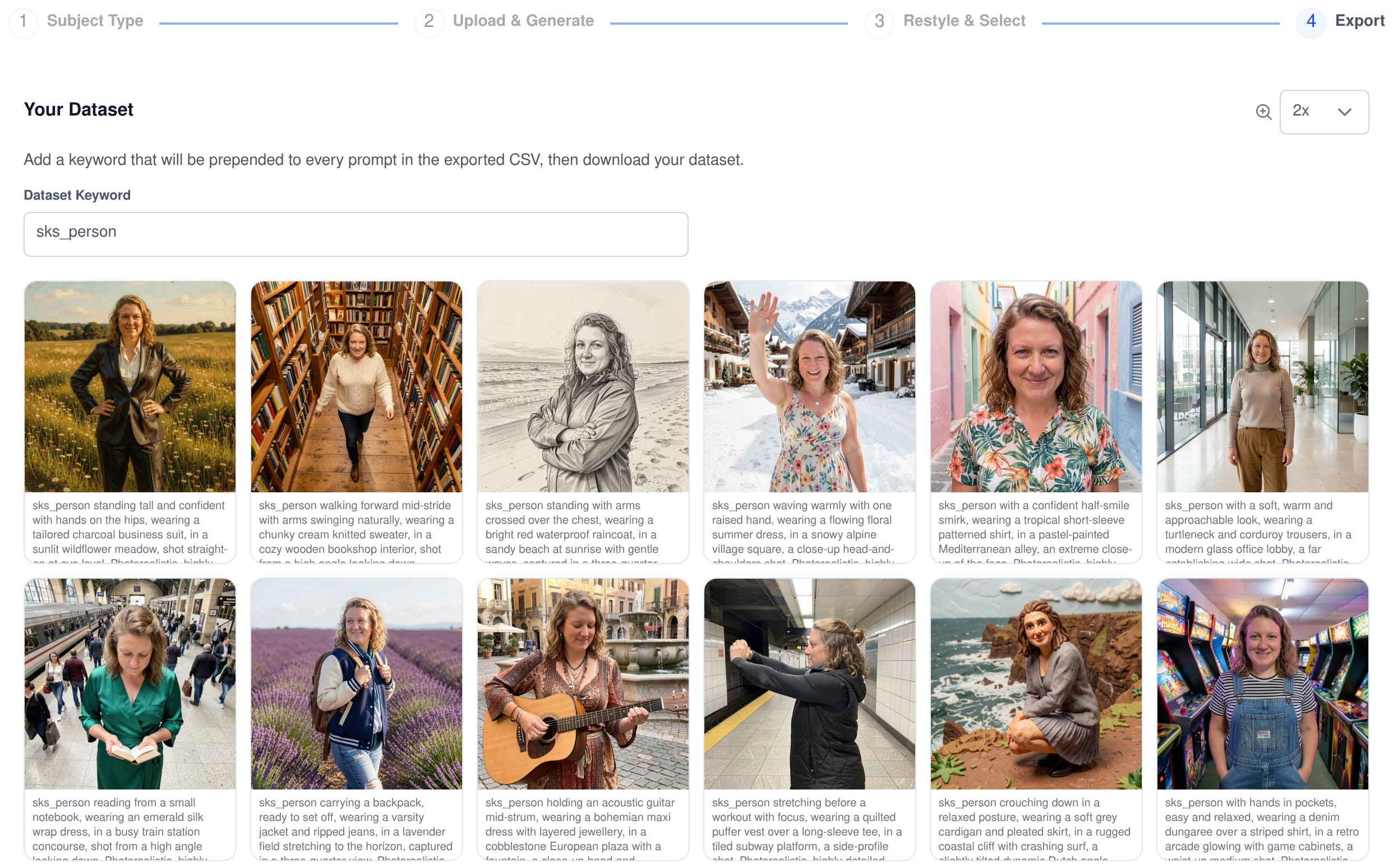
- Captions written from the render, not the request. Before the download is built, a vision model looks at each finished image and writes a single sentence that would recreate it from scratch, covering the subject, clothing, pose, expression, setting, style and lighting.
- Your trigger word, applied everywhere. Type a dataset keyword and it goes into every caption — taking the place of the generic subject phrase where there is one, and leading the sentence where there is not.
- A ZIP you can hand straight to a trainer. An
images/folder of PNGs named after their prompt, and adataset.csvwith aprompt,image-nameheader and one properly quoted row per image. - Nothing hidden. The captions are shown under every tile before you download, so you can read the labels your model is about to learn from.
Then put the adapter to work
Diffusion Lora produces the training set, in the shape a LoRA trainer expects. Once your adapter is trained and published to Hugging Face, register it by URL in the AI image generator — Assistant Cortex downloads it to your worker and offers it as a LoRA option on every image generation and edit from then on.
Faces and products are personal data — treated that way
Permissions that match your org
- View dataset opens the galleries, the saved sets and the prompt libraries, and nothing else.
- Generate dataset allows running the mutation, prompt and restyle passes, regenerating an image and curating a set.
- Manage dataset covers the destructive and structural work — editing, adding, deleting and resetting prompts, and deleting images and whole sets.
- Enforced on the server. The buttons disappear without the permission, and the socket handler behind each one checks it again regardless.
Your images stay yours
- Scoped per user. Every image, prompt and set is stored against the account that made it, and every read and write checks ownership before it runs.
- Included in a data export. A user’s sets, prompts and generated images are added to their personal-data export automatically.
- Erased with the account. Deleting a user removes their sets, prompts and images with them, and a retention sweep clears rows older than the cut-off date you set.
- Runs where you run. Rendering happens on your own image models, on your own hardware or your own cloud account, and the files land in your workspace storage.
What people build training sets for
People and characters
- A recurring brand character who has to look the same in every campaign, in forty outfits and forty locations rather than the three you happened to photograph.
- Headshots and avatars for a team, generated from one usable photo per person instead of a studio booking.
- A cast for a story or a game, where each character needs a consistent face across dozens of scenes.
Products and styles
- Product photography at volume, one item shot on forty surfaces under twelve lighting setups without renting any of them.
- A house illustration style captured from a handful of finished pieces and applied to forty new subjects, so the look survives the artist’s holiday.
- Style-consistent marketing art, where every image in a campaign has to come out of the same visual world.
Frequently asked questions
Does Assistant Cortex train the LoRA for me?
No. Diffusion Lora builds and labels the dataset — the images and the captions — and exports it as a ZIP with a CSV that a LoRA trainer can read. Training itself happens in your trainer of choice. Once the adapter exists and is published to Hugging Face, you register it in the AI image generator and use it on every generation from then on.
How many photos do I need to start?
One is enough. Every prompt is rendered image-to-image against your upload, so a single clear photo produces forty variations. Upload several and each of them is run through the whole prompt set, which multiplies the size of the run.
What does the export actually contain?
A ZIP file with an images/ folder of PNGs, each named after the prompt that produced it, and a dataset.csv whose header is prompt,image-name. Every row pairs one image with its caption, with your dataset keyword already applied.
Can I use my own prompts instead of the built-in ones?
Yes, in three ways. Edit or disable any of the forty defaults, add your own prompts to the library, or write a one-line instruction and have a language model generate a fresh prompt set from it — which you can then edit line by line before any image is rendered.
Which image models can it use?
Any image-generation model that is online in your Assistant Cortex deployment, whether it runs on your own GPU or through a hosted provider. You can select several at once and every prompt is rendered on each, which is the fastest way to find out which model holds a likeness best.
Can I come back to a dataset later?
Yes. Every run is saved as a set with its label, subject type, source images, models, settings and keyword, plus a count of the generated and restyled images. Reopening one restores the whole workspace — both galleries, your earlier picks and the step you had reached.
Does it work for something other than a person?
Yes. The Object subject type varies surface, setting, camera angle and lighting while holding the item’s shape, colour and material fixed, and the Style subject type treats your upload as a style reference and renders forty new subjects in its look instead of preserving any subject at all.
Turn your photos into a training set
Upload one image, pick your models and watch forty labelled variations build themselves.