An AI music and audio studio built into your assistant
Sound Studio turns a text prompt into a finished track, a script into spoken audio, and a recording into a speaker-separated transcript — in one workspace, on the audio models you choose to run. The Music Generator ability puts the same engine in front of your AI agents, so a song can be written and delivered in the middle of a conversation.
No digital audio workstation, no plug-in chain, no separate vendor for music, speech and transcription. It is a tab in Assistant Cortex, and every clip it produces is saved to your own library with the prompt, the lyrics and the model that made it.
From a written brief to a finished track in three steps
1. Write the brief
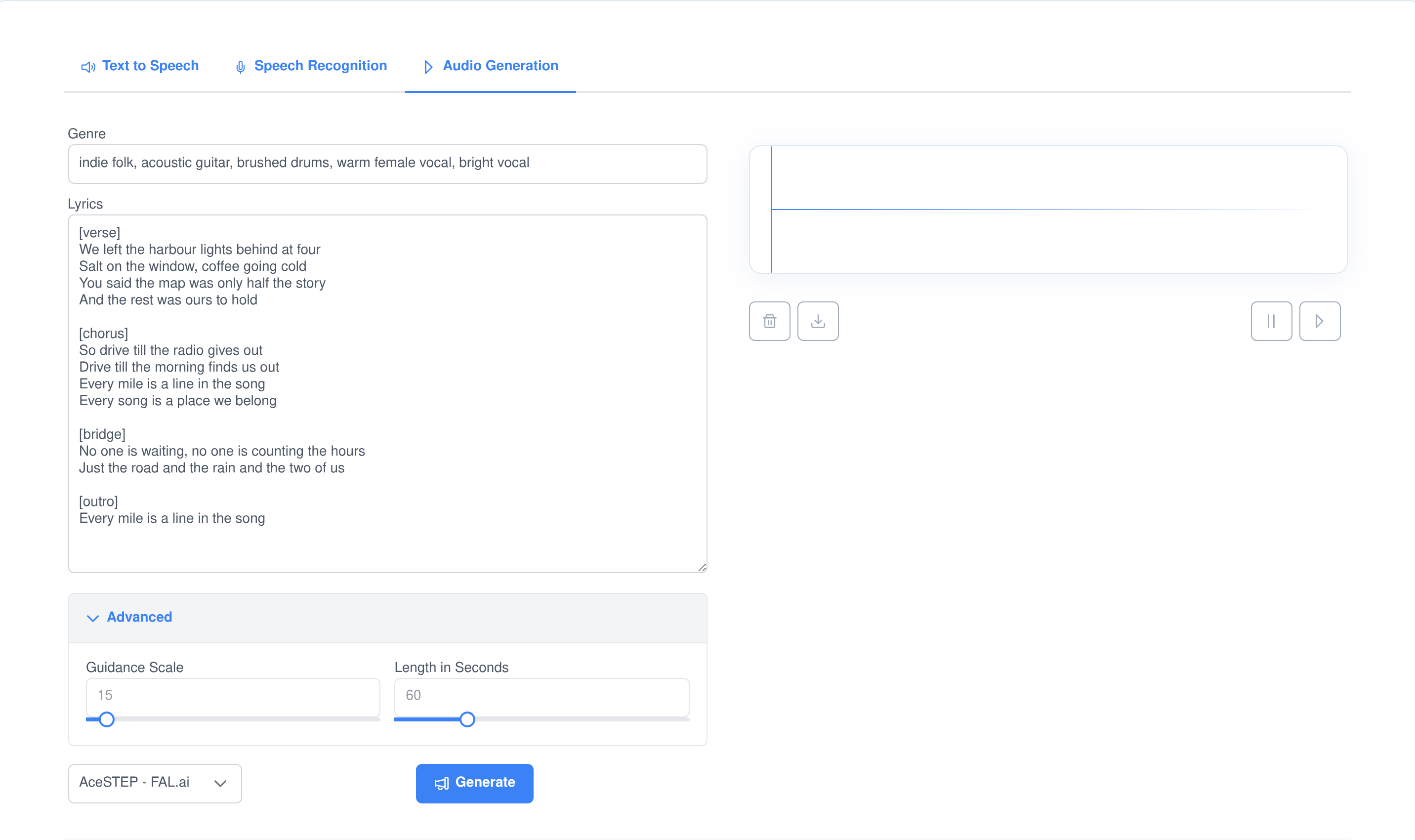
Describe the track in plain language. On a model that accepts lyrics the prompt box splits into a genre line and a lyrics sheet, and one button writes the words for you in verse, chorus, bridge and outro sections.
2. Pick a model and generate
Choose from the audio models currently running on your workers. The advanced panel is built from that model’s own declared capabilities, so you only ever see controls it will actually honour.
3. Play it back and reuse it
The finished audio lands in your library next to the prompt, the lyrics and the model name. Play it on a waveform, download it, or feed it back in as the audio prompt for the next generation.
Music generation with the controls a musician expects
The Audio Generation tab is a front end for whichever music models you have running. What it sends is a prompt, an optional set of lyrics, and the options that model has declared it accepts — which is why the form changes shape when you change models instead of showing you dead sliders.
Write the song
- A prompt, or a genre and a lyric sheet. Instrumental models take a single description. Models that accept lyrics get a short genre line and a full twenty-row lyrics editor instead.
- Structure tags the generator reads. Lyrics are marked up with
[verse],[chorus],[bridge],[intro]and[outro], which is the structure the music models expect. - A lyrics writer built in. One button hands your idea to a language model and streams the finished lyrics back into the editor as they are written.
- The genre line filled in for you. A second pass reads the finished lyrics and returns a genre string combining genre, instrument, mood, voice and timbre.
Shape the sound
- Length and guidance scale. How long the piece runs and how tightly the model follows the brief, with the ceiling on each read from the model rather than hard-coded.
- Tempo, key and language. Beats per minute, a musical key and scale, and the language the vocal is sung in, on models that support them.
- Segments and token budget. Split a longer piece into segments, and raise or lower the generation budget for models that expose it.
- Continue an existing clip. Pick one of your own tracks as an audio prompt, trim it to a start and end second, and optionally rescale it for consistency.
- Seed and thinking mode. Fix the seed for a repeatable result, or let the model reason before it plays — each shown only when the model advertises it.
A lyrics writer that understands song structure
Writing the words is usually the part that stops a track before it starts, so it is built into the same screen rather than left to a separate chat.
- Type an idea, get a song. Describe the subject and a fast reasoning model returns full lyrics laid out in sections.
- It writes in front of you. The text streams into the editor fragment by fragment instead of appearing after a blank wait.
- The genre line is derived, not guessed. A second pass reads what was written and returns the descriptor string the music model wants.
- It gets out of the way. The button disappears once your lyrics already carry a structure tag, so it never overwrites words you wrote yourself.
- Edit anything before you generate. The lyrics, the genre line and every advanced control stay editable right up to the moment you press Generate.
Every take is kept, not thrown away
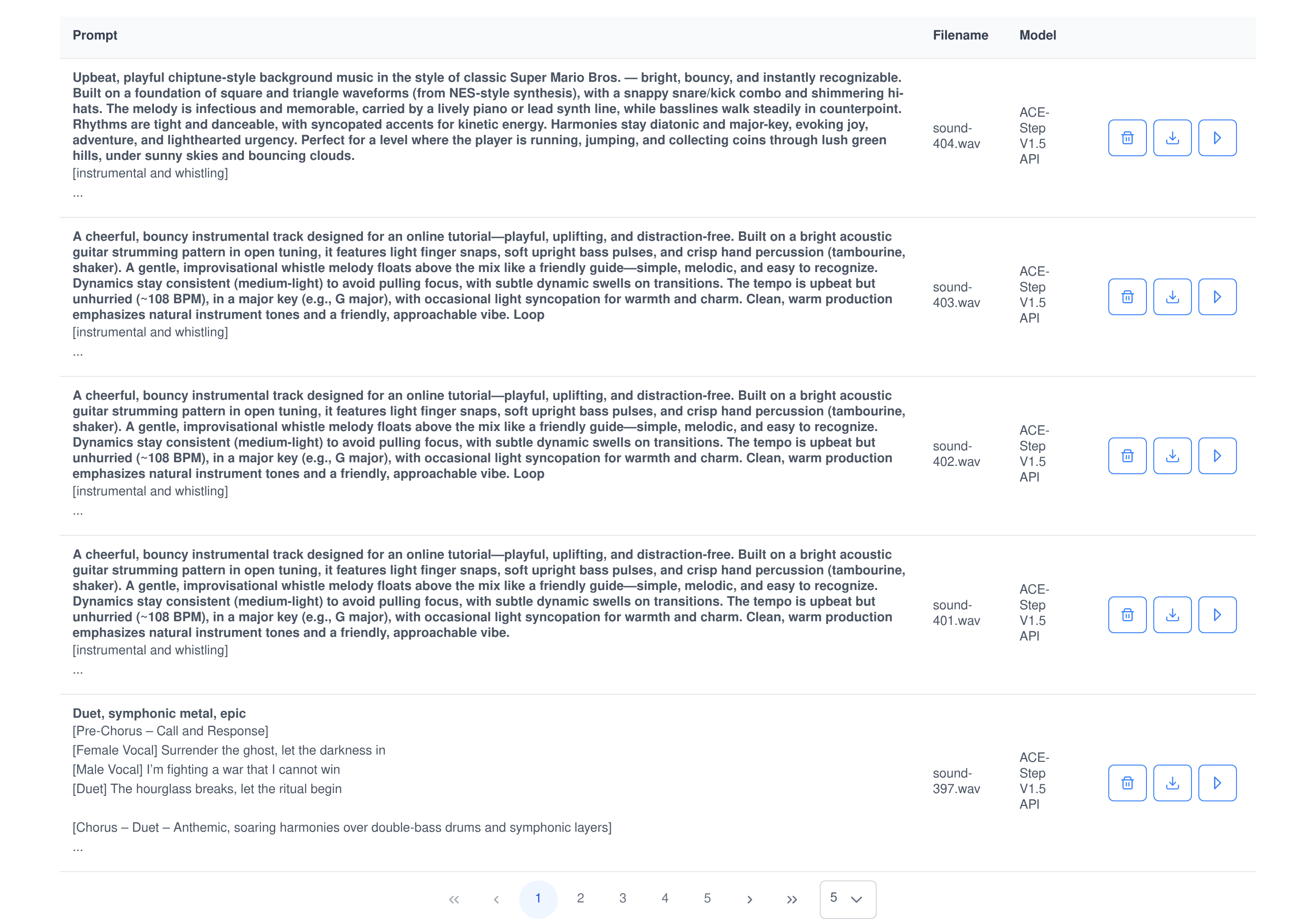
Generation is iterative, so the library is the product. Each clip is stored as a record, not as a loose file on disk, and it keeps enough context to tell you how it was made.
Stored with its context
Each record holds the prompt, the lyrics, the label, the file, and the readable name of the model that produced it — not a routing key you would have to look up.
Playable in the browser
Selecting a row draws its waveform and plays it in place. One button downloads the file for editing elsewhere; another deletes both the row and the audio behind it.
Yours alone
Listings are filtered to your own user id, every rename, delete and playback re-checks ownership on the server, and playback links are issued against your session token.
Text to speech, in a voice you picked
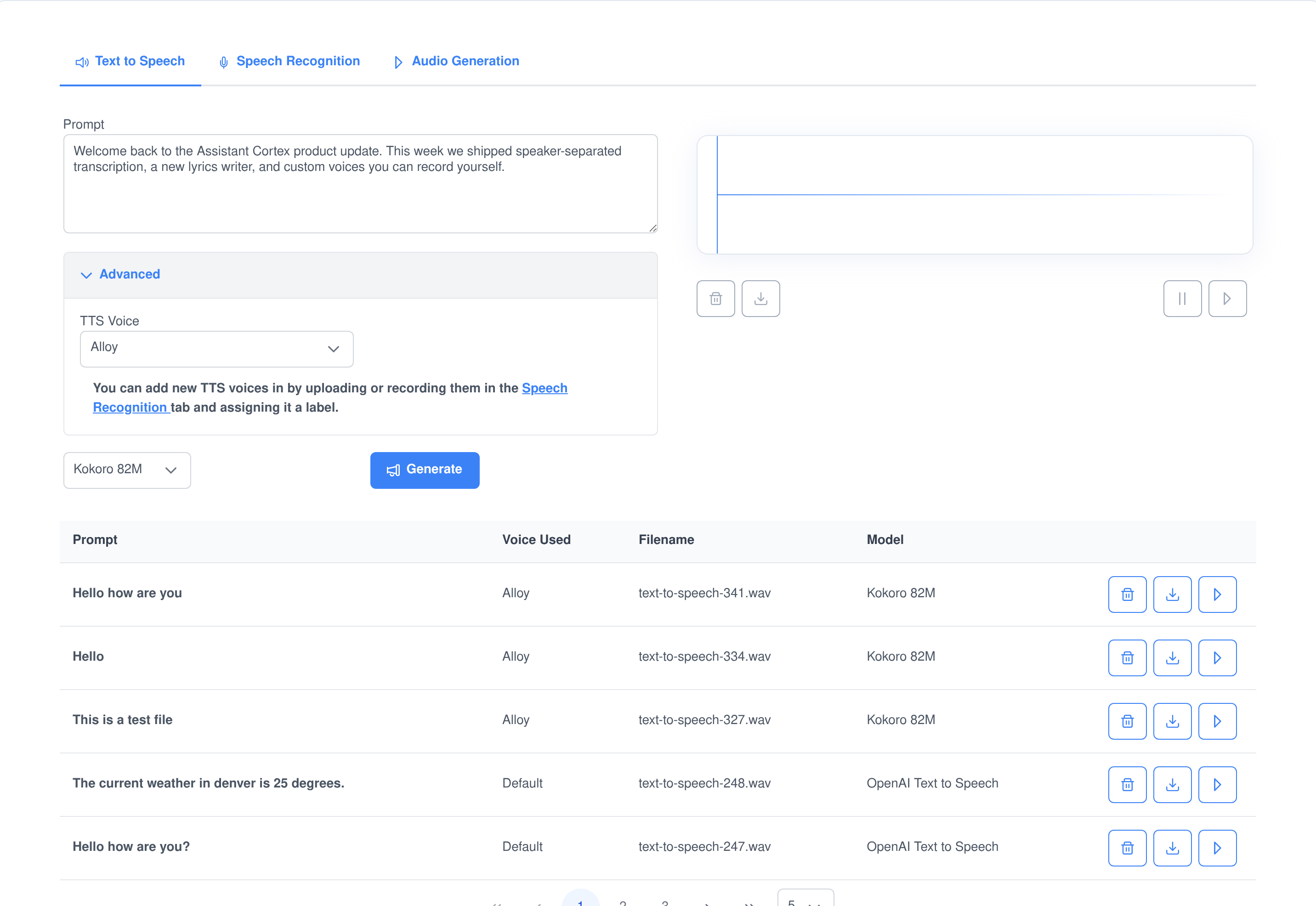
The same screen, pointed at your speech models instead of your music models. Paste a script, choose a voice, and the finished audio joins the library with the voice it used recorded against it.
- Voices come from the model. The dropdown is populated from the speech model’s own published voice list, so switching models switches the voices.
- Your own voices are appended. On models that accept a voice prompt, the clips you have recorded and labelled appear in the same list.
- The take remembers the voice. The library shows the voice used alongside the script, which is what makes a series of clips consistent.
- Download and go. Every clip downloads as a named file, ready to drop into a video edit or a phone system.
Transcription with speakers and timestamps
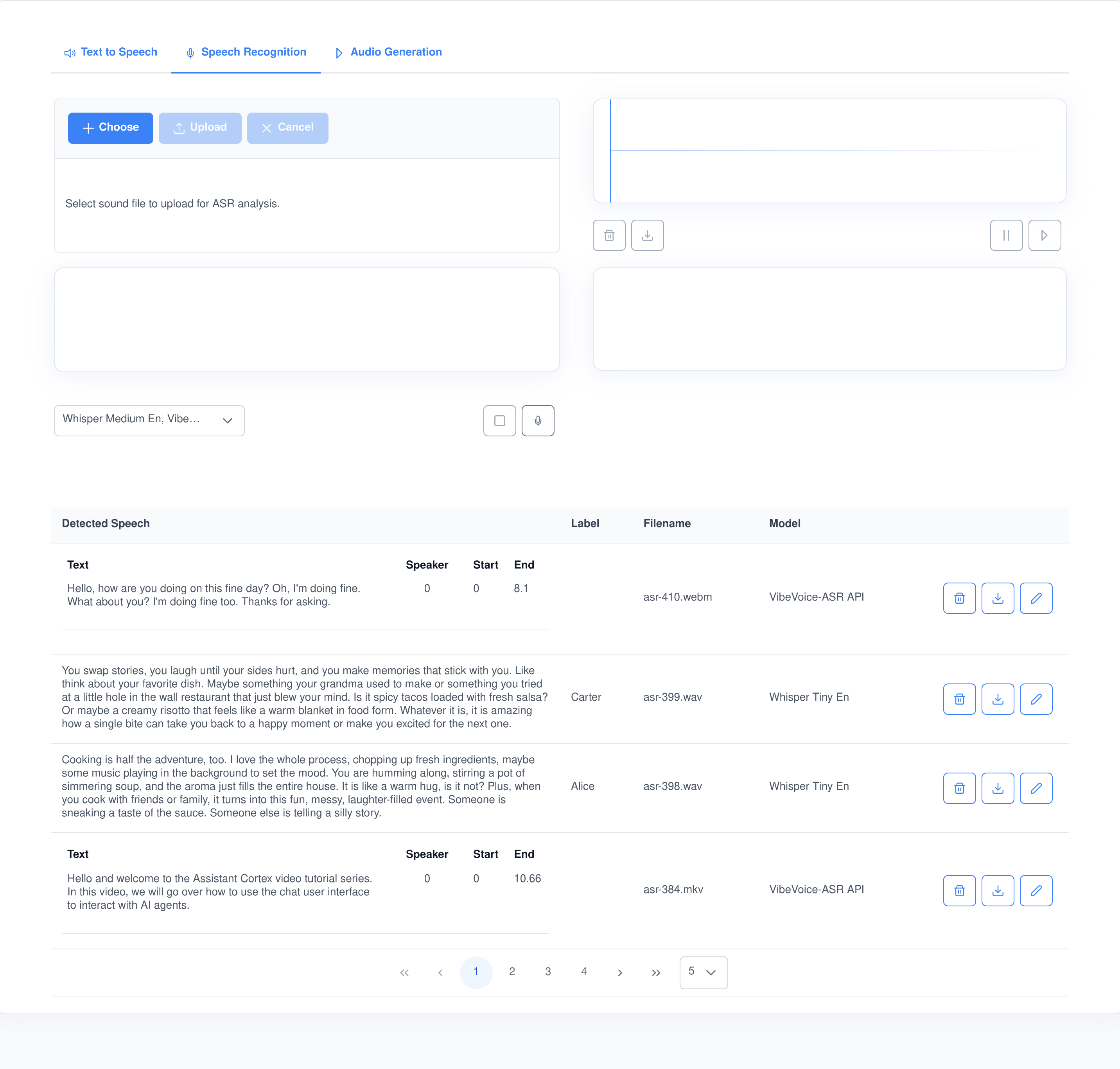
The Speech Recognition tab takes audio in from a file or straight from your microphone, and hands it to as many speech-recognition models as you tick.
- Upload or record. Drop in a file up to 1.5 GB, or record in the browser with a live scrolling waveform and a picker for which microphone to use.
- Video counts as audio. MP4, AVI, MKV, MPEG and MPG files are recognised as video and passed to the model as video, so a screen recording transcribes without a conversion step first.
- Compare engines on one file. Select several models at once and you get one stored transcript per model, from the same audio, side by side in the table.
- Speaker, start and end. Where the model returns structured segments they are rendered as a table of text, speaker, start second and end second rather than as one paragraph.
- Watch it arrive. Models that stream structured output have their partial results parsed and pushed to the screen while the transcription is still running.
Record a voice once, then give it to your agents
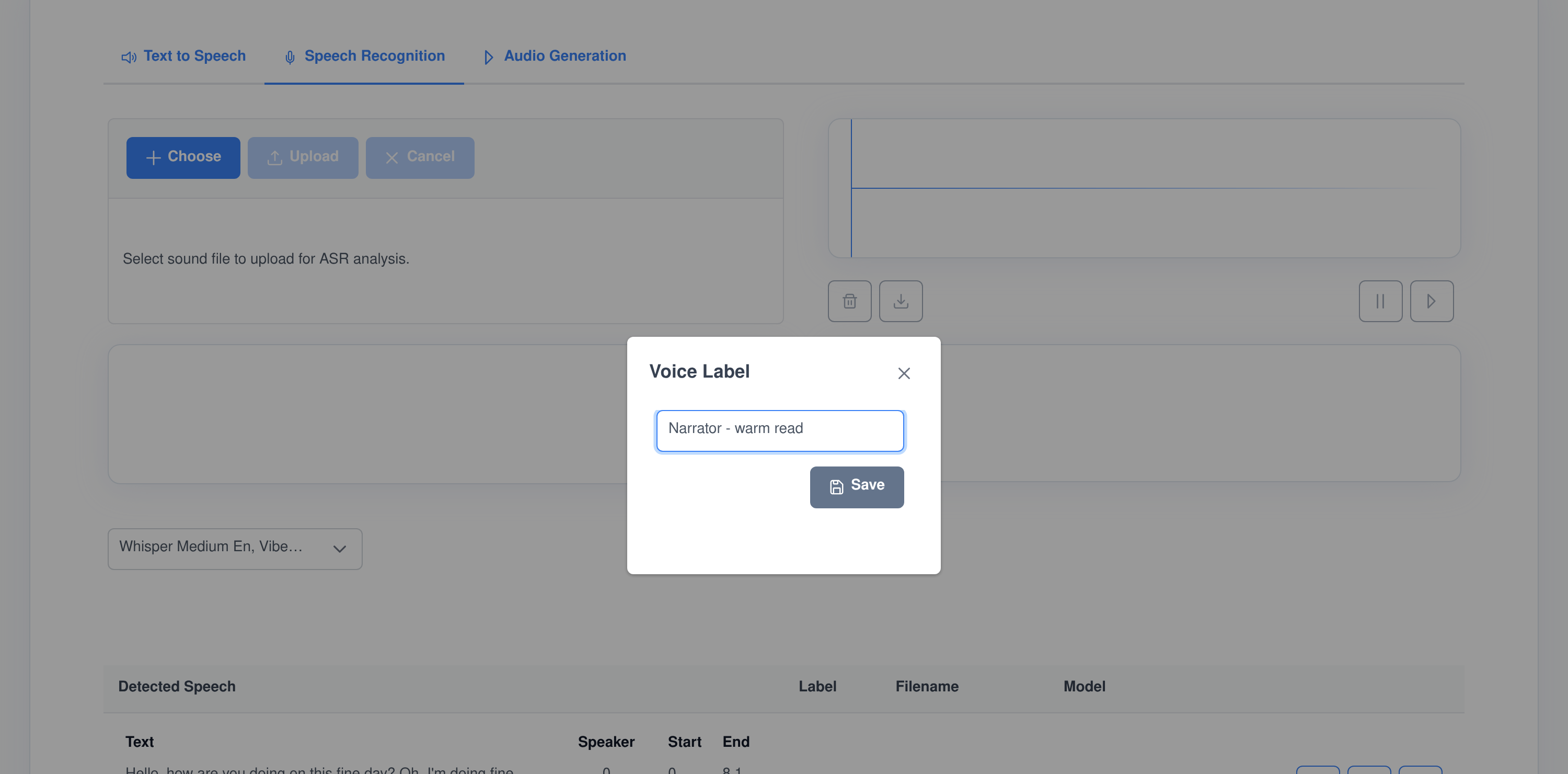
This is the step that ties the studio to the rest of the platform. Give a recorded clip a name, and it stops being a transcript and becomes a voice.
- Label it in one dialog. Record or upload the clip on the Speech Recognition tab, press the pencil, and type a name for the voice.
- It appears in text to speech. Labelled clips are added to the voice dropdown for any speech model that accepts a voice prompt.
- And in your AI agents. The same labelled clips are added to the voice list an AI agent chooses from, so an agent can answer in a voice you recorded.
- Nothing to configure. There is no separate voice-cloning console, no upload quota to manage and no per-voice setup — a label is the whole workflow.
Music generation is an AI ability — and an MCP tool
The studio is the human interface. The Music Generator ability is the same engine exposed to software: your agents can call it mid-conversation, and the Assistant Cortex MCP server publishes the identical function so Claude, an IDE or any other MCP client can drive it under the same permissions. The tool key below is the exact string the MCP server registers.
ai_ability_music_generator_execute
Generate Music
Generates a song from a text description, and optionally from lyrics you supply for a vocal track. The description is the only required argument; everything else has a default taken from the ability’s own settings. The caller gets a progress bar while it runs, a written summary of what was generated, and the finished audio file attached to the reply.
What a caller can set
- The brief. A prompt, optional lyrics with section labels, and a negative prompt naming what to leave out.
- The music. Length in seconds, guidance scale, beats per minute, key and scale, and the language of the vocal.
- The source material. A URL to an existing audio file to continue or restyle, with a start and end second and an optional rescale.
- The run itself. A seed for a repeatable result, a thinking-mode switch, and an explicit model key when you want a specific generator rather than whichever is online.
How it behaves
- It picks a model if you do not. With no model key it selects an online music generator; with one, it refuses rather than silently substituting if that model is not available.
- Defaults are administered, not hard-coded. Length, guidance scale, segment count and seed come from the ability’s settings page, so an administrator sets the house style once.
- Progress is honest. Models that report progress drive a real progress bar; models that do not get an indeterminate one instead of a fake percentage.
- The file lands in the conversation. The generated audio is written into the conversation’s workspace and returned as an attachment, so it can be played or passed to the next step.
Permissions and data handling that survive an audit
Generated speech and recorded voices are sensitive material, so access is split finely and the module owns the whole life cycle of what it stores.
Five separate permissions
- Text to speech, speech recognition and audio generation are granted independently, and each one controls whether that tab exists for the user at all.
- Generate lyrics is its own permission, so you can allow music generation without handing out a language model.
- Manage sound files gates renaming and deleting. Without it a user can still create and play audio but cannot remove anything.
- The tab bar is built from the grant. A user with only transcription rights sees a single tab, not a row of buttons that fail.
Your audio, your record
- Per-user isolation. Every listing is filtered by user id, and every rename, delete or voice lookup re-checks ownership on the server before it acts.
- Token-gated playback. File paths handed to the browser are rewritten to run through a token tied to the session rather than being served as open URLs.
- Included in a data export. A user’s audio records are added to the platform’s personal-data export under their own section, for subject access and portability requests.
- Erased and aged out. Deleting an account removes that user’s audio records, and a retention sweep removes records older than the cutoff you set.
What people use an AI audio studio for
Making music and sound
- Background beds for video. A loopable instrumental at a set tempo and key, written to brief and regenerated until it sits under the voiceover properly.
- Jingles and stings. Short branded pieces where the genre string and the seed are kept so the next one matches the last.
- Demo songs with vocals. Lyrics written in the same screen, sung in the language you choose, as a sketch before a real session.
- Variations on a track you like. Feed an existing clip back in as an audio prompt and trim it to the seconds you want carried forward.
Working with the spoken word
- Narration and voiceover. Product walkthroughs, training modules and announcements, all in a consistent voice and all downloadable.
- Meeting and interview transcripts. Upload the recording, or the screen capture, and get text back with speakers separated and timed.
- Checking one engine against another. Run the same audio through several transcription models at once when accuracy matters more than speed.
- Giving an agent a voice. Record a short clip, label it, and let an AI agent answer in it instead of a stock synthetic voice.
Frequently asked questions
Do I need a separate music or voice vendor?
No. Sound Studio drives the audio models running on your own Assistant Cortex workers. Music generation, speech synthesis and transcription are three tabs of the same application, and the model list is simply whatever you have online at the time.
Can it write the lyrics as well as the music?
Yes. One button sends your idea to a language model and streams back full lyrics laid out in verse, chorus, bridge and outro sections. A second pass reads those lyrics and fills in the genre line the music model expects, so you can go straight from an idea to a generated song.
Can I use my own voice?
Yes. Record or upload a clip on the Speech Recognition tab and give it a label. From then on it appears in the text-to-speech voice dropdown for any model that accepts a voice prompt, and in the voice list your AI agents choose from.
Can I transcribe video, not just audio?
Yes. MP4, AVI, MKV, MPEG and MPG uploads are recognised as video and passed to the model as video rather than being rejected, so a screen recording or a camera file transcribes without a conversion step first. Uploads are accepted up to 1.5 GB.
Does the transcript show who said what?
Where the transcription model returns structured segments, yes — each line is stored and displayed with a speaker number, a start second and an end second. Models that return only plain text are stored as plain text, and both kinds sit in the same list.
Can an AI agent generate music on its own?
Yes. The Music Generator ability is registered as a function an agent can call during a conversation, and the same function is published by the Assistant Cortex MCP server as ai_ability_music_generator_execute for external clients. It takes a description, optional lyrics and the musical controls, and returns the finished audio as an attachment.
Who can hear the audio I create?
Only you. Listings are filtered to your own account, ownership is re-checked on the server for every rename, delete and voice lookup, and playback links run through a token tied to your session. Your records are also included in a personal-data export and removed when the account is deleted or the retention cutoff passes.
Write your first track today
Music, speech and transcription in one workspace, on the models you choose, with every take saved to your own library.