Generate images, video and 3D models from one prompt box
Visual Workshop is the creative studio inside Assistant Cortex. Write a prompt, pick any image, video or 3D model your platform has online, and the result lands in your own gallery with the prompt, model, seed and settings that produced it.
No separate design suite and no vendor per modality. The workshop drives the generative models you already run, and the same gallery is available to your AI agents as an ability and as an MCP tool.
From a sentence to a finished asset in three steps
1. Write the prompt
Type a description, or hand it to the platform’s most capable reasoning model. One button expands a short prompt into a detailed two-sentence description; the other mutates it into a fresh variation on the same idea.
2. Pick a model
The dropdown lists every image, video and 3D model that is currently online. The form then rebuilds itself around that model — negative prompts, adapters, masks, upscaling and depth-map modes appear only if the model supports them.
3. Keep the result
Every generation is written to your gallery with its prompt, negative prompt, model, seed, steps, guidance scale and size — so you can find it weeks later, tag it, or copy those settings straight back into the form.
An AI image generator with the controls the model actually exposes
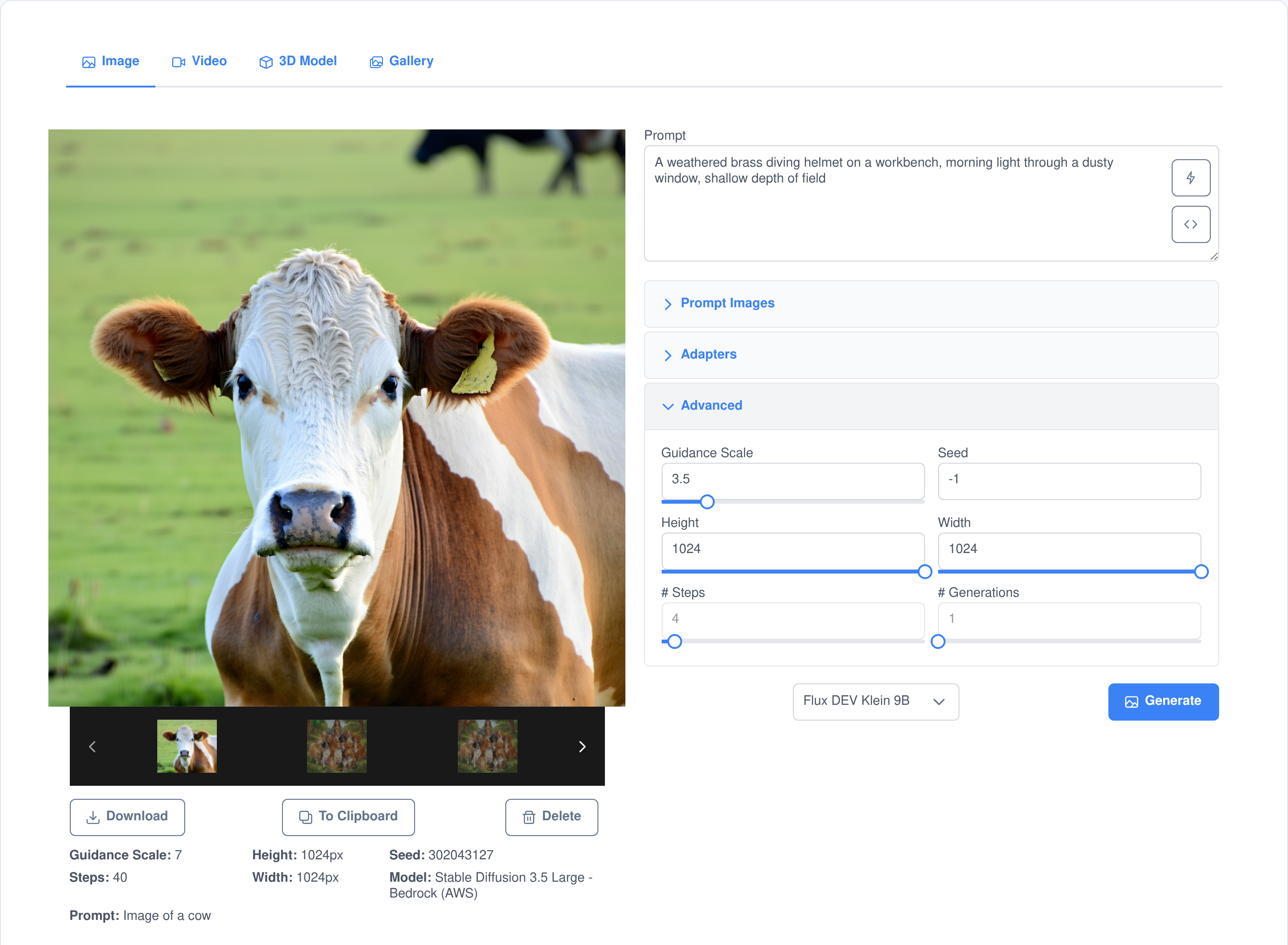
One screen covers text-to-image, image-to-image, infill, upscaling and control-guided generation. Which of those you get depends on the model you chose, because the form is assembled from that model’s own capability flags rather than from a fixed feature list.
Generation you can steer
- Prompt and negative prompt. Say what you want and what you do not want, where the model accepts both.
- Guidance scale, steps and seed. Pin the seed to reproduce an image exactly, or leave it at -1 for something new every run.
- Height and width in 16-pixel increments, up to the maximum the chosen model reports.
- Batches. Ask for up to eight variations in one run; each appears the moment it finishes rather than at the end of the job.
- Progress and a stop button. Generation streams progress back to the browser, and Stop cancels the job on the worker that is running it.
Reference images, not just words
- Prompt images. Attach reference images, each with its own weight slider, from an upload or straight from the workshop clipboard.
- Draw on the reference. Where the model supports image editing, drag a red, green, blue or yellow box — solid or outline — onto a reference image. It is composited into the picture before it reaches the model, so the prompt can talk about “the red box”.
- Control images and masks. Supply a control image for guided generation, or paint a mask with a 5–100 pixel brush for infill.
- Upscale, canny edge and depth map. When a model ships adapters for those processes they appear as generation modes, and the right adapter is loaded for you.
One screen that changes with the model you pick
Prompt, reference images, adapters and advanced settings sit in one column; the result and everything that produced it sit in the other. Swap the model in the dropdown and the controls, the size limits and the defaults change with it — nothing on this screen is tied to a particular vendor.
Everything you generate is kept, not just downloaded
Images, videos and meshes all land in the same gallery, and the gallery is per person: you see your own media and nobody else’s. Every read, tag and delete is checked against the requesting account on the server before it runs.
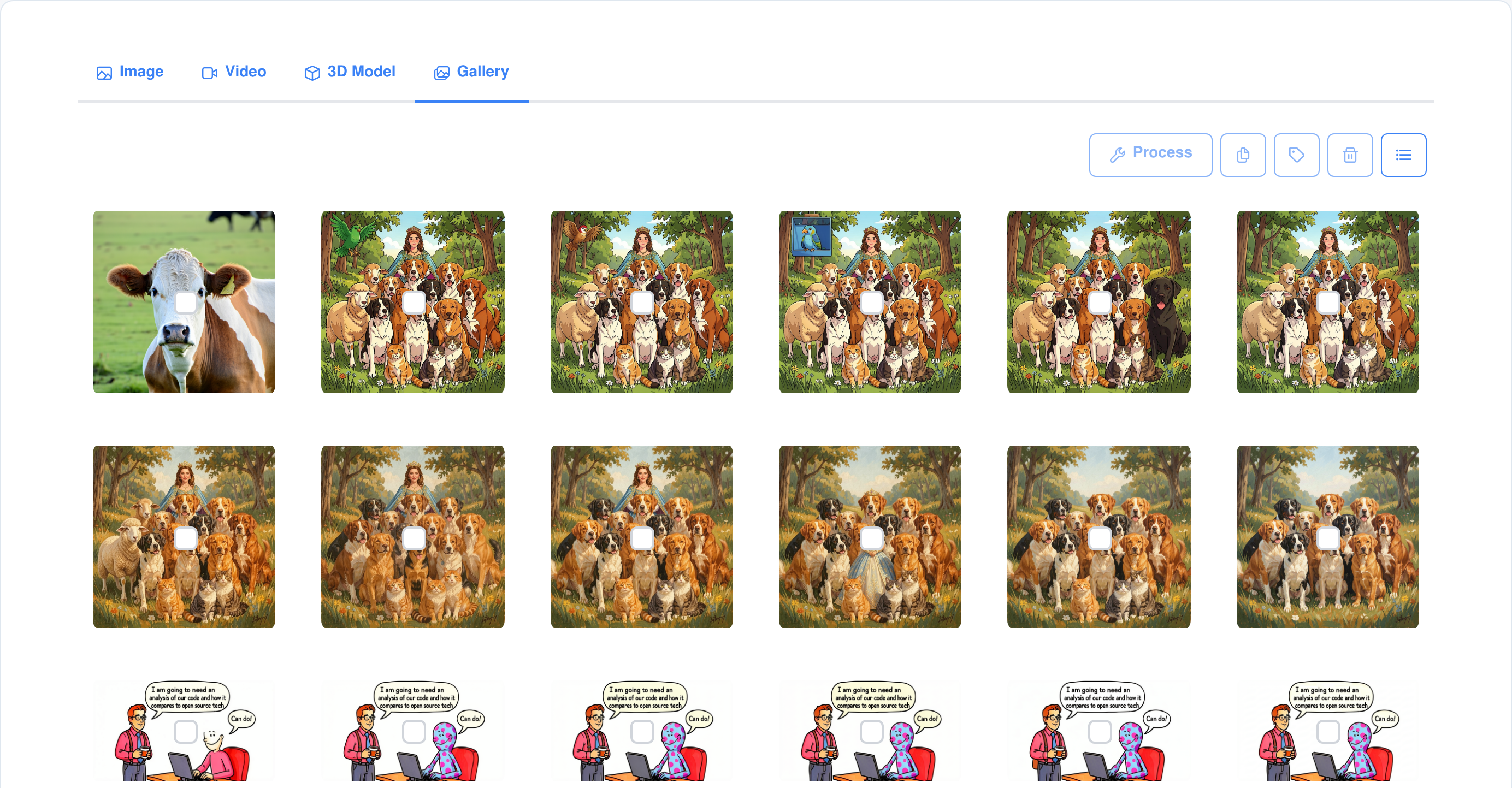
Tag it
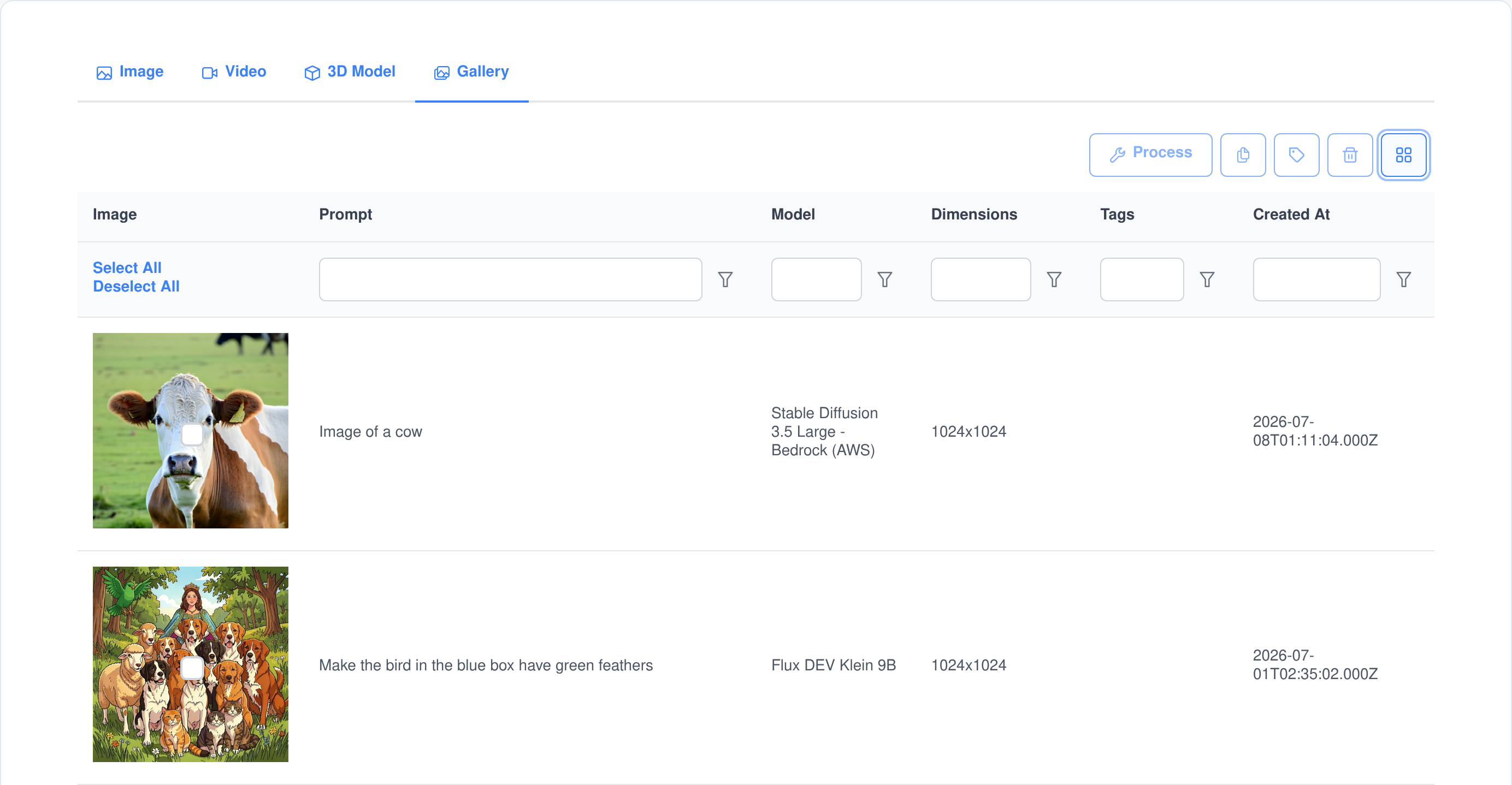
Add tags to one item or to everything you have selected in a single step. Tags are searchable from the list view and from chat, and two of them wire the gallery into the rest of the platform.
Reuse it
Copy an image to the workshop clipboard and it becomes the next prompt image, control image or mask without a download-and-upload round trip. “To Clipboard” copies the settings that made it, ready to paste back into the form.
Resize and re-frame it
Image Tools resizes a picture to 4K, 1080p, 720p, 480p, square or portrait — or any size you type — and drops it onto a larger transparent canvas anchored to a corner or the centre. The output is saved as a new gallery item, so the original survives.
Video and 3D models come out of the same workshop
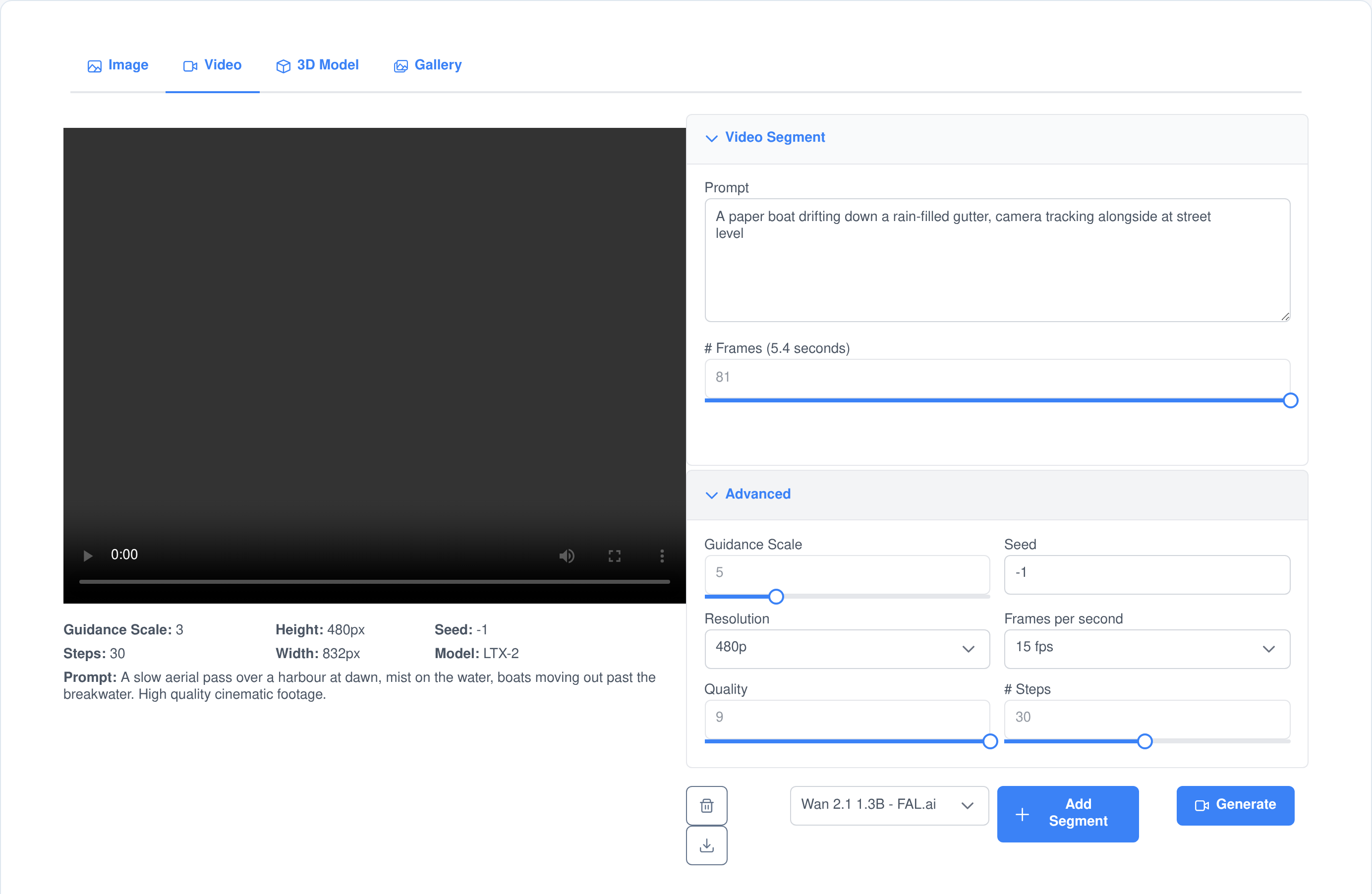
Video, one segment at a time
- Build a shot list. A video is a list of segments, each with its own prompt and frame count. The frame slider shows the length in seconds at the frame rate you picked, so you are editing time rather than counting frames.
- Guide each segment. Give a segment a start frame, an end frame, a control video or a prompt video, and the workshop loads them out of your workspace before the job is dispatched.
- One advanced panel. Resolution, frames per second, quality, guidance scale, steps and seed, plus several takes from a single run.
- Kept like everything else. Finished videos are stored as MP4 with a poster frame and a thumbnail, and appear in the gallery next to your images.
3D models you can spin before you download them
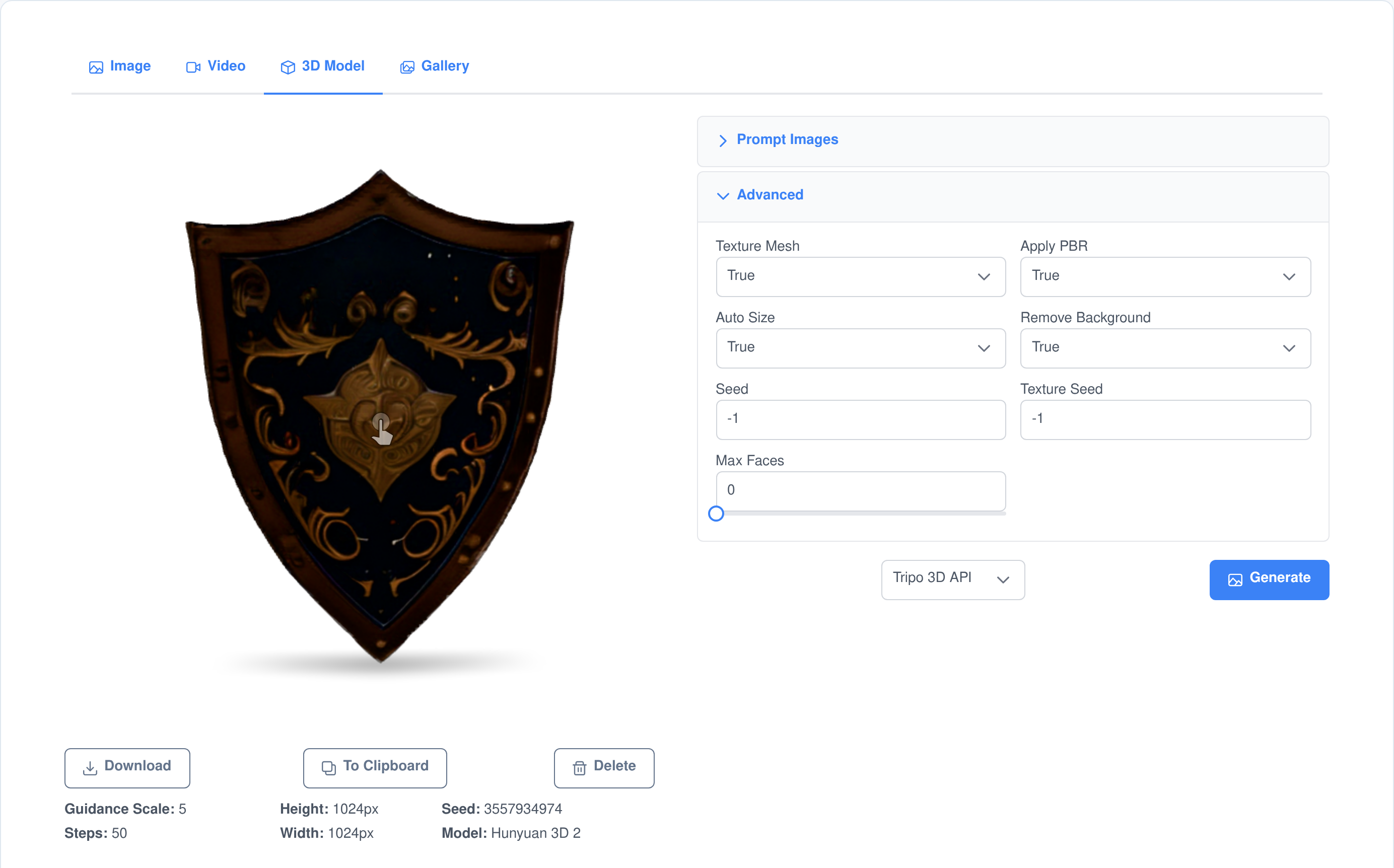
- Prompt, photos, or both. Generate a mesh from a text description, from reference images, or from a description guided by reference images.
- Control the mesh. Texture it, apply PBR materials, auto-size it, remove the background from the reference images, cap the face count and set the octree resolution.
- Look before you commit. The result renders in a 3D viewer in the browser and downloads as a GLB.
Bring your own LoRA adapters
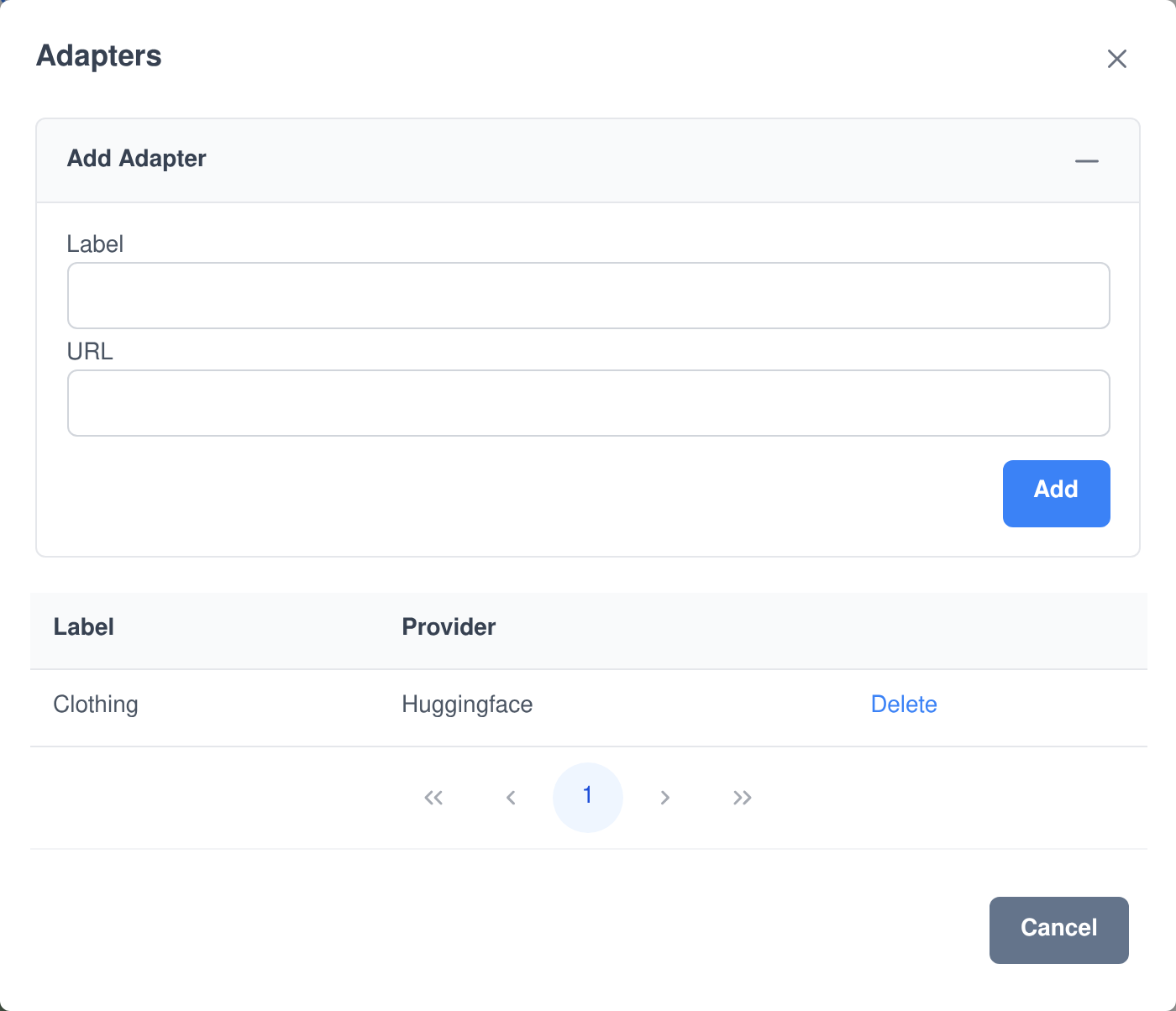
A model’s built-in style adapters appear in the Adapters panel with a weight box each. When those are not enough, paste a Hugging Face URL and Assistant Cortex fetches the adapter onto your workers itself.
- Add by label and URL. The platform broadcasts an install to the worker fleet and downloads the weights. No shell access, no copying files onto a GPU box.
- Registered against a model. An adapter is tied to the model it was added for, so the panel only ever offers adapters that will actually load.
- Mix and weight them. Select several adapters for one generation, each with its own weight.
- Process adapters stay out of the way. Adapters that exist to serve canny edge, depth map or upscale are kept out of the style list and loaded automatically when you choose that mode.
- Its own permission. Managing adapters is a separate permission from generating, so a team can use them without everyone being able to install them.
The pictures you generate become your agents’ faces
Tag a gallery image Agent and it appears in the portrait picker when you build an AI agent. Tag one Background and it appears in the scene picker. The file is copied into the agent’s own storage the moment you save, so the agent keeps its face even if you later clear the gallery out.
The gallery is an AI ability — and an MCP tool
Visual Workshop ships five functions your agents can call in the middle of a conversation. The same functions are published by the Assistant Cortex MCP server, so Claude, an IDE or any other MCP client can drive them under exactly the same permissions. Every one of them is scoped to the calling user’s own media.
visual_workshop_ability_list_loras
List LoRAs
Lists the LoRA adapters available for an image model, so an agent knows which styles it can ask for. The names it returns are the ones to pass as the lora parameter when generating or editing an image. Leave the model out and it uses the first image generator that is online.
visual_workshop_ability_search_gallery
Search Gallery
Searches the user’s generated media, matching the search text against both the prompt and the tags, and narrowing by tag, by media type — image, video or mesh — or by the model that produced it. It returns the media ids the other functions need, twenty-five at a time unless you ask for more.
visual_workshop_ability_view_gallery_media
View Gallery Media
Puts one or more gallery items into the conversation itself, so the agent shows you the pictures it found instead of describing them. Available on any channel that can display images.
visual_workshop_ability_update_gallery_tags
Update Gallery Tags
Tags gallery items in bulk. Replace the existing tags, add to them, or strip specific ones out, and get back the tags each item actually ended up with.
visual_workshop_ability_delete_gallery_media
Delete Gallery Media
Permanently deletes gallery items, and the files behind them, once a search has identified which ones you meant.
Permissions, data and where it runs
Seven permissions, not one switch
- Granular by design. View gallery, generate images, generate videos, generate 3D models, process images, manage the media library and manage custom LoRA adapters are each their own permission.
- The interface follows them. The tab bar is built from the permissions you hold, so somebody who may only browse never sees a generation screen at all.
- Checked on the server. Permissions are enforced on every command, and each command validates its payload against a JSON schema before anything runs.
- Owner-checked media. A request for somebody else’s item returns nothing and is written to the log.
Your models, your files
- Whatever you have running. Generation goes to the models your platform has online, self-hosted or API-backed, and a job refuses to start if the model you chose is not running.
- Files stay with you. Generated images, videos and meshes are written into the user’s own workspace on your infrastructure, not into somebody else’s cloud library.
- Erasure and retention are built in. Deleting a user removes their generated media; a retention cutoff clears media older than your policy; a personal-data export includes their gallery rows.
- Registered for compliance. The module is filed under the platform’s GDPR, CCPA, HIPAA, SOC 2 and PCI DSS handling.
What people use the workshop for
- Marketing and product imagery generated in batches, tagged by campaign, and resized to the sizes a channel needs without a second tool.
- Iterating on one idea. Pin the seed, change one word, and compare the two results side by side in the gallery with the settings that produced each.
- Editing a picture you already have. Upload it as a reference, mark the region you mean with a coloured box or a mask, and describe the change.
- Short video segments storyboarded as a sequence of prompts, with a start and end frame holding each shot to the look you want.
- 3D assets from a reference photo — textured, background removed, face count capped — downloaded as GLB for a game engine or a viewer.
- Characters and scenery for your AI agents, generated here, tagged, and picked straight out of the agent editor.
Frequently asked questions
Which image models does it work with?
Whatever your platform has online. The dropdown lists every model registered for image generation, and the controls, size limits and defaults on the form are read from that model’s own configuration rather than from a hard-coded list.
Can I use my own LoRA adapters?
Yes. Paste a Hugging Face URL with a label and Assistant Cortex installs the adapter onto your workers and registers it against the model you chose. It then shows up in the Adapters panel with its own weight, alongside the adapters the model already ships.
Does it generate video and 3D models too?
Yes. Video is built as a list of segments, each with its own prompt, frame count and optional start frame, end frame, control video or prompt video. 3D generation produces a GLB mesh from a prompt, from reference images, or from both, and renders it in a 3D viewer in the browser.
Where do the generated files go?
Into the user’s own workspace on your infrastructure, with a gallery record holding the prompt, negative prompt, model, seed, steps, guidance scale and size. Deleting the gallery item deletes the files behind it as well, including the MP4 or GLB for a video or a mesh.
Can other people see what I generate?
No. The gallery is per user, and every read, tag and delete is checked against the requesting account on the server before it runs. A request for media belonging to somebody else returns nothing and is logged.
Can an AI agent use this?
Yes. Five functions — list the adapters, search the gallery, show media in the conversation, tag it and delete it — are published as AI abilities and as MCP tools. They run with the calling user’s own permissions and see only that user’s media.
Can I stop a generation once it has started?
Yes. Image, video and 3D jobs stream progress back to the browser while they run, and Stop cancels the job on the worker that is running it.
Put a generative studio in front of your team
Images, video and 3D models on the models you already run, with a gallery that remembers how every one of them was made.