Connect your AI agents to any MCP server
Assistant Cortex is a Model Context Protocol client. Point it at an MCP server — over Streamable HTTP, or over a stdio bridge to something on your own network — and every tool that server advertises becomes an ability your agents can call mid-conversation, with the same routing, per-agent permissions and logging as an ability built into the platform.
Connecting one takes a label, a URI and, if the server needs it, a token. The tools are live the moment you save: no restart, no adapter code, no redeploy.
From a server URL to a working agent tool in three steps
1. Register the server
Give it a label and a URI, pick the transport, and choose how it authenticates. Saving the form connects to the server straight away.
2. It reads what the server offers
The handshake is recorded, the server’s own usage instructions are saved onto the record, and its full tool list — names, titles, descriptions and input schemas — is stored.
3. Your agents call the tools
Each tool is published as a routable AI ability. You choose which agents get which tools, and every call is written to the log with its arguments.
Three transports, three ways to authenticate
Remote servers are reached over the current MCP HTTP transport. Servers that only speak stdio — the ones running on a machine inside your network — are reached through a bridge that carries the stdio stream over a TCP socket, in either direction.
Transports
- HTTP. Streamable HTTP, through the official Model Context Protocol SDK. You give it the server’s endpoint URL and it negotiates from there; the connection log records the protocol version the server answered with.
- STDIO (incoming). The platform opens a TCP port and bridges it to an MCP stdio stream, so a server on your network connects in to it.
- STDIO (outgoing). The platform dials a host and port you specify and bridges that socket to stdio, for a server that is already listening.
- One list, mixed. Transport is a per-server setting, so a hosted vendor server and a machine in your office can be connected at the same time and are used the same way.
Authentication and secrets
- None, bearer token or basic. A bearer token is sent as an
Authorization: Bearerheader; basic credentials are base64-encoded into anAuthorization: Basicheader on every request. - The secret lives in Vault. It is written to a per-server Vault path and the database column is replaced with a sentinel, so the credential is not sitting in a table row.
- It never comes back to the browser. The server list masks the credential before it is sent to the UI; typing a new value replaces the stored one, leaving it alone means unchanged.
- Existing rows were migrated. A model migration lifted any credential stored in plain text into Vault and masked the column behind it.

Every server you have connected, and whether it is answering
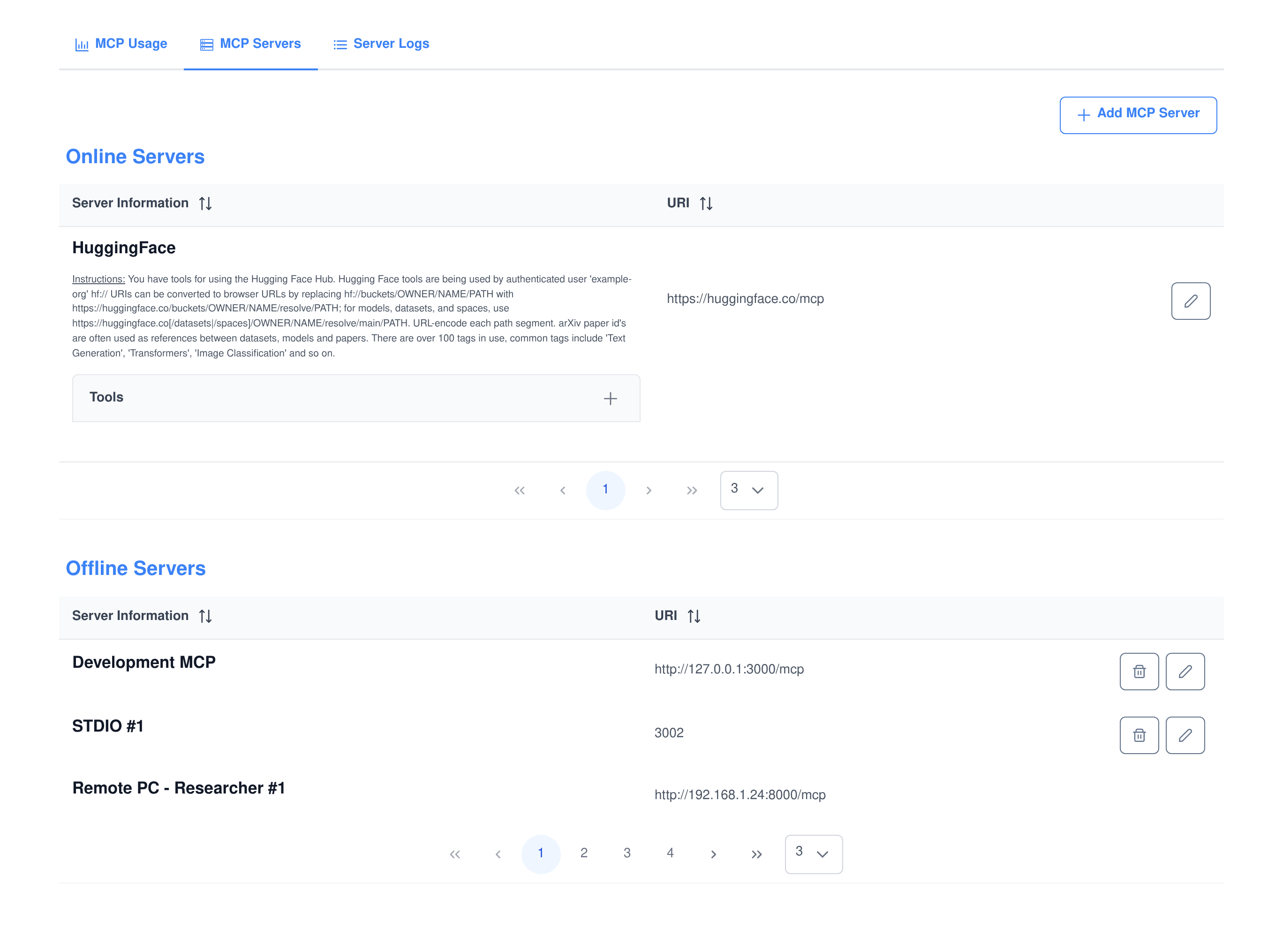
The MCP Servers screen splits the inventory into servers that are currently connected and servers that are not, so a server that has stopped answering is visible without opening anything.
- Online is a live state, not a saved flag. The list is answered from the connection map held by the running platform, so it reflects the session that exists right now.
- Each row shows the server’s own words. The usage instructions the server sends during the handshake are stored on the record and printed under its name.
- Disable without deleting. An Enabled switch takes a server out of the refresh entirely, which unpublishes its tools while keeping the configuration.
- Servers installed by an application are protected. Connections another module registered in code appear in the list but cannot be edited or deleted from it.
You can see exactly which tools a server gave you
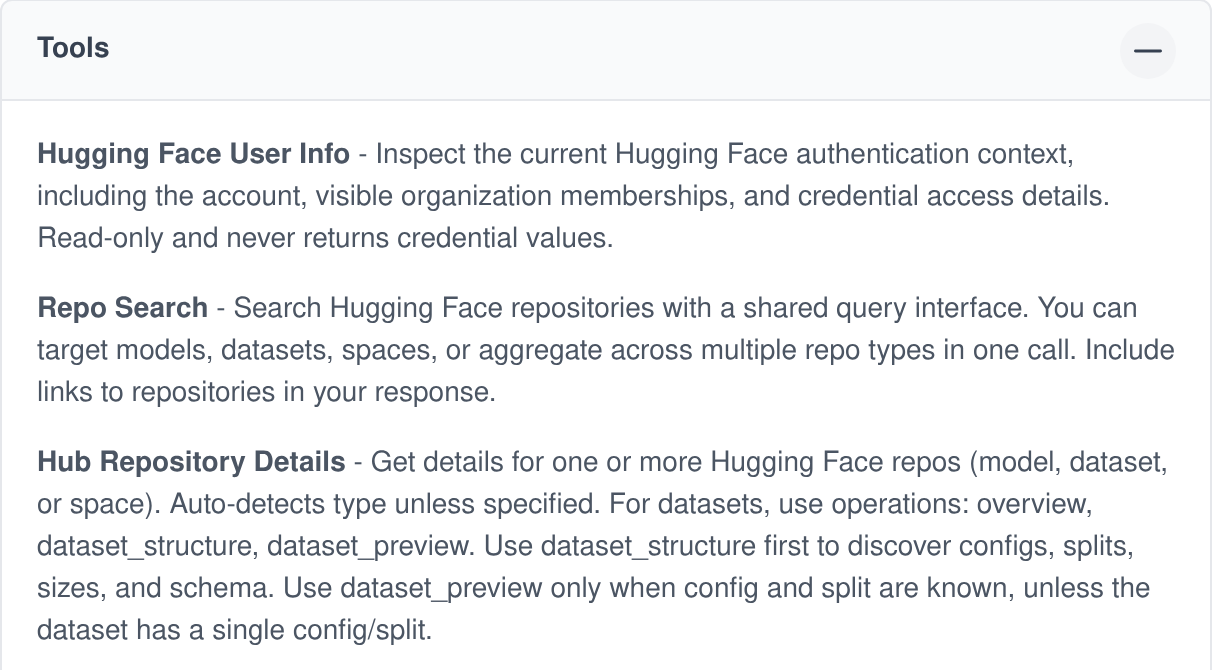
Tool discovery is not a one-off import. On every connect the platform asks the server for its tool list and stores what comes back, so the panel under each server is what that server is advertising today, in its own wording.
- Name, title and description, per tool. Exactly what the server published, saved on the server record and shown in a collapsible panel.
- The input schema is kept. Each tool’s JSON Schema is carried through as the ability’s parameter definition, so the model is given the server’s own argument contract rather than a hand-written approximation.
- Refreshed on a schedule. The tool list is re-read hourly and after every change you save, and a server that has not managed to connect is retried on the same cycle.
- New tools need no restart. When the list changes, the routing embeddings are rebuilt, so a tool the vendor shipped this morning is selectable this afternoon.
A discovered tool is a first-class AI ability
Tools from a connected server are not kept in a separate compartment. They are injected into the platform’s own ability list, which means they are picked up by the same router, the same per-agent settings and the same tool-calling path as an ability that ships with Assistant Cortex.
How a tool gets chosen
- Matched on meaning. The tool’s description and every one of its parameter descriptions are embedded, and the router scores them against what the user just asked for.
- Or called natively. The same tools are assembled into the model’s function-calling list, using the server’s JSON Schema as the argument schema.
- Enabled per agent. Selection is filtered by the ability list on the agent that is answering, so a tool exists for the agents you gave it to and not for the rest.
What comes back
- Text is answered in the conversation. Every text block in the tool result is joined and returned as the agent’s reply.
- Images are saved and attached. Image content is decoded and written into the conversation’s workspace, then attached to the reply as a file.
- A bad response is surfaced, not swallowed. A result with no content raises an error carrying the JSON the server actually returned.
mcp_<server>
Each server becomes one ability module
A connected server shows up alongside the platform’s own modules as “MCP — your label”, described by the instructions the server itself published, with its tools listed as that module’s functions.
mcp_<server>_<tool_name>
Each tool becomes one ability key
The remote tool name is lowercased, and spaces and dashes become underscores, to give a stable key. That key is what the router selects, what an agent’s ability list refers to, and what the log records when the tool is called.
Usage you can actually see
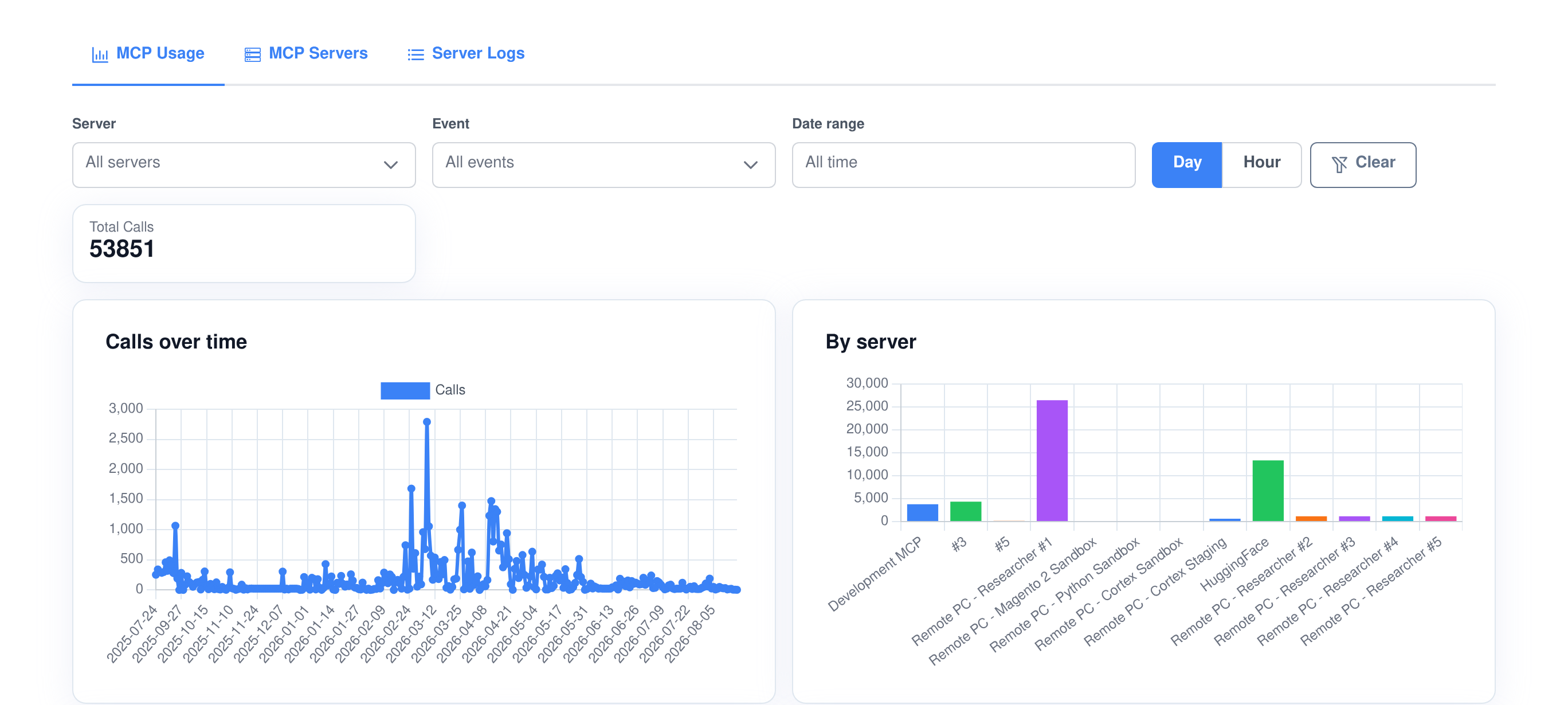
The MCP Usage screen reads the same log the platform writes as it talks to your servers, so the charts are activity rather than an estimate. Filter by server, by event type and by date range, and switch the time axis between daily and hourly buckets.
- Volume over time. Recorded events per day or per hour, for whatever the filters currently select.
- By server. Which connections are carrying the load, labelled with your names for them rather than with row ids.
- By event. A split of connects, disconnects, errors and tool calls — the quickest read on a server that is reconnecting or failing more than it is working.
- By tool. Which tools are being called, counted across the tool-call events in range.
A record of every conversation with every server
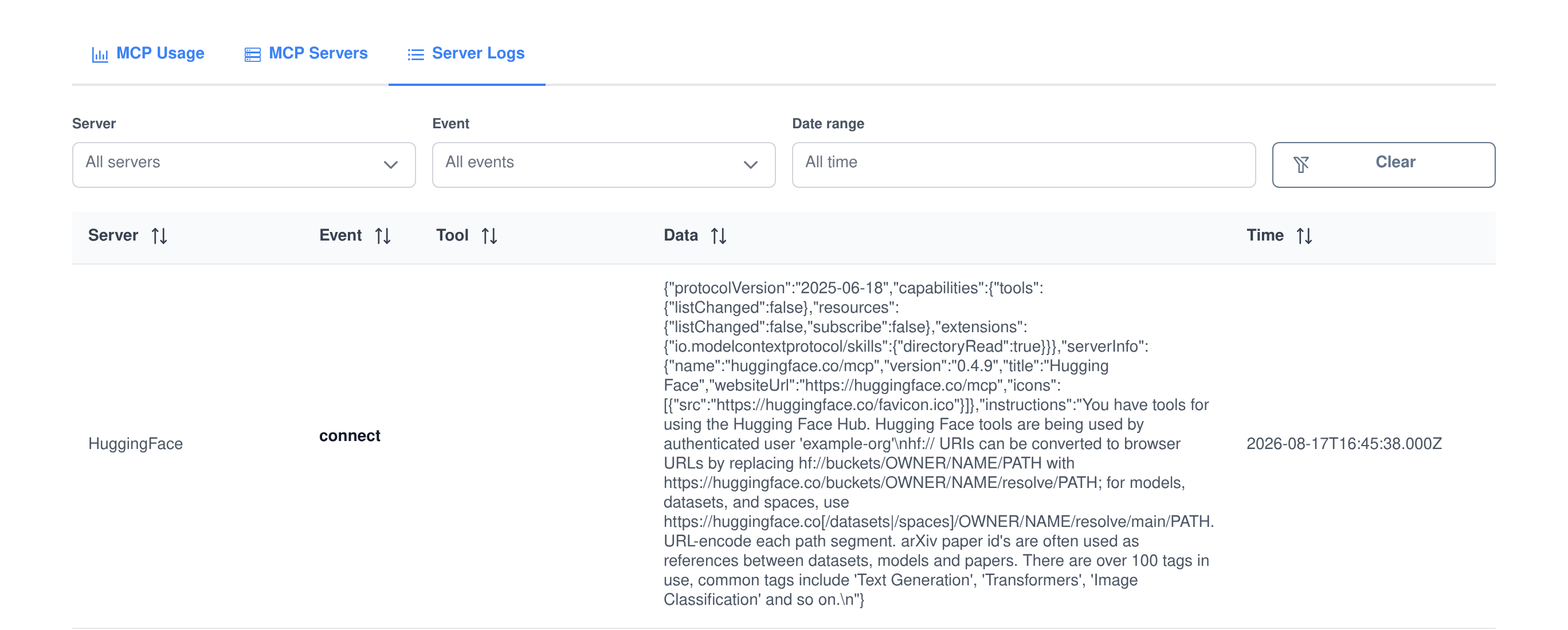
Four kinds of event are written as they happen: a connect, a disconnect, an error, and a tool call. Each row keeps the server, the tool where there is one, the payload and the timestamp, which is what turns “the integration is flaky” into a specific server and a specific minute.
- Connect keeps the handshake. The server’s declared capabilities, name, version and instructions are stored as the connection is established.
- Tool calls keep their arguments. The tool that was invoked and the arguments it was given are recorded on the call.
- Errors and drops are not silent. A transport error or a closed session writes its own row, so a server that disappeared leaves a trace.
- Built for real volumes. Paging, sorting and the server, event and date filters all run in the database, not in the browser.
MCP runs in both directions here
This application is the client half: Assistant Cortex reaching out to somebody else’s MCP server so your agents can use their tools. The other half — publishing your own Assistant Cortex abilities as MCP tools, so Claude, an IDE or any other MCP client can drive them — is the MCP Server application. Most teams end up running both.
Who can connect what
Two permissions, cleanly separated
- Manage MCP servers. Add, edit, disable and remove connections. This is the only permission that can reach a credential field.
- View MCP servers and logs. Read the usage charts and the event log without being able to change a connection.
- The tabs follow the permission. The screens a user cannot use are not rendered, and a deep link into one lands them on the first screen they are allowed.
- Tool-level control lives on the agent. Which tools an agent may call is the agent’s ability list, so a connection can be shared while access to individual tools is not.
Operational detail
- Saving is the deploy step. Creating, updating or deleting a server reconnects and republishes tools immediately; there is no separate restart or cache to clear.
- Stale bridges are cleaned up. On start-up the platform kills any stdio bridge processes left behind by a previous run before opening new ones.
- Every screen is extendable. The server list, the log and the dashboard all expose injection points, so another module can add a column, a button or a panel without forking this one.
- Declared for compliance review. The module registers itself under the platform’s GDPR, CCPA, HIPAA, SOC 2 and PCI DSS compliance set.
What people connect it to
Typical connections
- A vendor’s hosted MCP server. One URL and a token, and their tools are available to your agents under your own permissions.
- An internal server on your network. A stdio server on a machine you control, bridged over a socket rather than exposed to the internet.
- A server your team wrote. Anything that speaks the protocol, including a development server on a local port while you build it.
- Machines under the platform’s control. The Remote PC application registers one MCP connection per computer and drives it through this client.
If you are building on it
- Register connections from code. An application can create or remove its own MCP connection by key, so installing that application is what wires the integration up.
- Call a tool directly. A service call takes a server key, a tool name and arguments, and returns the tool’s result to your own code.
- Check before you call. There are explicit checks for whether a server is registered, whether it is online, and whether it exposes the exact tools you depend on.
- The same log either way. Calls made from code are written to the event log exactly like calls made by an agent.
Frequently asked questions
Which MCP transports are supported?
Three: Streamable HTTP for remote servers, and two stdio bridge modes for servers on your own network — one where the platform listens on a TCP port for the server to connect in, one where the platform dials out to a host and port. The older HTTP-plus-SSE transport is not used.
Where is a server’s API key or token stored?
In Vault, under a path of its own for that server. The database column holds a sentinel value instead of the secret, the server list masks it before anything is sent to the browser, and the credential is read back out of Vault only when a connection is being opened.
Do I have to restart anything after adding a server?
No. Saving the form reconnects, re-reads the tool list and rebuilds the routing embeddings, so the new tools can be used in the next message. The same refresh also runs on its own every hour.
Can I stop one agent from using a particular tool?
Yes. Every discovered tool is an ability with its own key, and an agent can only use the abilities on its own list, so you decide per agent which of a server’s tools it may call.
What happens when a server is unreachable?
It sits in the Offline Servers table and its tools are not published to agents. The failure, and any transport error or dropped session, is written to the event log, and the connection is attempted again on the next hourly refresh.
Can an MCP tool return an image?
Yes. Image content in a tool result is decoded and saved into the conversation’s workspace, then attached to the agent’s reply as a file. Text blocks in the same result are returned as the reply itself.
Does this also let outside tools call into Assistant Cortex?
No, that is the opposite direction and it is a separate application. This one consumes other people’s MCP servers; the MCP Server application publishes your Assistant Cortex abilities as MCP tools for external clients.
Who is allowed to add a server?
Only users with the manage permission, which is also the only permission that reaches the credential field. Users with the view permission get the usage charts and the event log, and cannot change a connection.
Connect your first MCP server
Paste in a URL, save, and ask an agent to use one of the tools it just found. That is the whole evaluation.