Publish your AI abilities as MCP tools
Assistant Cortex ships its own Model Context Protocol server. Create an endpoint, tick the abilities it is allowed to expose, and paste its URL into Claude, an IDE or any other MCP client. The tools that appear are the same ability functions your agents call in chat, executed by the same code, under the same permissions.
There is nothing to deploy. The endpoint is a URL on the installation you already run — https://your-host/mcp/<uuid> — authenticated with a bearer token you can regenerate whenever you want.
Three steps from an installation to a working MCP endpoint
1. Create the endpoint
Give it a name. It is assigned a UUID and a URL of its own, and starts enabled. Turning it off stops it answering without deleting anything you configured — and a server cannot be deleted while it is still enabled.
2. Tick the tools
Every ability function installed on the platform appears as a tile, grouped by the application it belongs to. Tick the ones this endpoint may expose — one at a time, or a whole group with a single switch.
3. Point a client at it
Copy the URL, send your access token as Authorization: Bearer <token>, and the client lists your tools. From then on every call is executed, attributed and logged on your own installation.
An endpoint is a URL, a token and a list of tools
Each server you create is one row on this screen: its address with a copy button, whether it is on, how it is reached, and the tools it publishes. The counters underneath are read back out of the call log, so a card tells you whether anything has actually used it.
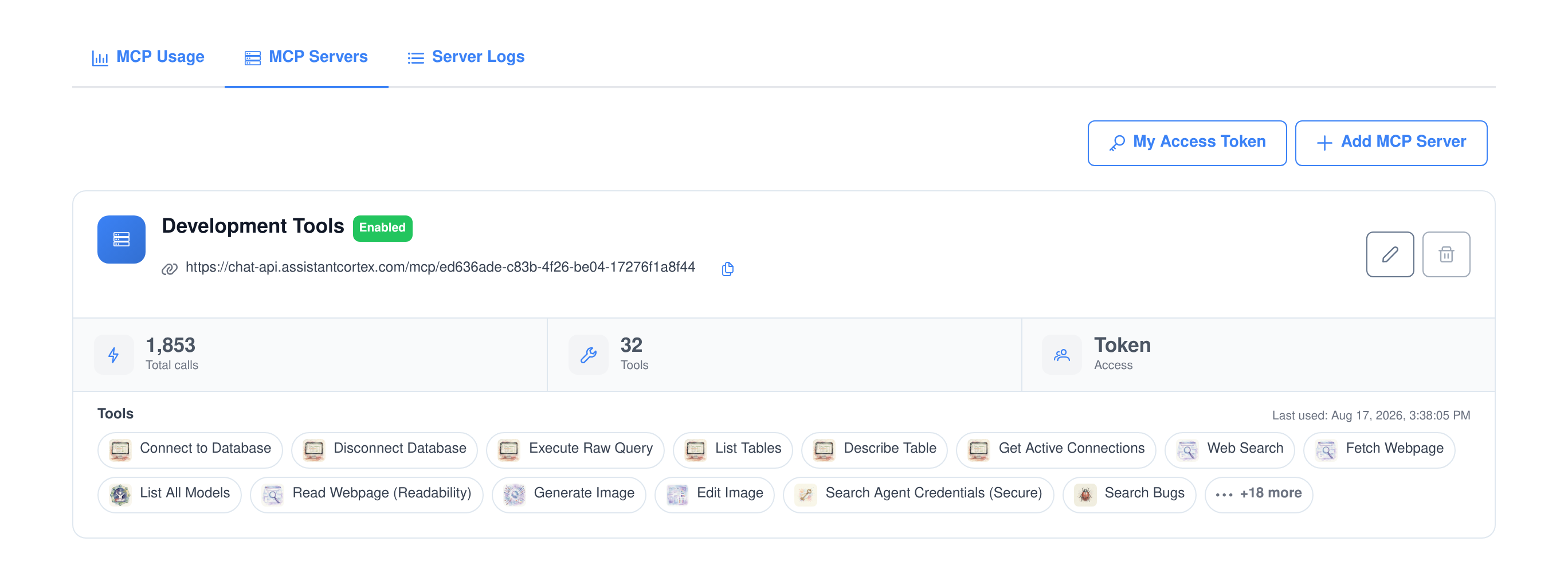
What the card tells you
- Its address, ready to copy. The endpoint URL is built from your installation’s base URL and the server’s UUID, with a copy button next to it.
- Total calls and last used. Both are aggregated from the tool-call log for that endpoint, not from a counter that can drift.
- Errors surface on the card. Failed tool calls are counted separately and shown as a red tag, so a broken integration is visible before anyone reports it.
- The tools it publishes. The first fourteen appear as chips with their own icons, and the rest collapse into a “+n more”.
What is on the wire
- The official MCP SDK. Streamable HTTP transport, one session per connected client, with an event store so a dropped stream can resume.
- A POST opens the session, a GET streams it. The initialise request creates the session and registers that endpoint’s tools; the GET carries the server-sent events for it.
- Errors are JSON-RPC, not HTML. An unknown server, a missing session and a rejected token each return their own JSON-RPC error code.
- Browser clients work. The endpoint answers CORS preflight and permits the
Authorizationandmcp-session-idheaders.
You choose what each endpoint is allowed to do
The catalogue is every ability function installed on your platform — image generation, web fetch, SQL, knowledge base search, text to speech, whatever you have added — grouped by the application that owns it. A server publishes the ones you tick and nothing else, so a coding assistant and a support integration can sit on the same installation with completely different reach.
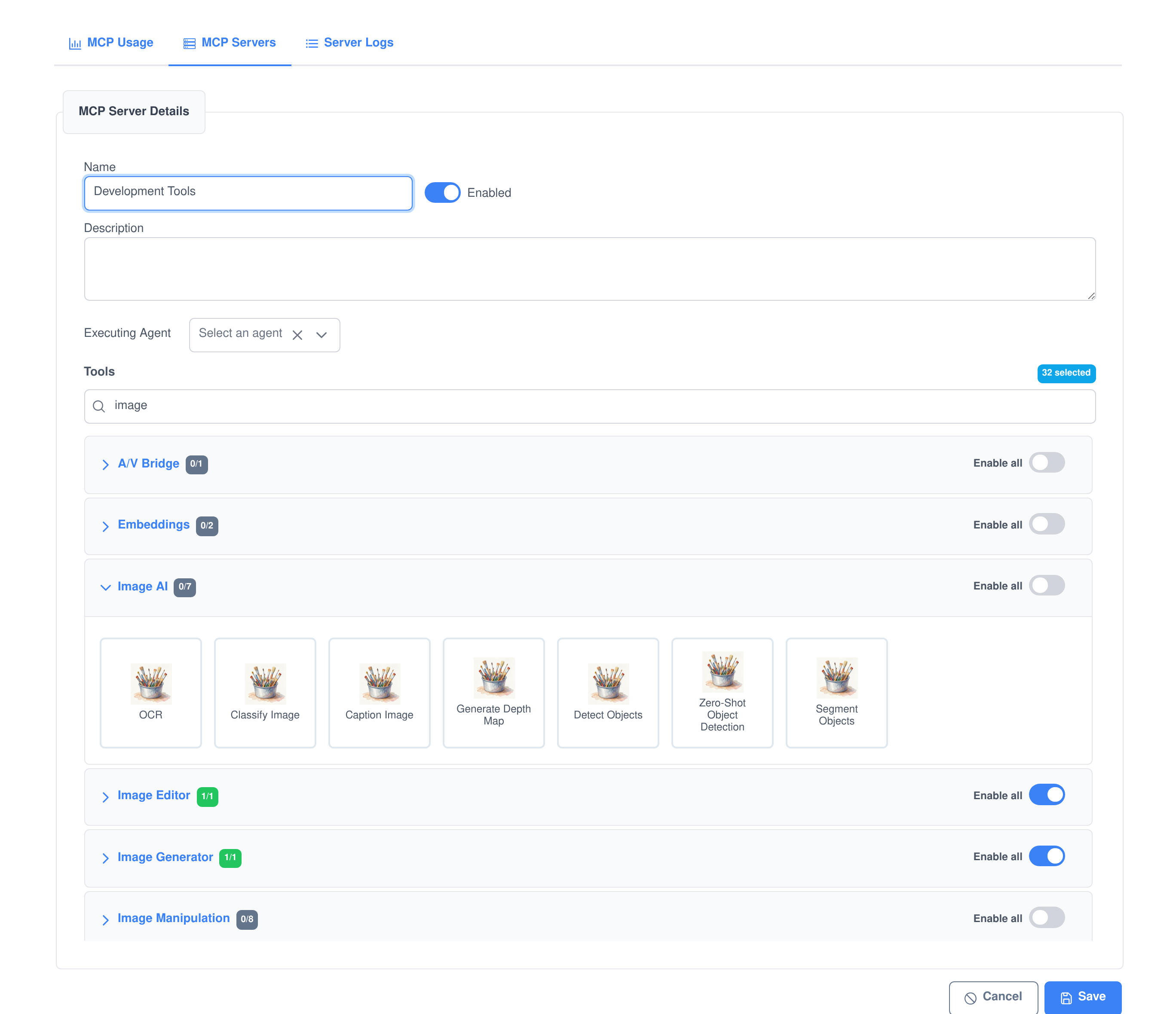
Picking the tools
- Grouped by application. Each group shows how many of its functions are selected out of how many exist, and an “Enable all” switch for the lot.
- Searchable. Type part of a name and the accordion narrows to the groups that still match.
- Every function is a tile. Tools carry their application’s icon, so a long catalogue is scannable rather than a wall of identifiers.
- Schemas are generated, not written. The ability’s parameters become the tool’s input schema — strings, enums, numbers, integers, booleans, arrays and objects — optional unless the ability marks them required, with declared defaults applied.
What you cannot put on a server
- Anything your groups do not grant you. A non-administrator only sees the abilities their user groups allow — the same list a custom agent’s ability settings draw from. Administrators see everything.
- Anything hand-crafted into the payload. The selection is re-checked on the server on both create and update, and keys that are not real abilities, or not granted to you, are dropped rather than saved.
- Anything the operator has withdrawn. An ability can be hidden from the catalogue platform-wide, and it then disappears from every picker.
- Anything on someone else’s server. In the default mode you can only edit the endpoints you own — reading or changing another user’s server returns “not found”.
One server per person, or one console for the organisation
A single setting on the application’s configuration page — server_mode, set to user or system — decides who owns MCP servers on your installation. It is read at start-up and re-read the moment the setting is saved, so switching modes does not need a restart. The default is user: everything below is scoped to the person who created it.
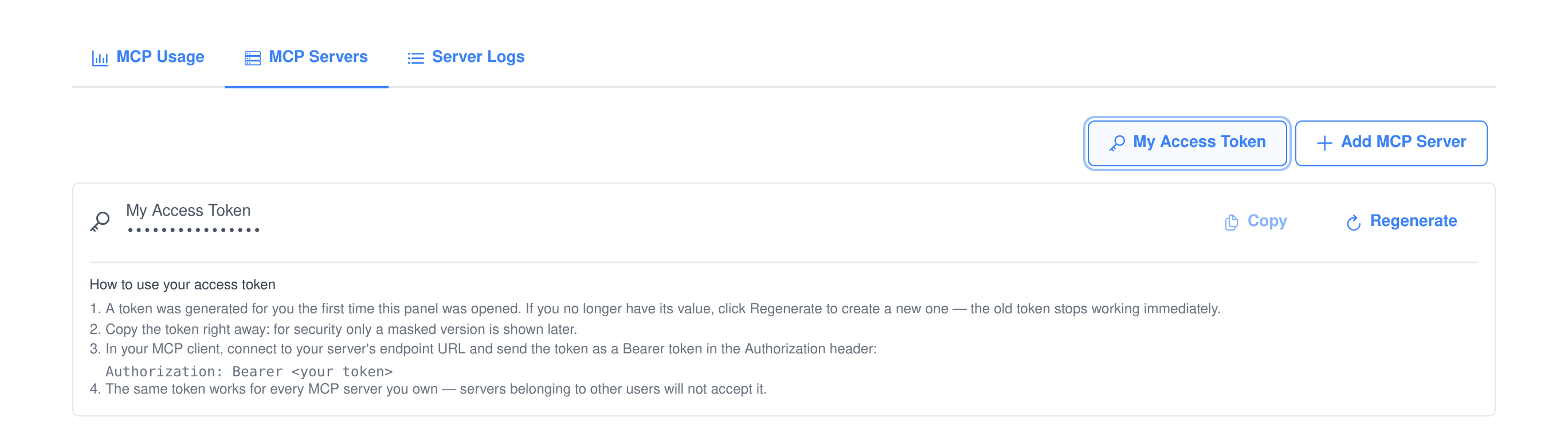
User-scoped mode — the default
- Anyone with the create permission gets their own servers. Each one is stamped with its owner, and the list, the logs and the usage charts only ever show servers that person owns.
- One personal token per user. It is issued the first time the access-token panel is opened, and the same token works for every server that user owns — and for nobody else’s.
- Calls execute as the owner. A tool call arriving on your endpoint runs with your platform identity, so it reaches exactly the data and abilities you can reach in the app.
- No public endpoints, ever. Tokenless access is a system-mode feature; in user mode a server that was left marked public is still treated as private.
- No user administration to do. There are no MCP user records to create — the tab is not even shown — because the credential is simply the person’s own token.
- Administrators are not scoped. An admin still sees every endpoint, which is what makes the mode workable to support.
System-wide mode
- Endpoints are shared. Everyone holding the view permission sees the same list, and the module becomes a single administered console rather than a per-user feature.
- Access is granted per endpoint. Each server carries an allow-list of MCP users, and a token is only accepted on the servers its holder has been added to.
- MCP users are real accounts. Creating one provisions a platform account in an auto-managed “MCP Users” group with a random, non-loginable password — so a machine integration has an identity of its own that calls can be attributed to.
- Group membership keeps them in step. Adding an existing user to the MCP Users group creates their MCP record; removing them deletes it and strips them from every endpoint’s allow-list.
- Public endpoints become possible. If the administrator also enables public servers, an endpoint can be marked public and will answer with no token at all — and a valid token, if one is sent, is still used to attribute the call.
- Deleting a user is tidy. The record is removed from every allow-list, and the backing account is either kept (if it belongs to other groups) or disabled, so old log rows keep their attribution.
What happens when a client calls a tool
The MCP endpoint is not a second implementation of your features. A tool call is handed to the same routing service that runs an ability inside a chat, with a real user identity attached, and the ability cannot tell the difference.
It runs the real ability
Text replies, structured payloads and the interactive cards an ability would normally render in chat are all collected and returned as tool output — including the card payloads, which would otherwise be lost outside the chat window.
It can run as an agent
Name an executing agent on the endpoint and abilities that are agent-aware use it. That is also what unlocks stored credentials: placeholders in the arguments are resolved to real secrets before the call, and any secret that surfaces in the output is masked again before it reaches the model.
Files come back as links
Each session gets its own workspace folder. Images and audio return inline, and every generated file also gets a download URL signed for that server, session and filename, valid for 24 hours — so a browser can fetch it without an auth header, and nothing else can.
See what the outside world is actually using
The usage screen answers the question you will have within a week of handing an endpoint to a client: which tools does it really call, how often, and by whom. Filter by server, by tool group, by user and by timeframe, and switch the series between daily and hourly buckets.
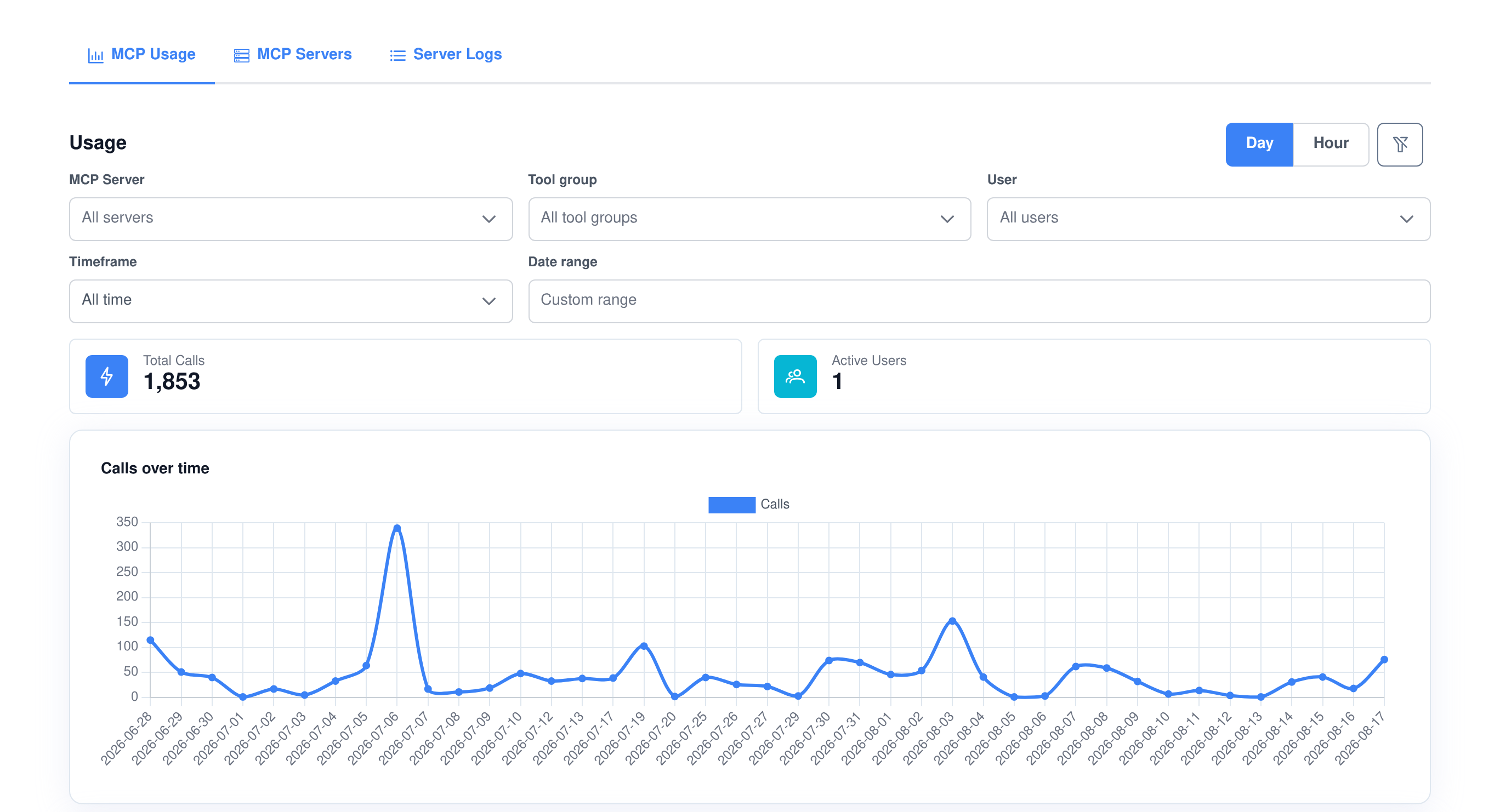
- Filter by tool group, not just tool. Choosing an application expands to all of its functions, so you can ask “how much of this is the knowledge base?” in one click.
- Timeframes and custom ranges. Last 24 hours, 7, 30 or 90 days, all time, or a date range you pick.
- Calls broken down by tool. The bar chart names the exact tool keys, which is usually enough to spot a client stuck in a loop on one function.
- Scoped like everything else. In user mode the numbers only cover the endpoints you own; asking for another user’s server is refused rather than quietly answered.
Every call is written down, including the ones that failed
Pick an endpoint and you get its own history: calls over time, a breakdown by tool, a split by caller, and the log itself. A failing tool is recorded with the error rather than disappearing — the client is told what went wrong, and the row stays behind so you can see it happened.
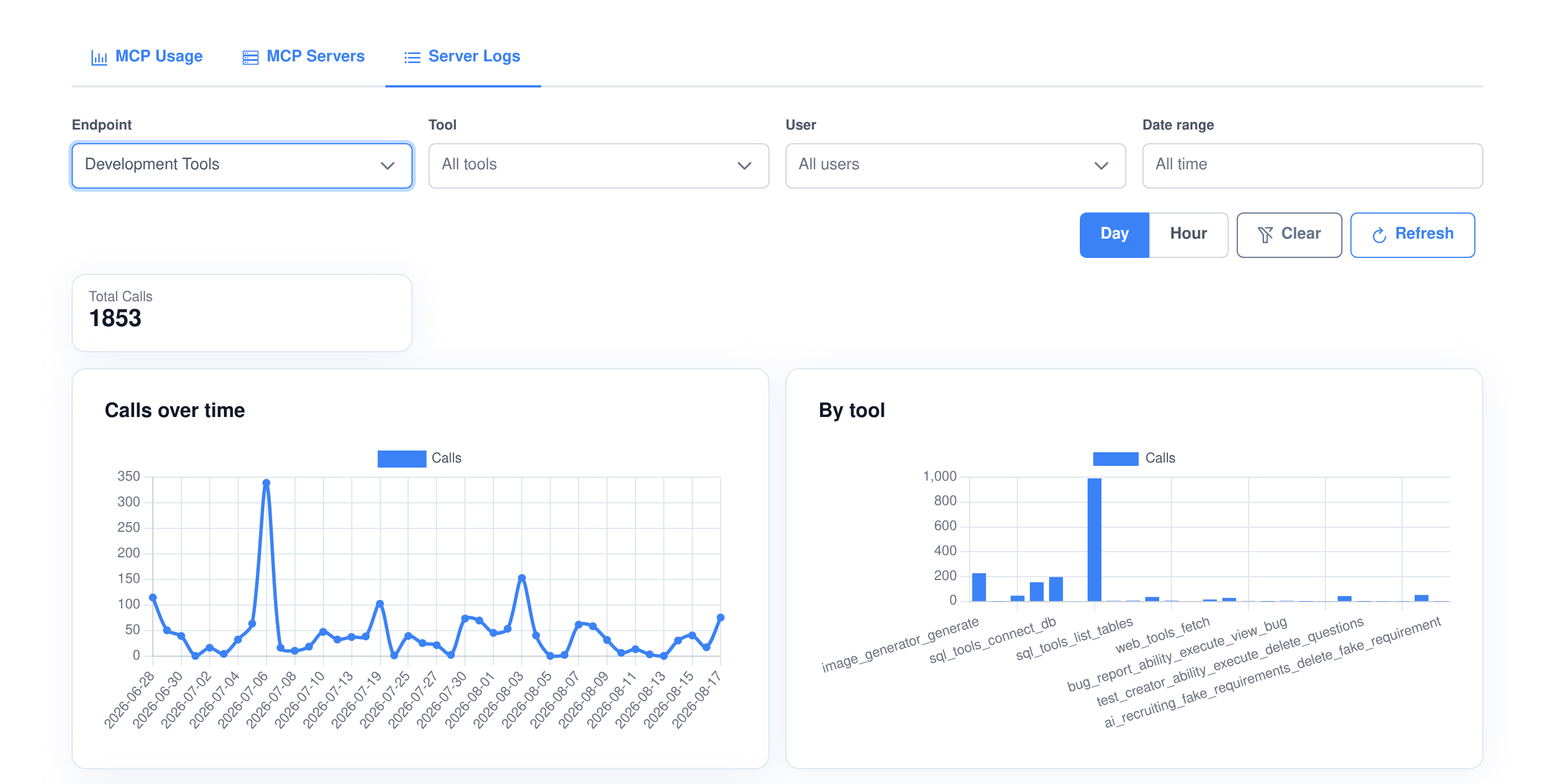
What a log row holds
- The call itself. Timestamp, level, tool name, the arguments it was given and the text it returned.
- Who made it. The MCP identity that presented the token and the platform user the call executed as, so an endpoint shared between clients stays attributable.
- Which session. The MCP session id, which ties a burst of calls back to one connected client.
- What it cost. A price per call, but only when metering is switched on — see below.
Metering is optional and off by default
- Nothing is charged until you say so. An installation that has never opened the settings page neither prices a call nor shows a cost anywhere.
- Off means off, retroactively. With metering disabled, prices are stripped from log rows and every cost figure reports zero, so charges recorded during a trial cannot resurface in the UI.
- Prices are per tool. Each ability carries its own price, and a call is stamped with the price in force when it ran.
- Cost lands next to usage. Switch it on and the same screens gain total cost, average cost per call and a cost-over-time series alongside the call counts.
The tool names your client will see
A tool is registered under the ability function’s unique key — <ability>_<function> — with the ability’s label as its title and its description as the tool description. That key is the string that shows up in your client, in the by-tool chart and in every log row, so it is worth knowing what it looks like. These are real examples from applications that ship with the platform.
knowledge_base_ability_search_documents
Search Documents
Searches your document library by metadata and contents at once. Publish this and an MCP client can look things up in the AI knowledge base — still bounded by the documents the caller is allowed to see.
knowledge_base_ability_add_document
Add Document
Uploads a document and puts it through the same splitting, embedding and indexing as a browser upload — which turns “file it in the knowledge base” into something an external agent can do for itself.
image_generator_generate
Generate Image
Generates an image on your own models. The result comes back to the client both inline and as a signed download URL, because the file was written into that session’s workspace.
web_tools_readability_read_webpage
Read Webpage (Readability)
Fetches a page and returns its readable content. A good example of a tool worth exposing on a narrow, read-only endpoint: useful to any client, and incapable of changing anything.
sql_tools_execute_raw_query
Execute Raw Query
Runs a query against a connected database. The other end of the same argument: powerful, and exactly the kind of tool you keep on one private endpoint, with an executing agent whose stored credentials never reach the model.
Safe to hand to someone else
Credentials and permissions
- Tokens are never stored in the clear. They are kept as a one-way hash; the raw value is shown once, at creation or regeneration, and afterwards the field reads as masked everywhere.
- Regenerating is instant. The previous token stops working the moment a new one is issued — the recovery path for a token that leaked into someone’s config file.
- Seven separate permissions. View, create, update and delete servers, view logs, and view and manage MCP users are granted independently, so an analyst can read the usage screens without being able to change an endpoint.
- The endpoint is public, the data is not. The route is reachable without a platform session on purpose — that is how an external client connects — and every request is then authorised by the module itself before a tool is registered or run.
Data you can get out and get rid of
- Personal-data export. A user’s servers, MCP identity and call log are included in the platform’s export of everything held about that person.
- Erasure reaches this module. Deleting a user removes their servers, their MCP record and their log rows, without touching shared, system-owned rows.
- Retention by age. Log rows and MCP records older than a cutoff can be swept while current ones are left alone.
- Signed download links expire. A resource URL is bound to one server, session and filename by an HMAC, and stops working after 24 hours — and the signing key is held in your secrets store, not in the process.
What people put on an endpoint
- A coding assistant that knows your systems. Database queries, SSH commands and file transfer on one private endpoint, with the credentials held by an executing agent instead of pasted into a config.
- Company knowledge in an outside tool. Publish the search functions and your knowledge base answers questions inside whatever client people already work in.
- Long-document work. The Story Analyzer and the knowledge base share the same document machinery, so an external agent can drive the analysis you would otherwise run by hand.
- Media generation on your own models. Image, audio and speech tools handed to a client that has none of its own, with the files returned as expiring links.
- A read-only endpoint for a partner. Search and fetch tools, no writes, its own token, its own log — and revocable in one click.
- Both directions at once. This page is the server side. The MCP client is the mirror image: it lets your agents call tools on somebody else’s MCP server.
Frequently asked questions
What do I actually paste into my MCP client?
The endpoint URL, which is your installation’s address followed by /mcp/ and the server’s UUID, plus your access token as an Authorization: Bearer header. The screen shows the URL with a copy button and the token panel spells out the header.
Can every user have their own MCP server?
Yes, and that is the default. In user-scoped mode a server belongs to the person who created it, only that person and administrators can see or edit it, the usage and log screens are filtered to their own endpoints, and their personal token is the only credential that works on them.
Can I run one shared set of servers for the whole organisation instead?
Yes. Set the server mode to system on the application’s configuration page and the module becomes a single administered console: endpoints are shared, access is granted per endpoint through MCP user records and their allow-lists, and an MCP Users tab appears for managing them. The setting is picked up as soon as it is saved.
Can an endpoint be public, with no token at all?
Only in system-wide mode, and only if an administrator has separately enabled public servers. Both conditions must hold: in user-scoped mode the option does not exist, and a server left marked public from an earlier configuration is still treated as private.
Which tools can someone put on a server?
Only the abilities their user groups grant them; administrators see the full catalogue. The rule is enforced again on the server when the endpoint is saved, so an ability that is not granted cannot be added by editing the request.
What identity do tool calls run as?
A real platform user. In user-scoped mode that is always the server’s owner. In system-wide mode it is the platform account behind the MCP user whose token was presented, which is also what the log rows are attributed to.
What is the tool name my client will see?
The ability function’s unique key, which reads as <ability>_<function> — for example knowledge_base_ability_search_documents. The same string appears in the by-tool chart and in every log row.
Are MCP tool calls charged for?
Not unless you turn metering on. It is off by default, and while it is off no price is resolved, no price is written on a log row and every cost figure reports zero — so nothing about spend appears in the interface.
How is this different from the MCP client?
Direction. The MCP Server publishes your abilities so outside clients can call them. The MCP client does the reverse: it connects your agents to tools hosted on someone else’s MCP server. They are separate applications and you can run either, or both.
Give your other tools your abilities
Create one endpoint, tick two tools, paste the URL into your client. That is the whole evaluation.