Control who gets into Assistant Cortex, and exactly what they can do once they’re in
User Management is the built-in admin screen for accounts and permissions: create and edit users, and put each one in one or more groups that grant models, applications, agent abilities, ACL permissions, usage quotas and a session timeout.
It ships with the platform — no separate identity product to stand up or license.
Two objects, one permission model
1. Create the account
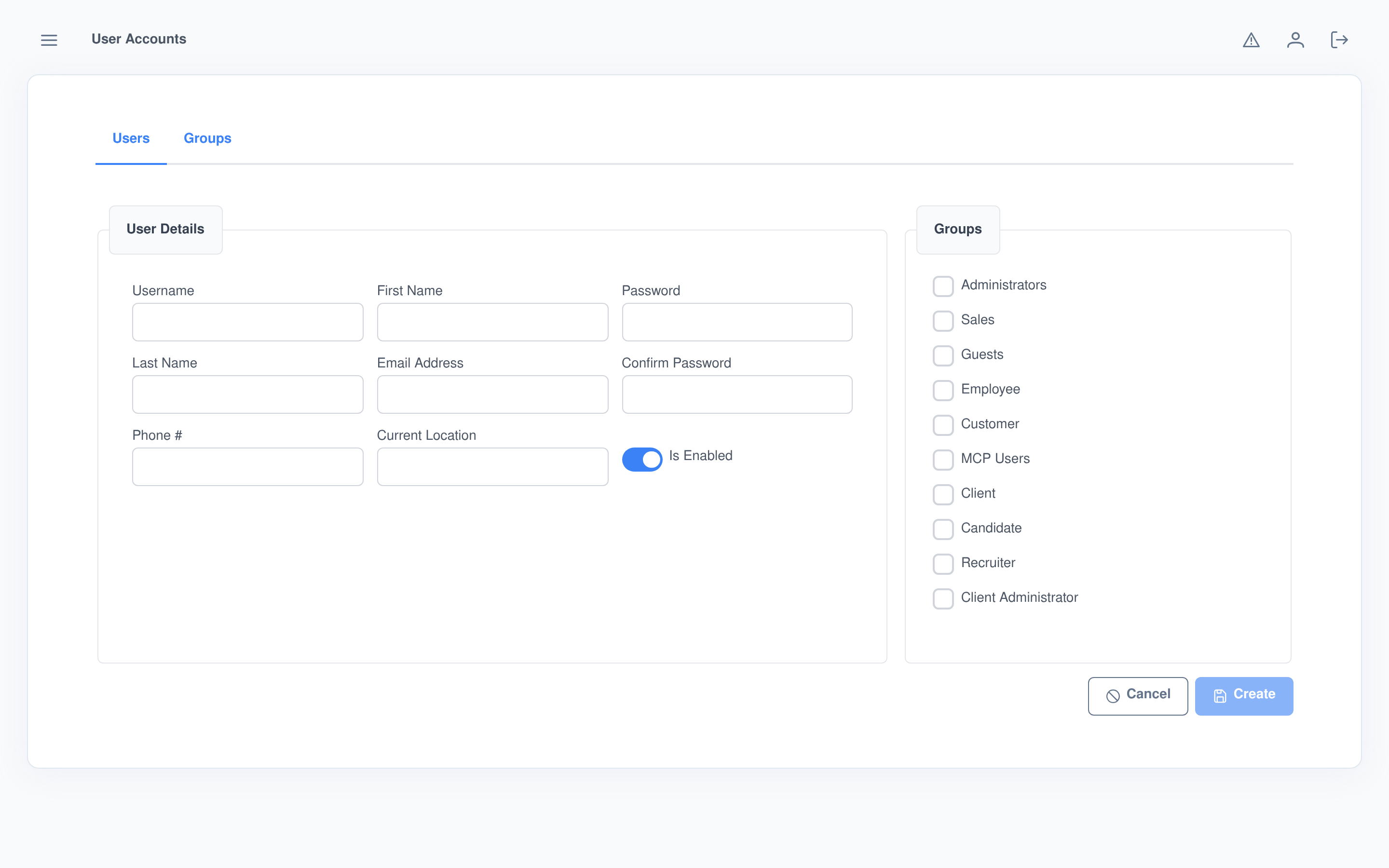
Username, name, one or more emails and phone numbers, a starting password. Save is blocked until the account is in at least one group.
2. Put it in a group
Every account belongs to one or more groups. Groups — not individual users — are where access is actually configured.
3. Grants combine
A user in two groups gets the union of what each group allows — models, applications, agent abilities, ACL permissions and quota, all at once.
Every account, in one screen
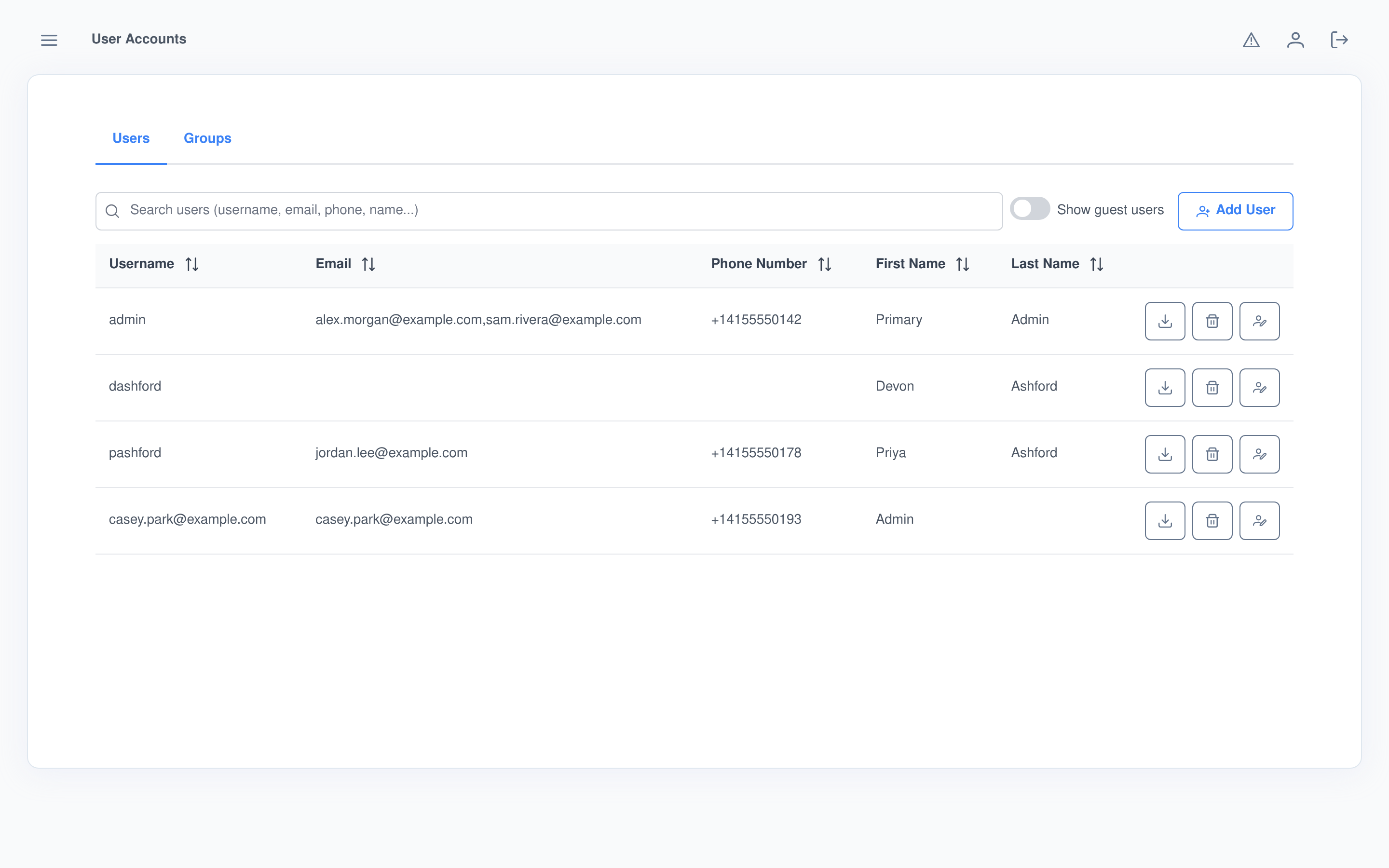
The Users tab lists every account with a live search across username, email, phone and name, and a toggle to show or hide guest accounts — the ones created automatically by self-service flows like public registration or a meeting-link booking, hidden by default so the working list stays to real staff and customers.
Account details
- Multiple contacts. An account can carry more than one email address and phone number, entered as chips.
- Enable / disable. A switch takes an account out of service without deleting it.
- Current location. A free-text field carried on the account record.
Built-in guardrails
- Server-enforced passwords. A minimum length and a confirm-match check run before any password is stored, hashed.
- Unique usernames. A duplicate username is rejected on create.
- Allowlisted writes. Every save is built from an explicit list of client-writable fields on the server, not the raw payload — a client can’t smuggle extra columns through.
Create or edit an account, and assign its groups, in one form
The same form handles both new and existing accounts. Creating a user asks for a starting password and confirmation; editing one leaves the password untouched unless a new one is typed. Group membership is a checkbox list of every group right in the form, not a separate screen.
- Save is disabled until the account has at least one group checked.
- Any other module installed on the instance can add its own fields or buttons to this exact form, without forking it.
Search, act, and audit from one list
Every row carries three actions: export, delete and reset password. Deleting an account clears it from the permission cache immediately. Resetting a password generates a random 16-character temporary password server-side — never one an admin types — marks it expired so the user must change it at next login, and revokes every session that account currently has open.
- Export builds a ZIP for that user — a JSON record, and optionally their stored files across their workspace and every conversation — as a one-time download link for an admin handling a data access request on the user’s behalf.
- All three actions are admin-only and confirmed before they run.
Groups model real business roles, not just read/write
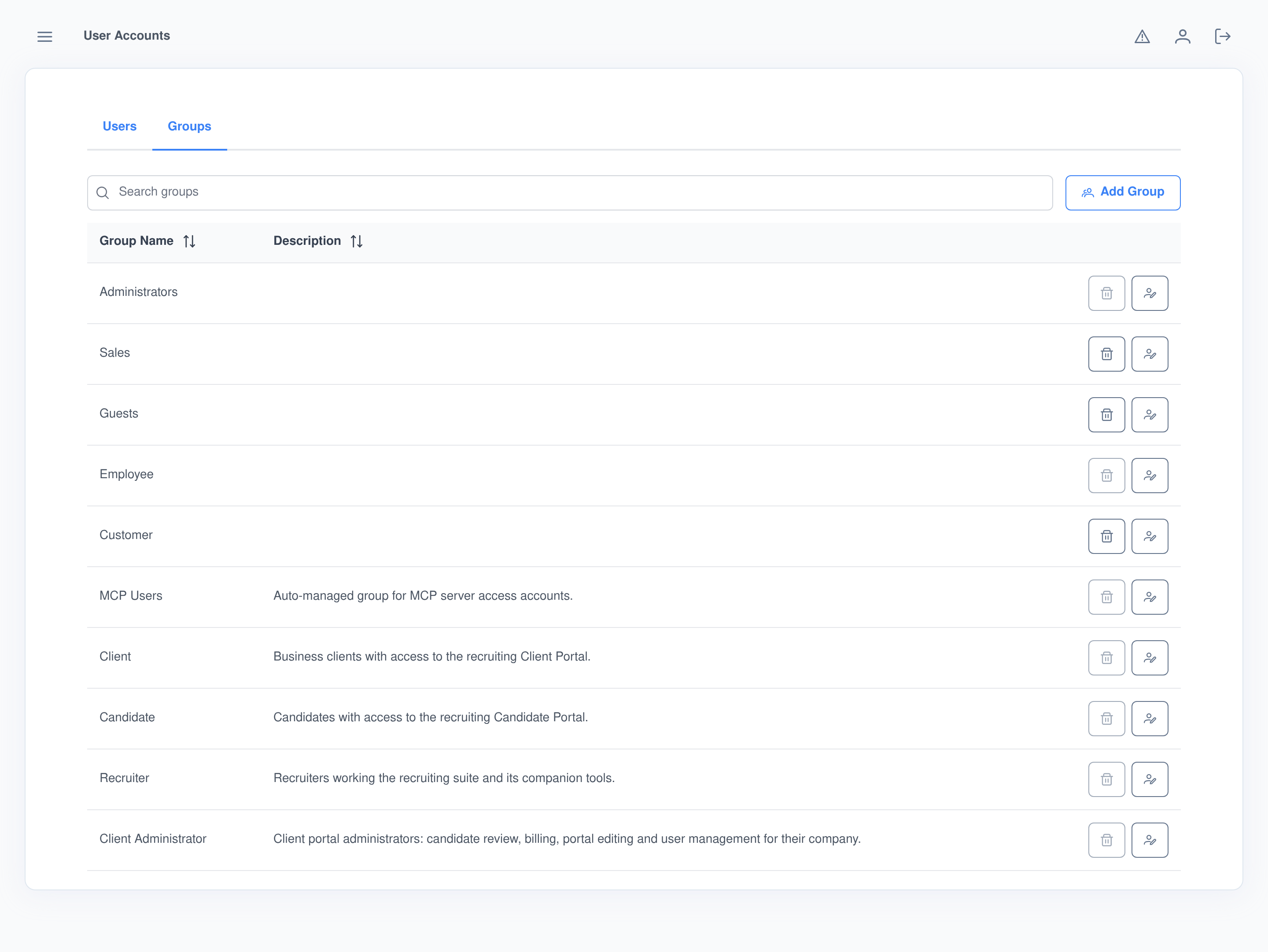
Because other installed modules register their own groups alongside the ones an admin creates, the Groups tab ends up listing actual roles for the business — a recruiting Client Portal group, a Candidate Portal group, an auto-managed group for MCP server access accounts — next to whatever custom groups an admin has added by hand.
- A group an admin creates can always be edited or deleted later.
- A system-owned group (one registered by a module) or the built-in admin group is protected: its delete button is disabled with an explanation, so it can’t be removed by accident.
One editor, four axes of control
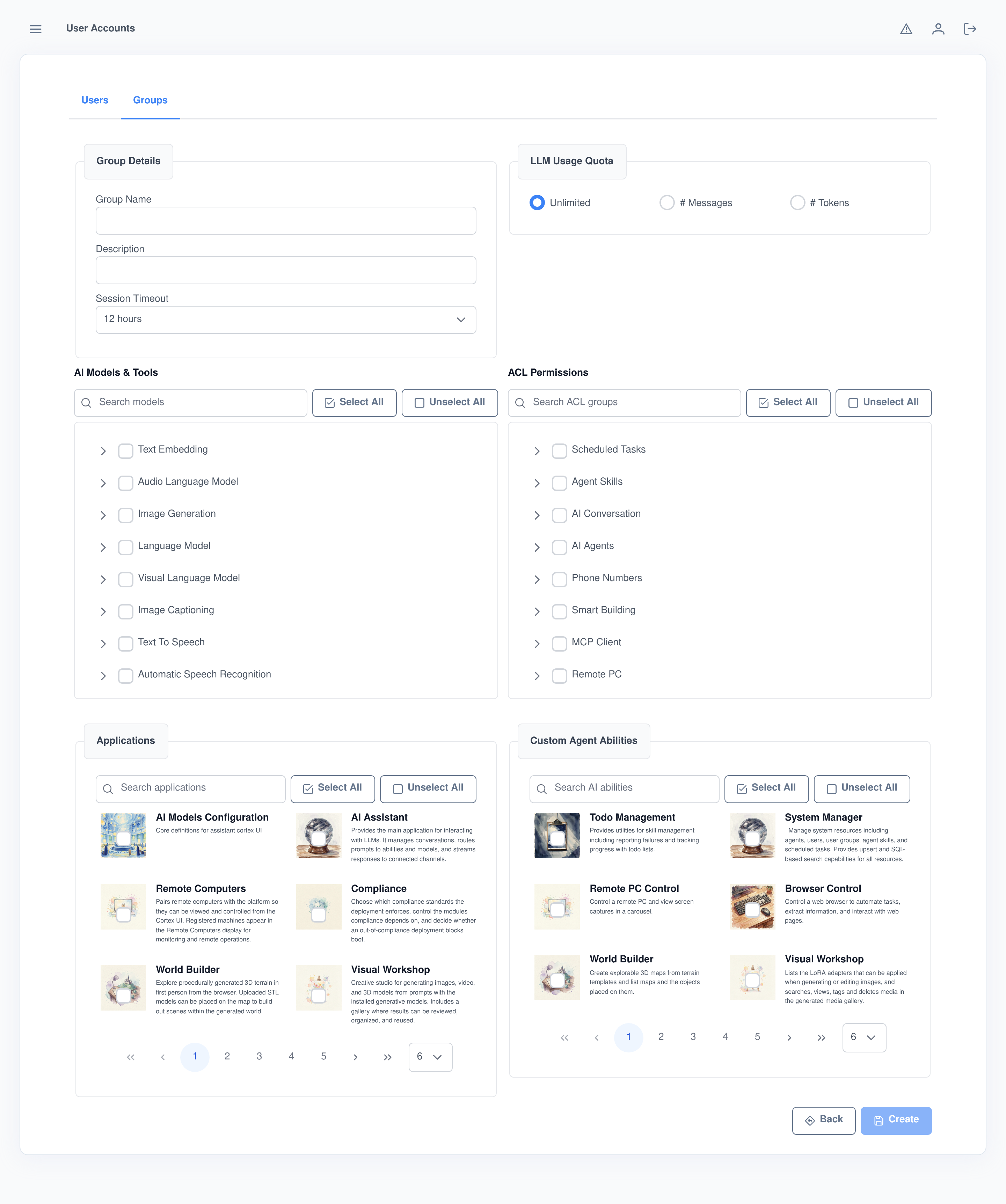
Every group is configured from a single screen: a searchable checkbox tree of every installed AI model (grouped by what it’s used for — language models, image generation, text-to-speech, embeddings and the rest), a searchable tree of ACL permissions, and paginated, searchable icon grids for both installed applications and custom-agent abilities. Select All / Unselect All works against whatever the current search has filtered down to, so granting “every image tool” doesn’t mean hunting them down one at a time.
Usage quotas and session limits, per group
LLM usage quota
- Unlimited by default; switch a group to a limit measured in messages or in tokens.
- Up to five quota rules per group, each with its own refresh interval (15 minutes up to 8 hours) and its own set of models it applies to.
Session timeout
- Set per group: 8 hours, 12 hours, 1 day, 2 days, 1 week, or never.
- A tighter timeout for a client-facing group, a longer one for internal staff — both live on the same instance.
A password reset that actually shuts an incident down
Most admin panels reset a password and stop there, leaving an already-open session live. This one doesn’t: the reset generates its own random password, forces a change at next login, and revokes every session that account currently holds, in the same action.
Who this runs for
Internal IT / platform admins
- Onboard and offboard staff without touching the database.
- Cap model spend per team with per-group quotas instead of one instance-wide limit.
- Run a data access request end to end from the same screen an account was created in.
Module and application owners
- Register a group of your own from a module (a client portal, a candidate portal, an MCP access group) and it shows up here alongside every other group, protected from accidental deletion.
- Extend the Users and Groups screens with your own fields, buttons or panels via the platform’s injection points, without forking the screen.
Frequently asked questions
What’s the difference between a user and a group?
A user is an individual account. A group is where access is actually configured — models, applications, agent abilities, ACL permissions, session timeout and usage quota. A user can belong to more than one group, and their grants are the union of every group they’re in.
Can I create my own groups, or is it limited to the defaults?
Yes, create as many as needed from Add Group. Anything created through the UI can always be edited or deleted later. Only groups a module registers itself, or the built-in admin group, are protected from deletion.
What actually happens when I reset a password?
The server generates a random 16-character temporary password, marks it expired so the user has to set a real one at next login, and revokes every session that account currently has open — the same action closes out an attacker who was already logged in.
Can I limit how much a group can use the AI models?
Yes. Each group can carry an LLM usage quota measured in messages or tokens, with up to five rules, each on its own refresh interval and scoped to a specific set of models.
Can an admin export a user’s data?
Yes. An admin can build a ZIP export for any user — a JSON record of their data, and optionally their stored files across their workspace and conversations — delivered as a one-time download link, for handling a data access request on that user’s behalf.
Why don’t guest accounts show up in the list?
They’re hidden by default behind a “Show guest users” toggle. Guest accounts are typically created automatically by self-service flows — public registration or a meeting-link booking — so hiding them keeps the working list to real staff and customers.
Set up your first group in minutes
User Management ships with every Assistant Cortex instance — no separate identity product to stand up.